A Private Digital Picture Frame App: Photo Frame 0.9.3
Turn an iPad or Android tablet into a digital picture frame. Your photos go from your phone to the frame over your own Wi-Fi, and never through the cloud.
Keep CodeInFaith in your Google feed
Add us as a preferred source to see more of our latest articles in Google Search.
If you are shopping for a digital picture frame, you have probably noticed the fine print. Many frames want you to create an account, install a companion app and upload your family photos to the company’s servers before a single picture shows up. Some also charge a monthly fee for extra features.
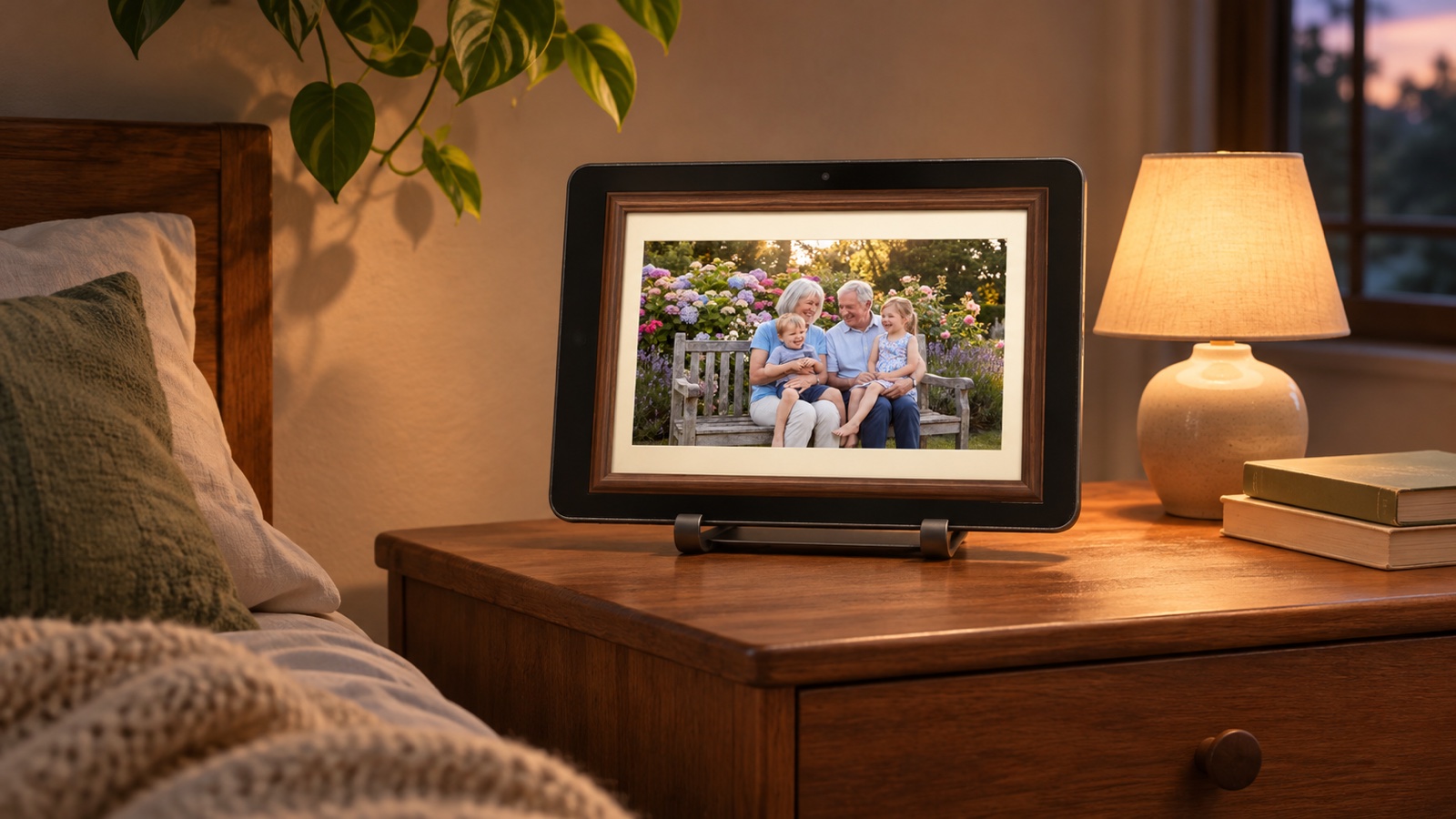
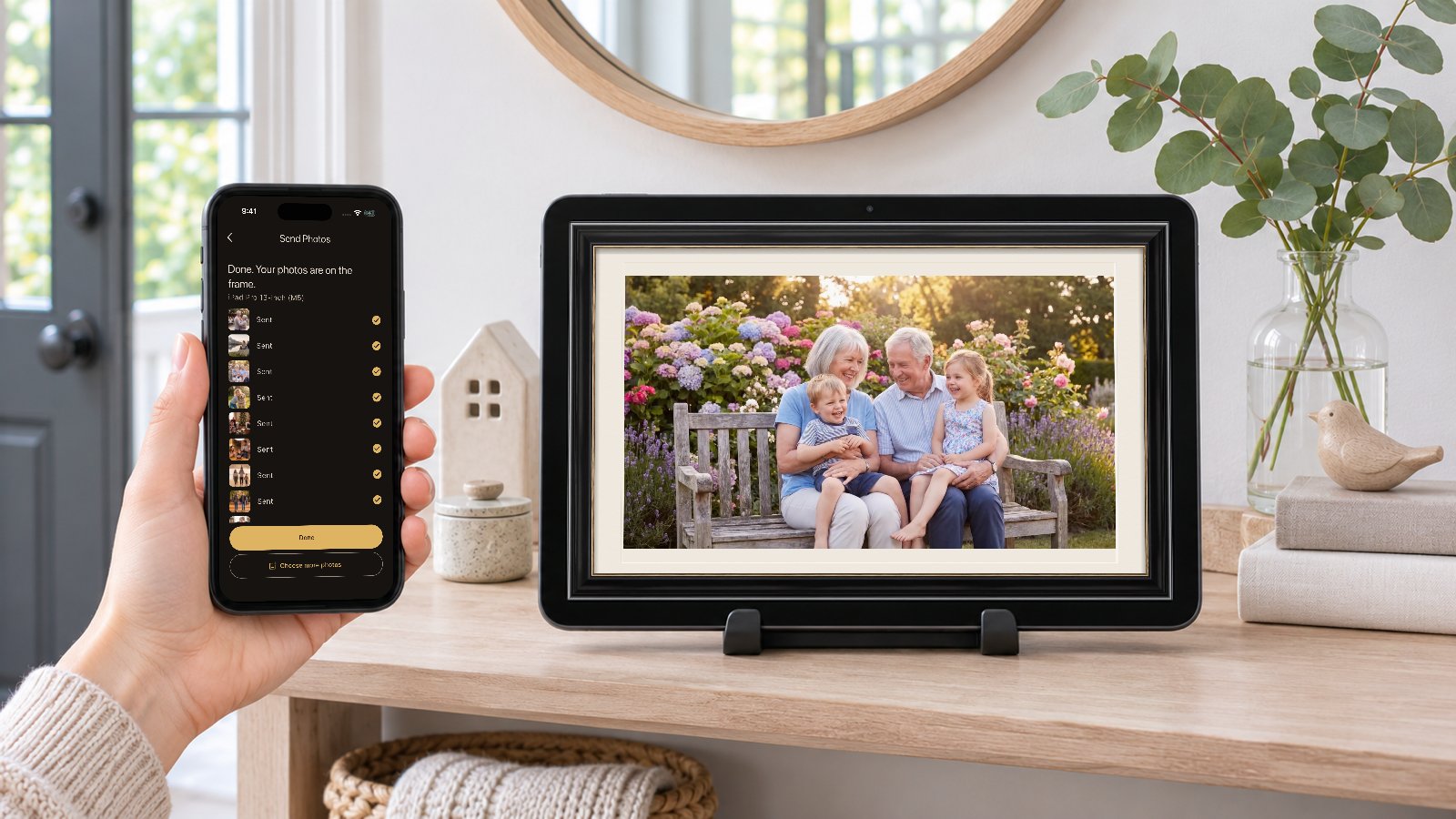
Photo Frame for Tablet takes a different path. It turns an iPad or Android tablet you already own into a digital picture frame, and your photos go straight from your phone to the frame over your own Wi-Fi. No account, no cloud, no subscription.
It doesn’t have to be a spare tablet, either. The iPad or Android tablet you use every day can be a digital picture frame while it charges: open Photo Frame when you plug it in on the kitchen counter, desk or nightstand, and pick the tablet back up whenever you need it.
Version 0.9.3 makes sending photos even easier, and adds videos and a way to hide photos without deleting them.
What’s new in Photo Frame 0.9.3
- Send without a QR code. Pair a phone once. After that, it sends to the frame in a couple of taps.
- Videos in the slideshow (Pro). Clips up to 5 minutes play between your photos. Trim longer videos to the part you want.
- Hide photos without deleting them. Take a photo out of the slideshow for now, and bring it back later.
- Android 17 support. Send Photos now asks for Android 17’s local network access, so phones can find the frame.
How to send photos from your phone to the frame
Photo Frame is one app for both devices. Install it on the tablet that will be your frame and on your phone.
The first time: scan once
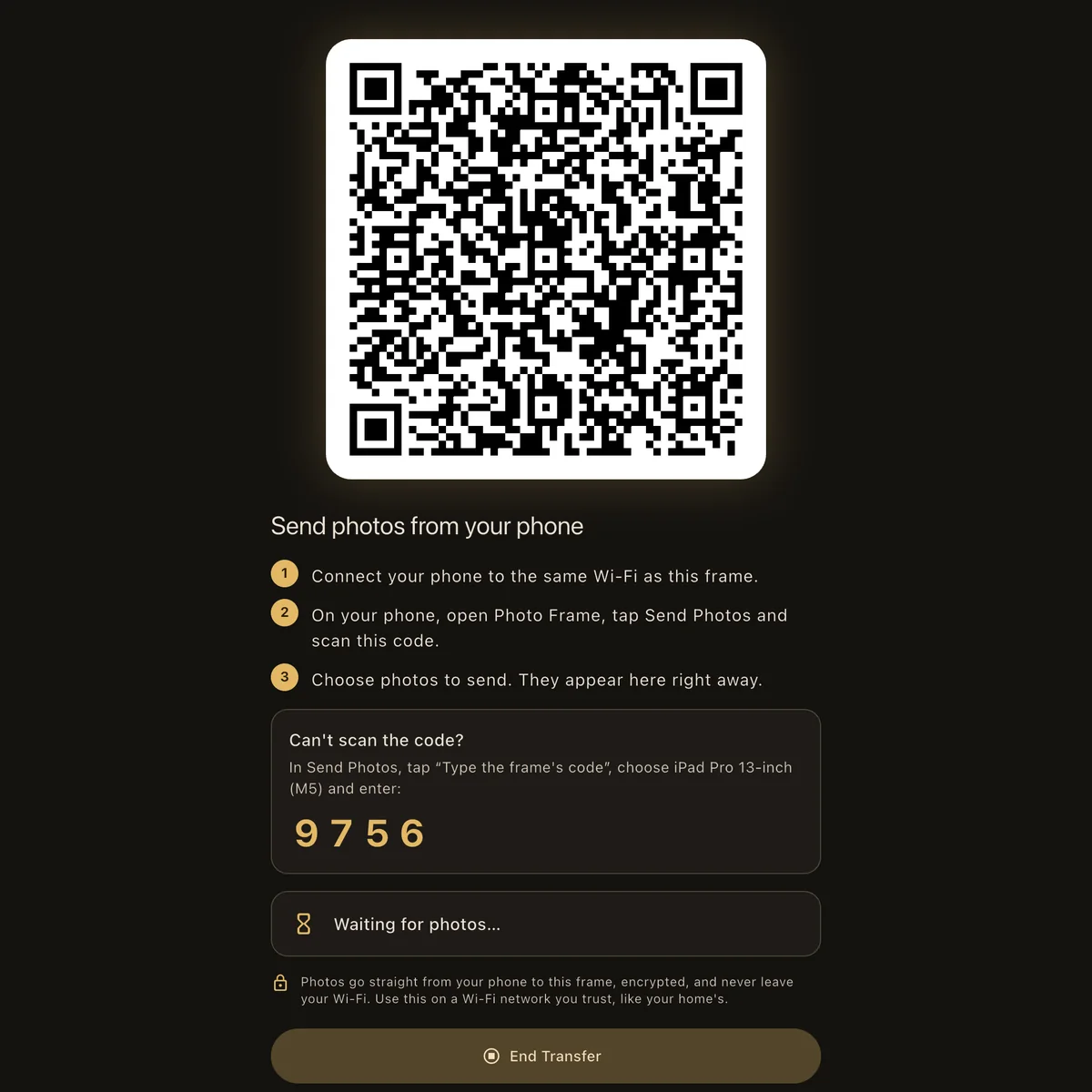
- On the frame, tap Receive Photos. A QR code appears.
- On your phone, open Photo Frame, tap Send Photos and scan the code.
- Choose photos. They show up on the frame right away.
Can’t scan the code? Tap Type the frame’s code instead and enter the 4-digit code shown under the QR code.
Every time after: just tap Send Photos
Your phone now remembers the frame, and the frame remembers your phone. While Photo Frame is open on the frame and both devices are on the same Wi-Fi:
- On your phone, tap Send Photos. Your phone finds the frame and connects on its own. If you have more than one frame, pick the one you want.
- Tap Choose photos and pick your photos.
That’s it. You don’t need to walk over to the frame, tap Receive Photos or scan anything. The frame shows Receiving photos from your phone’s name, and the new photos join the slideshow.
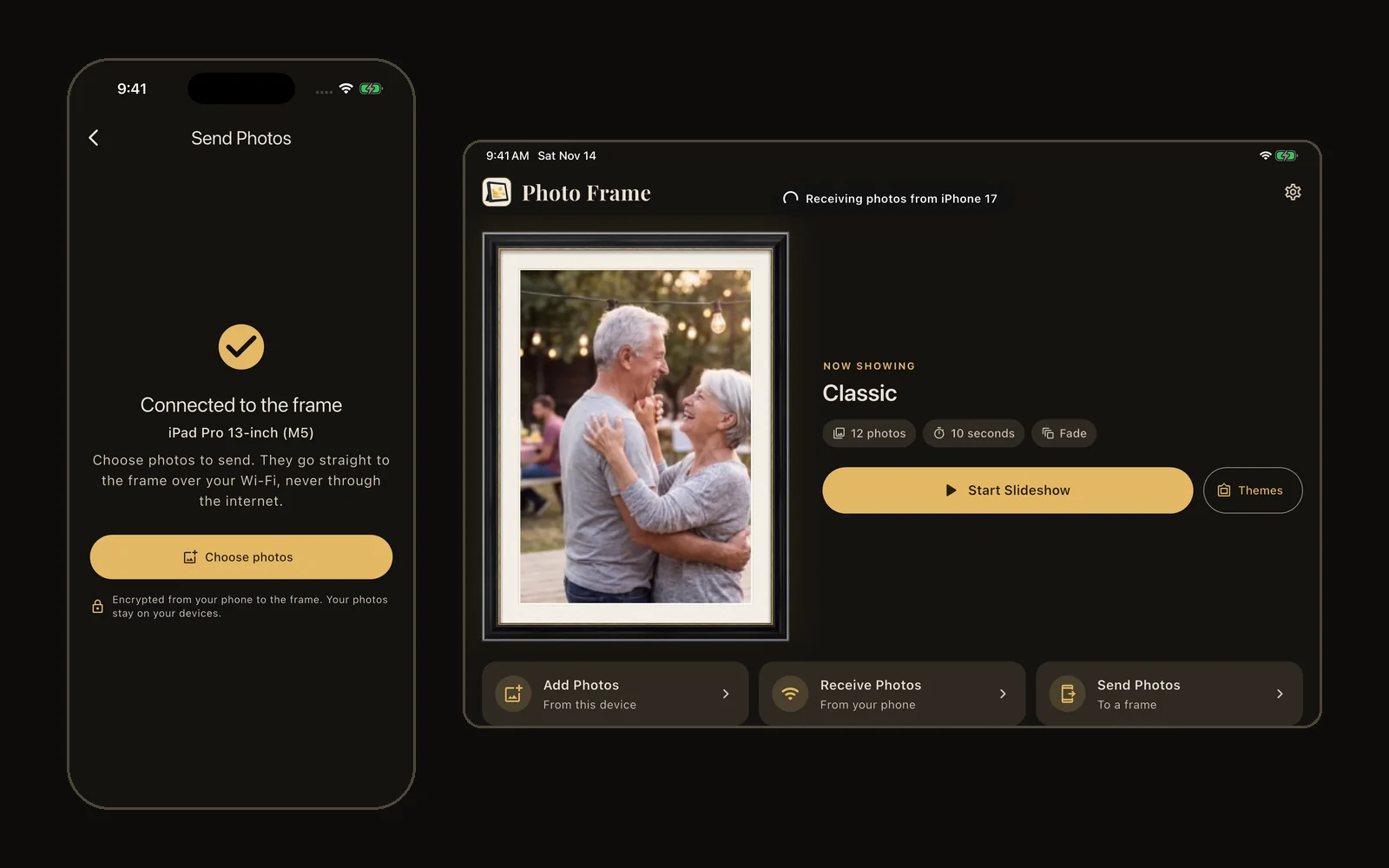
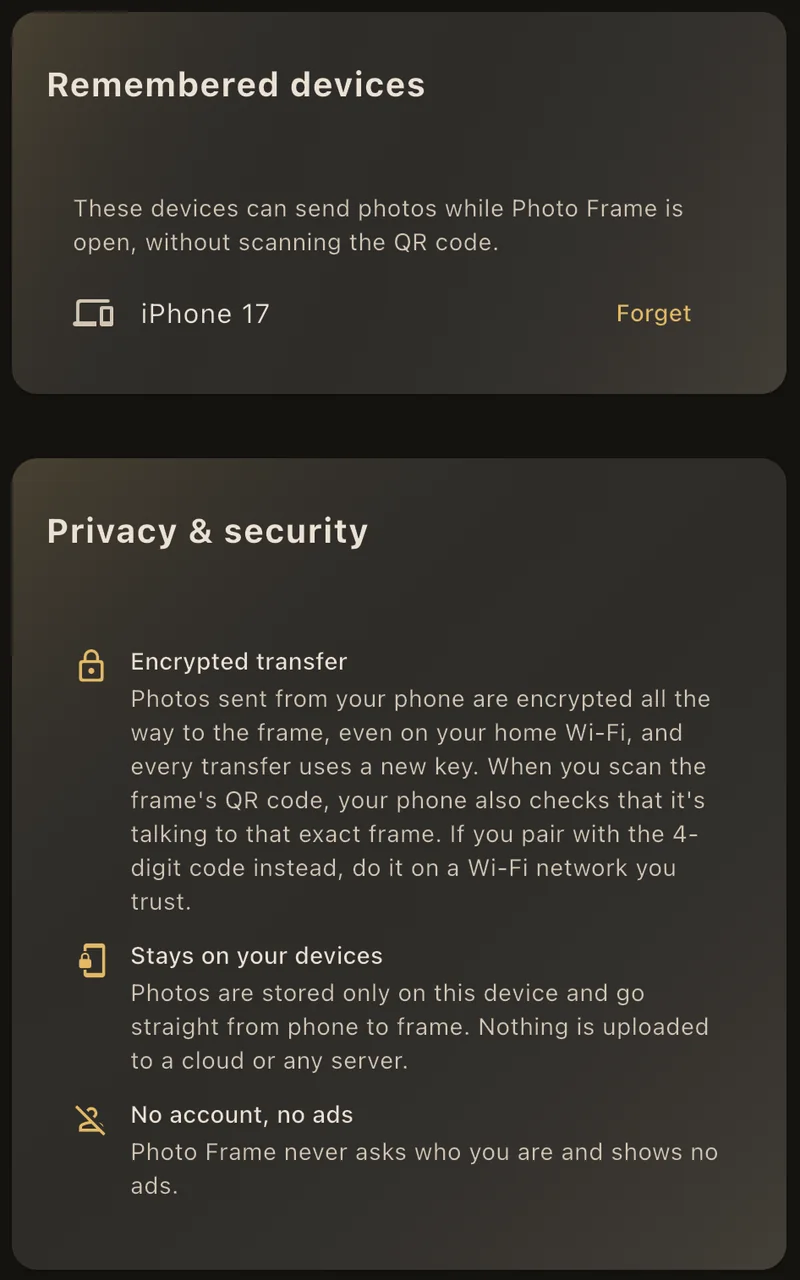
Only phones you paired on purpose, by scanning the code or typing it on the frame, can send without a code. To stop a phone from sending, open Settings on the frame and tap Forget next to it under Remembered devices.
Why we made Photo Frame local only
Family photos are some of the most personal things on your phone: your kids, your parents, your home, the places you go. We didn’t think a picture frame needed to send any of that to us, or to anyone else.
So we built Photo Frame without a cloud:
- Your photos never leave your Wi-Fi. They go directly from your phone to the frame, not through the internet or any CodeInFaith server.
- Every transfer is encrypted, even on your home Wi-Fi, with a new key each time. When you scan the frame’s code, your phone also checks that it is sending to that exact frame.
- No account. There is no username, password or email address to leak, and nothing to sign in to.
- No third-party ads, and no advertising identifier.
- Your frame keeps working without us. Photos are stored inside the app on your devices, so there is no online service that has to stay up, and no subscription that has to stay paid.
There is one trade-off, and we chose it on purpose: Photo Frame can’t send photos from across the country. To add photos, the phone has to be on the same Wi-Fi as the frame. When family visits, they can join your Wi-Fi, tap Send Photos and leave their favorites behind.
You can read the same promises in the app, under Privacy & security in Settings, and in full in the Photo Frame privacy policy.
Videos in your slideshow
With Photo Frame Pro, videos up to 5 minutes play right in the slideshow, between your photos. They play muted unless you turn on Play sound in Settings, and you can choose how long each video plays: 15 seconds, 30 seconds, a minute, or the whole video.
Got a longer video? Drag the ends of the timeline to choose the part to keep. You can also trim a video that’s already on the frame from Manage.

Videos are part of Photo Frame Pro, along with the premium frames, Smart Framing and Night Mode.
Hide photos without deleting them
Christmas photos in July? Want to rest a photo for a while? Under Your photos, tap the eye on a photo to hide it from the slideshow. It stays on the frame, greyed out, and you can tap the eye again to bring it back. The count shows how many photos are in the slideshow, like 7 of 9.
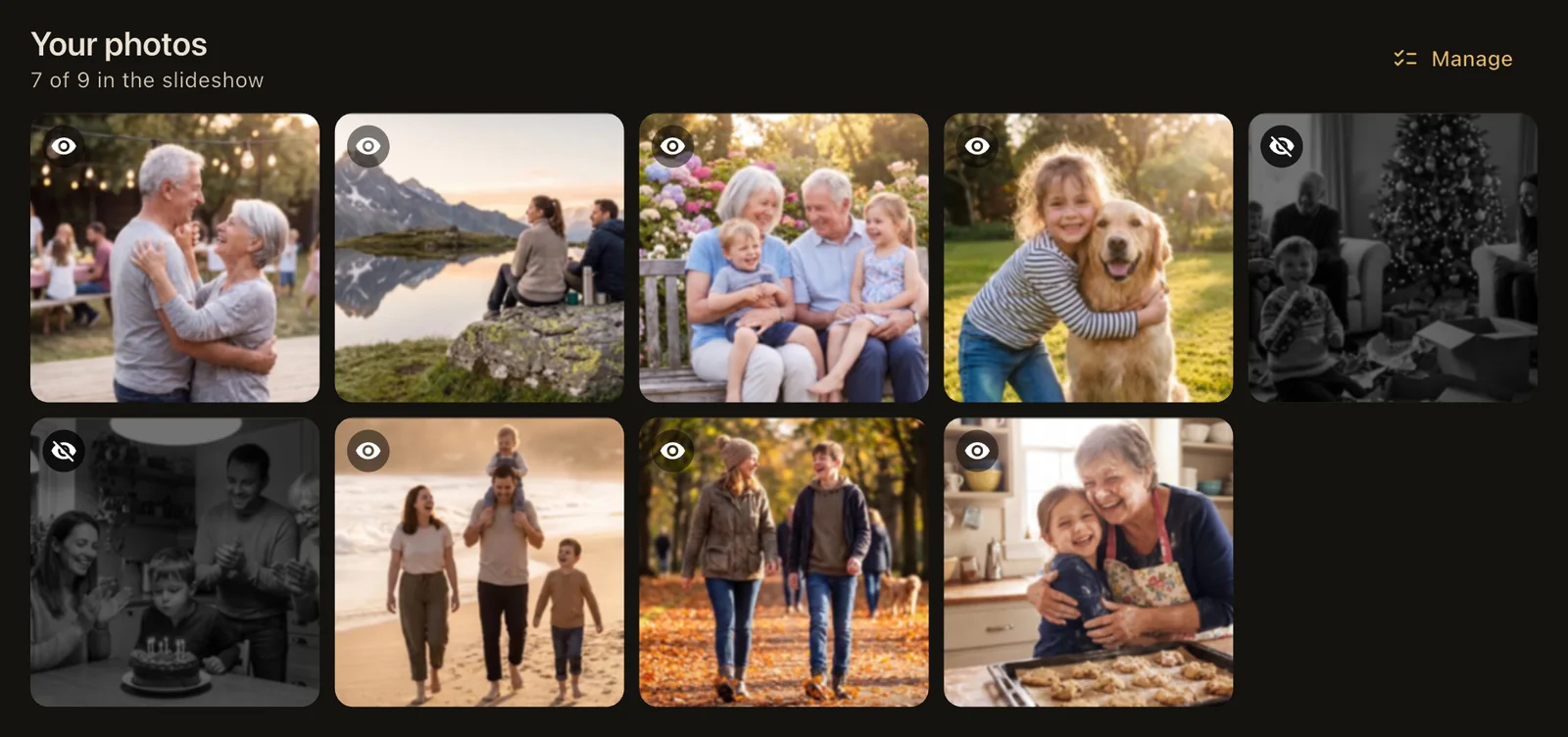
To delete or trim, tap Manage, tap photos to select them, and use the buttons at the bottom.
A tablet vs. a store-bought digital picture frame
| Store-bought cloud frame | Tablet with Photo Frame | |
|---|---|---|
| Cost | Buy new hardware | Use a tablet you already own |
| Account | Usually required | None |
| Where photos go | Uploaded to the maker’s cloud | Phone to frame over your Wi-Fi |
| Subscription | Often, for extra features | None. Pro is a one-time purchase |
| Screen | Usually 8 to 10 inches | Up to 13 inches on an iPad Pro |
| Videos | Some models | Yes, with Pro |
If you want family far away to send photos straight to your frame over the internet, a cloud frame does that, and Photo Frame doesn’t. If you want your photos to stay in your home, a tablet with Photo Frame is the private choice.
Everything else Photo Frame does
- Frames for every room: Wood, Gallery, Polaroid, Elegant, Barnwood, Brass, Shadow Box and more, plus holiday frames with falling snow, confetti, hearts and leaves.
- Smart Framing (Pro) keeps faces in the picture when a tall photo fills a wide screen. Faces are found on your device.
- Night Mode (Pro) dims the frame during the night hours you choose.
- A slideshow you set once: full screen, the screen stays awake, shuffle or in order, 5 seconds to 1 minute per photo, and transitions from a simple Fade to Ken Burns and Page Turn.
Photo Frame is free to use. Photo Frame Pro is a one-time purchase that unlocks every premium frame and transition, Smart Framing, Night Mode and videos.
Turn your tablet into a photo frame while it charges
Plug in the tablet you already use, open Photo Frame, and your family photos fill the screen while it charges on the kitchen counter, desk or nightstand. Install Photo Frame on your phone too, and send a few favorite photos. When you need the tablet, just pick it up. Your photos are still there the next time it charges.
See all the frames on the Photo Frame page.
Questions, or an idea for a new frame? Email us at [email protected].
Frequently asked questions
Can I use an iPad or Android tablet as a digital picture frame?
Yes. Install Photo Frame for Tablet on the iPad or Android tablet, add photos, pick a frame and start the slideshow. Keep the tablet plugged in and the screen stays on while the slideshow runs.
Can I use the tablet I use every day, or does it have to be a spare one?
You can use the one you use every day. Open Photo Frame while the tablet charges, and it becomes a digital picture frame on your counter, desk or nightstand. When you need the tablet, pick it up and use it as usual. Your photos stay in the app for next time.
How do I send photos from my phone to the frame?
Install Photo Frame on your phone too. The first time, tap Receive Photos on the frame, then tap Send Photos on your phone and scan the QR code. After that, your phone remembers the frame: while Photo Frame is open on the frame and both devices are on the same Wi-Fi, just tap Send Photos and choose photos.
Are my photos uploaded to the cloud?
No. Photos go straight from your phone to the frame over your local Wi-Fi, encrypted with a new key each time. They are stored only inside the app on your devices and never uploaded to CodeInFaith or any cloud service.
Can family members send photos from another house?
Not over the internet. Photo Frame only sends over the Wi-Fi network the frame is on. That is on purpose: it is what keeps your photos off the cloud. A visiting family member can join your Wi-Fi and send photos in a few taps.
Do I need an account or a subscription?
No account is needed. Photo Frame is free to use, and Photo Frame Pro is a one-time purchase, not a subscription.
Can the frame play videos?
Yes, with Photo Frame Pro. Videos up to 5 minutes play in the slideshow, muted unless you turn sound on. You can trim a longer video to the part you want to keep.