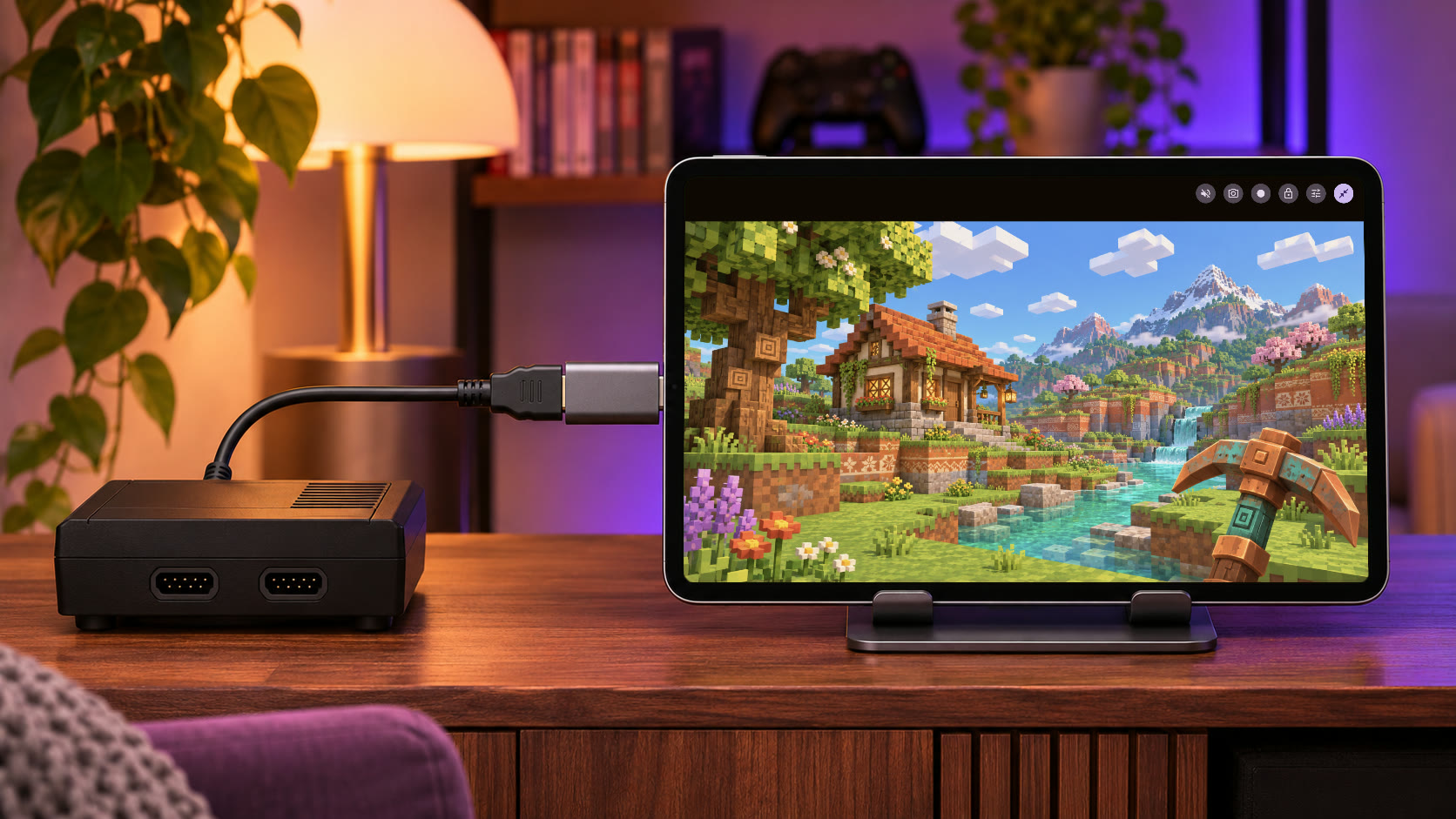
Record HDMI Video Right in the App: HDMI Monitor Now Records Your Capture Card
HDMI Monitor Pro can now record the picture and sound from your capture card straight to your gallery. No screen recorder, no app buttons in the shot.
Keep CodeInFaith in your Google feed
Add us as a preferred source to see more of our latest articles in Google Search.
A few weeks ago we wrote about how to record console gameplay without a PC: plug a console into a capture card, show it in HDMI Monitor, and start your phone or tablet’s screen recorder.
That still works. But a screen recorder saves your screen, not your HDMI signal. You get whatever resolution your display runs at, the app’s controls if they’re showing, and a notification if one pops up halfway through your best run. Game sound is also hit or miss, depending on the device.
So we built recording into the app. HDMI Monitor Pro can now record HDMI video directly, picture and sound, straight from your capture card to your gallery.
What’s New
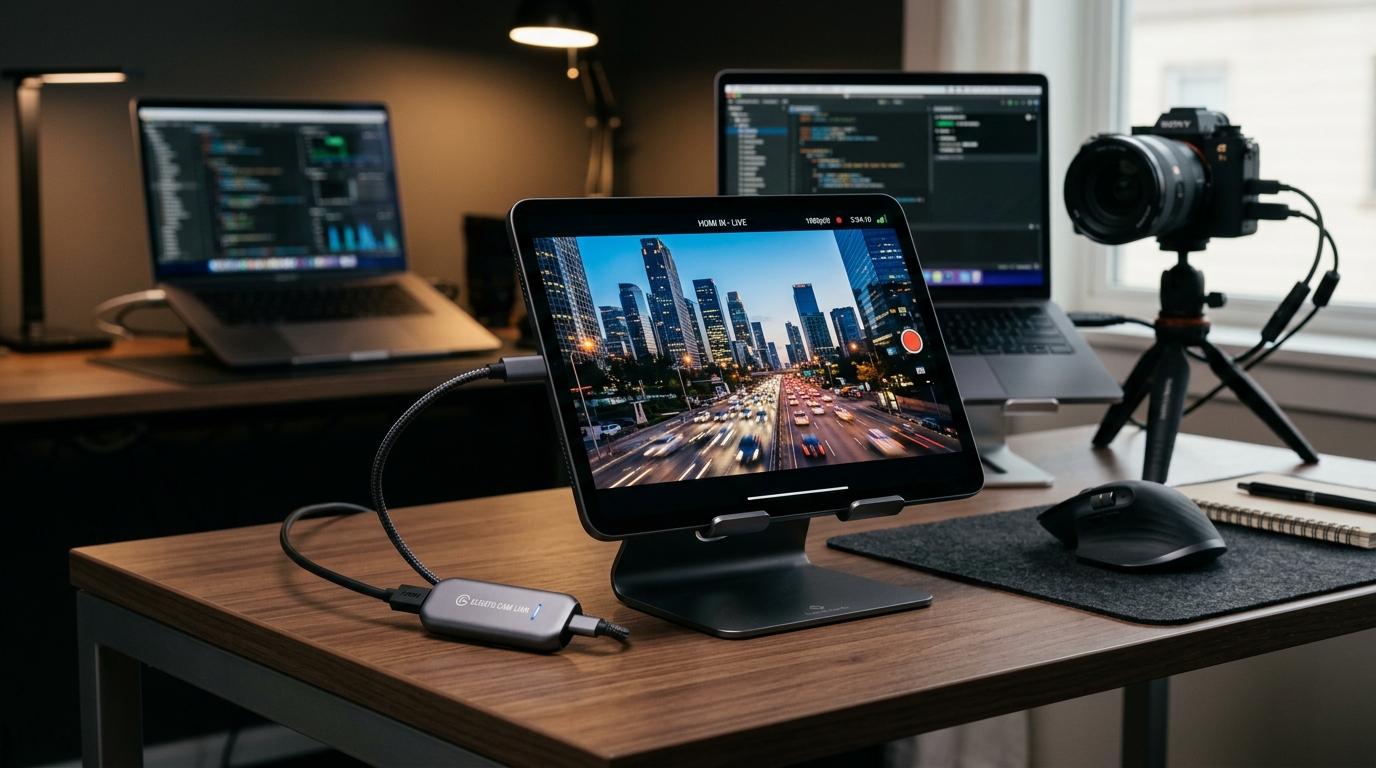
In fullscreen, HDMI Monitor now has a Record video button next to the snapshot button. Tap it and the app starts saving what your capture card sends:
- The picture from your capture card. The video is made from the frames the capture card delivers, at the video mode it’s running, not a copy of your screen. The app’s buttons, the recording timer, and anything else on your display stay out of it.
- The HDMI sound. If HDMI audio is on in the app when you start, the sound goes into the video, even if you’ve muted the speaker.
- Saved to your photo library. When you stop, the video goes to your gallery on Android or Photos on iPad and iPhone, ready to trim, share, or upload.
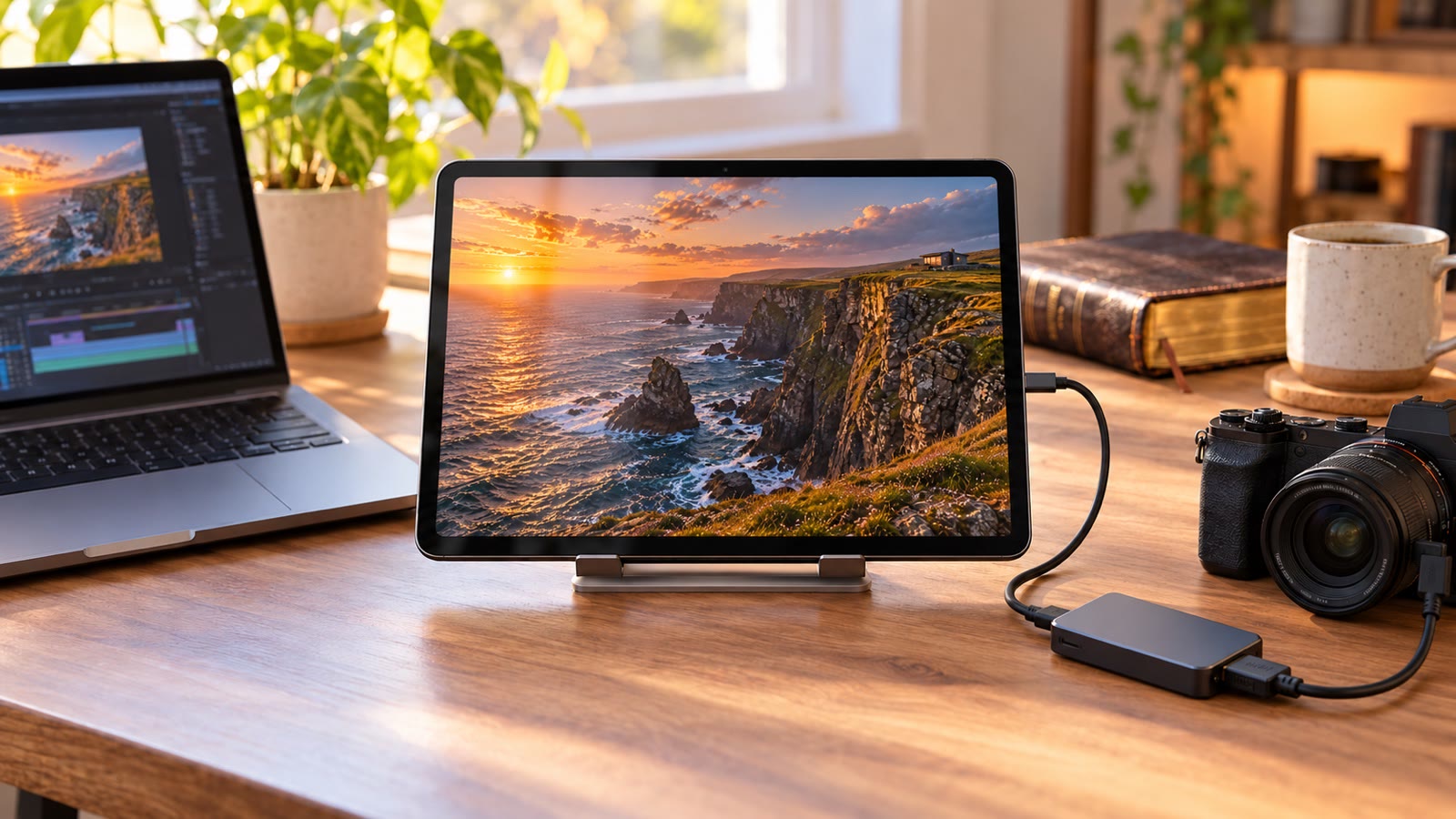
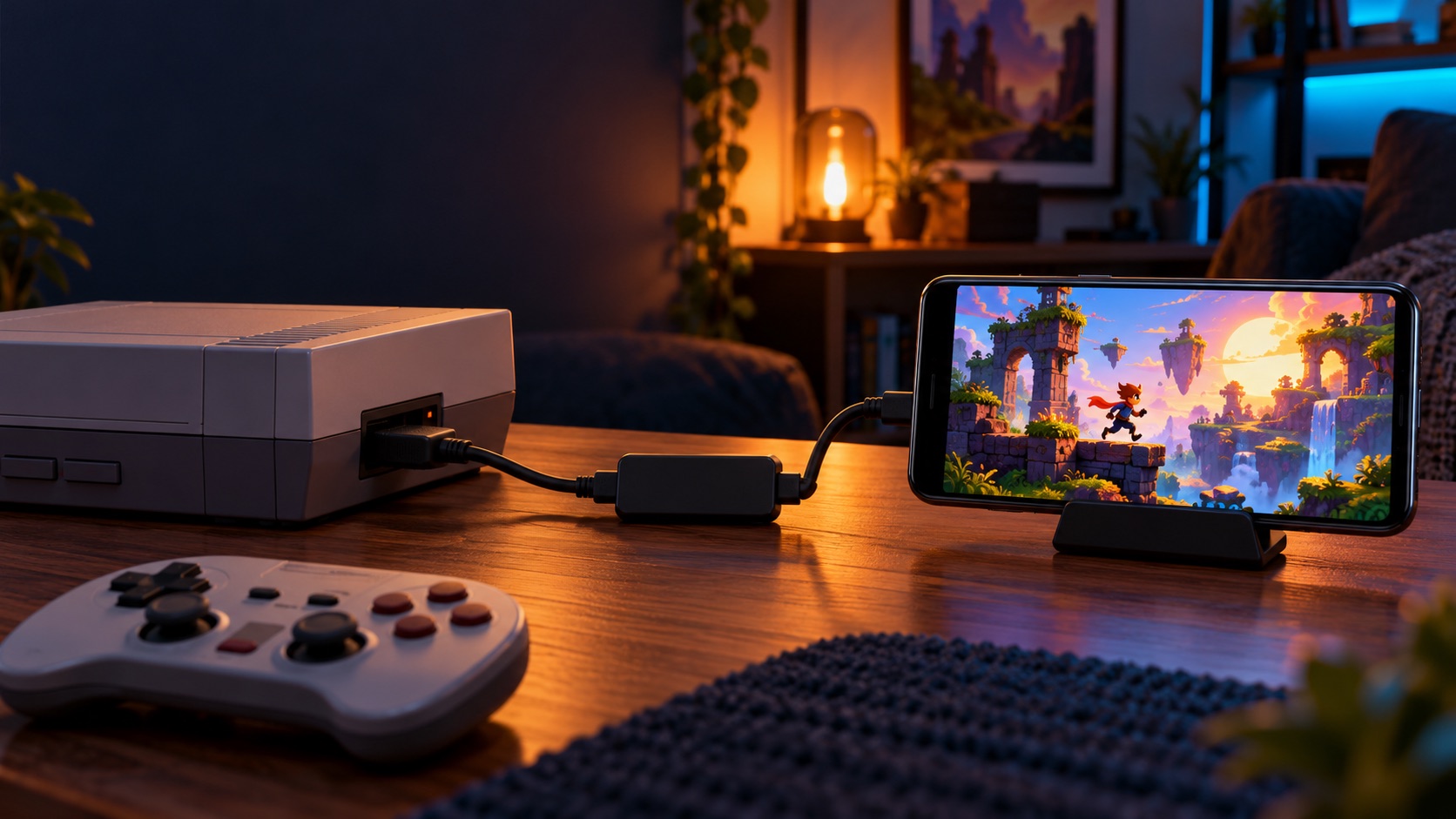
It works with anything you can plug into a UVC capture card: game consoles, retro systems, a camera, a laptop, or a mini PC.
Why Record in the App Instead of the Screen Recorder
| Device screen recorder | HDMI Monitor recording | |
|---|---|---|
| What gets saved | Your whole screen | Only the HDMI picture |
| App buttons and notifications | Can end up in the video | Never in the video |
| Resolution | Your screen’s resolution | The capture card’s video mode |
| HDMI sound | Depends on the device and recorder settings | Recorded when HDMI audio is on in the app |
| Setup | Find and configure the recorder | One button in fullscreen |
The screen recorder still has one use: it captures exactly what you see. If you want Retro Game Mode’s CRT filter or your brightness and contrast tweaks in the video, keep using the method from our earlier guide. In-app recording saves the clean signal.
How to Record HDMI Video With HDMI Monitor
What you need
- An Android phone or tablet with USB host (OTG) support, or a USB-C iPad running iPadOS 17 or later. The app also installs on USB-C iPhones, but compatibility varies.
- A UVC HDMI capture card. Here are the ones we use.
- An HDMI cable from your source to the capture card.
- HDMI Monitor with Pro unlocked.
Step 1: Connect and start the signal
Plug your source into the capture card, plug the capture card into your device, and open HDMI Monitor. Tap Scan Device, then Start.
If you want sound in your recording, set your source to send audio over HDMI and make sure HDMI audio is running in the app before you press Record. Sound that starts after you press Record isn’t added to that video. HDMI Monitor asks for microphone access, because your phone or tablet treats capture card audio as a microphone input. That permission lets HDMI Monitor play and record the HDMI sound. It does not record you.
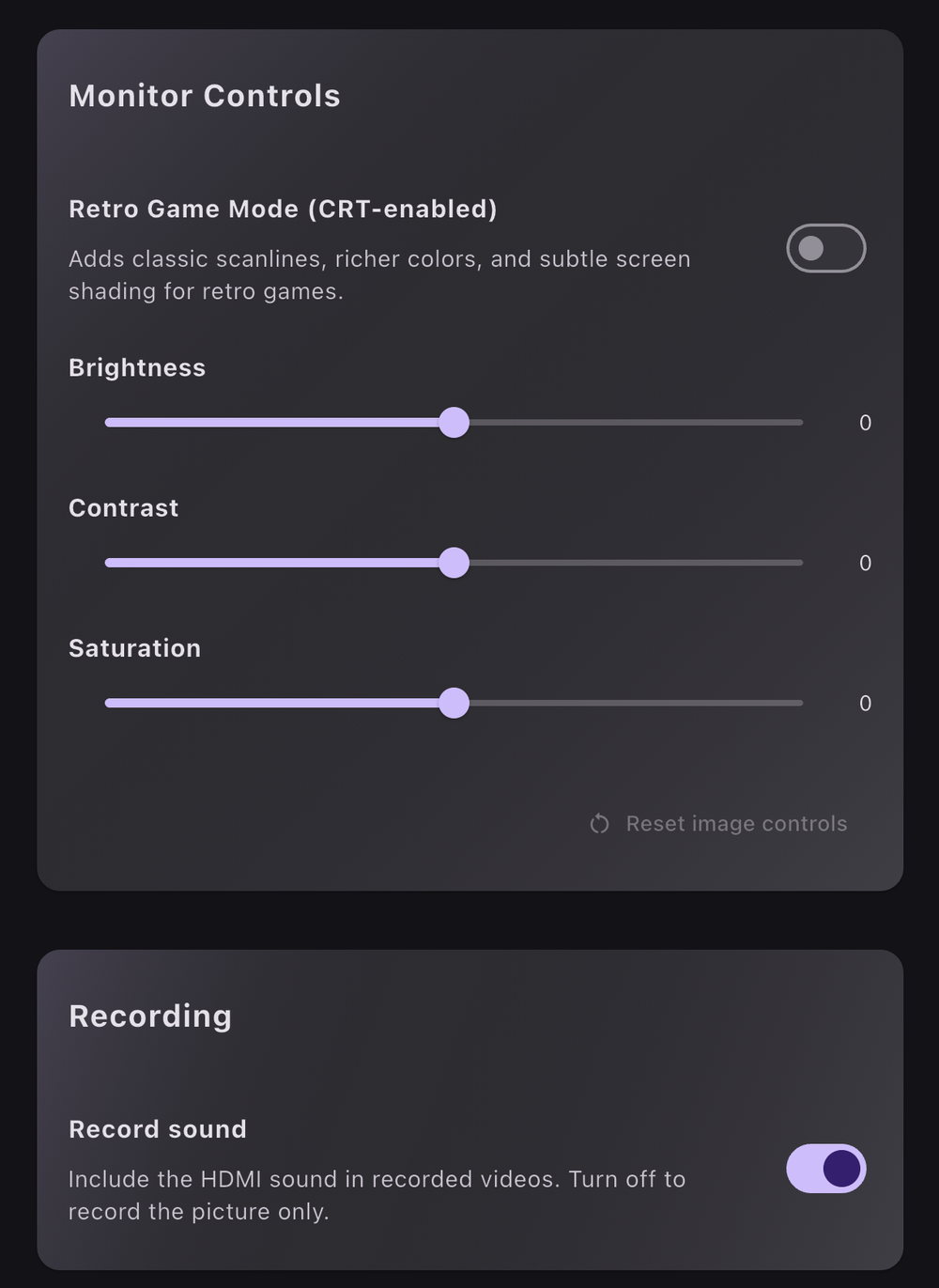
Step 2: Check the Record sound setting
Open Settings and find the Recording section. Record sound is on by default. Turn it off if you only want the picture, for example when you plan to add your own voiceover or music later.
Step 3: Tap Record
Go fullscreen, tap the screen to show the controls, and tap Record video, the round white button.
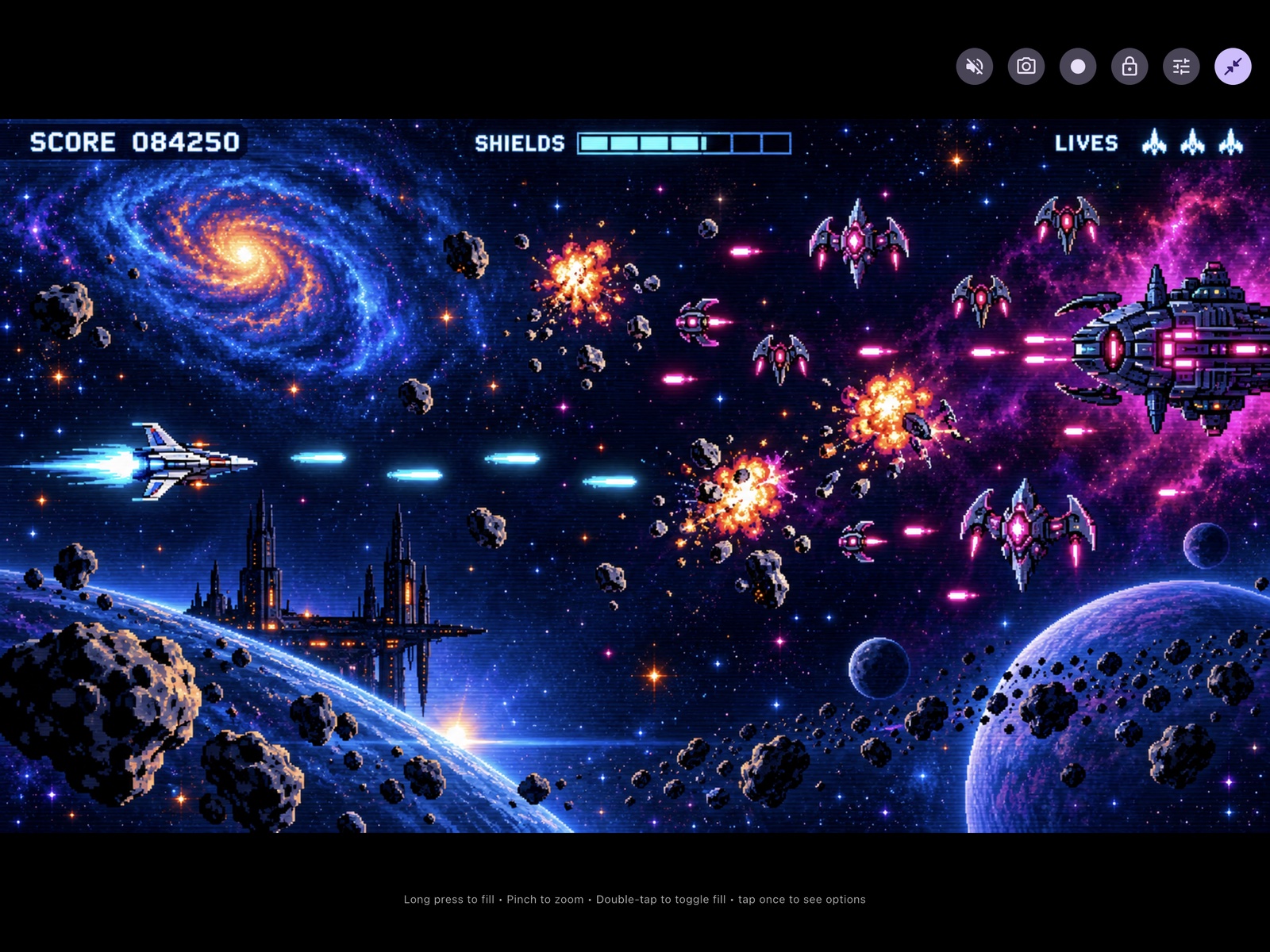
While you record, a small pill with a red dot shows the elapsed time, and the Record button turns into a red stop button. If the pill shows a muted speaker, the video is being recorded without sound: either Record sound is off or HDMI audio wasn’t running when you pressed Record. Check for it right after you start a long session.
Step 4: Stop and find your video
Tap the stop button. The pill reads Saving video… for a moment, then you’ll see Video saved to Photos. If HDMI Monitor doesn’t have access to your photo library yet, it asks for it at this point. Open your gallery or Photos app and the video is there.
[!TIP] Make a short test recording first. Play it back and check the picture, the sound, and the sync before you record a full session.
Good to Know
Recording stops when the monitor stops. Leaving fullscreen, unplugging the capture card, using Safe Eject, switching Video Quality, switching to another app, or a signal error ends the recording. On iPad and iPhone, opening Control Center does too. HDMI Monitor still saves what it captured up to that point, but the Video saved to Photos message only appears if you’re still in fullscreen. Pro’s Stay Awake in Fullscreen setting keeps your screen from turning off during long recordings.
Videos that can’t be saved aren’t lost. If HDMI Monitor can’t reach your photo library, for example because access was turned off or your device is out of space, it keeps the video inside the app and shows a Try Again button for about 30 seconds. Fix the cause and tap it. If the button is gone or you close the app, HDMI Monitor offers the waiting videos again the next time you open it.
Rotation and flip work differently on iPad. On Android, the video uses the Rotation and Flip settings that were active when you pressed Record. On iPad and iPhone, the video keeps the capture card’s own orientation, and those settings aren’t applied.
Video files take up space. There’s no time limit on a recording, so keep an eye on your free storage before a long session. Capturing and recording at the same time also uses a lot of battery. A capture card with USB-C PD pass-through lets you charge while you play, as long as your device and charger support it.
Protected video still won’t show up. Recording can only save what HDMI Monitor can display. Sources that use HDCP copy protection, such as the PlayStation 3, Blu-ray players, and many streaming apps, usually won’t appear at all. On a PS4 or PS5, turn off HDCP in the console’s settings first.
Recording is part of Pro. Free users can still view their HDMI source for a set amount of fullscreen time each day. Pro is a one-time purchase that adds recording, snapshots, unlimited monitor time, Retro Game Mode, picture adjustments, and Stay Awake in Fullscreen.
Get the Update
Recording is available in HDMI Monitor 1.8.0 on Google Play and the App Store. Update the app, plug in your capture card, and press Record.
Frequently asked questions
Can HDMI Monitor record video now?
Yes. Starting with version 1.8.0, HDMI Monitor Pro has a Record button in fullscreen. It saves the picture from your capture card, with its HDMI sound, to your photo library.
Is recording free?
Recording is a Pro feature. Pro is a one-time purchase that also unlocks unlimited monitor time, Retro Game Mode, and snapshots.
Does the recording include sound?
Yes, when HDMI audio is on in HDMI Monitor before you press Record and Record sound is on in Settings. Muting the speaker in the app does not remove it from the video. Turn Record sound off to record the picture only.
Does the recording include the Retro Game Mode filter?
No. The recording saves the clean picture from your capture card, without the app buttons, zoom, Retro Game Mode, or brightness, contrast, and saturation changes. If you want the CRT look in your video, use your device screen recorder instead.
Where are my videos saved?
In your gallery on Android or Photos on iPad and iPhone. HDMI Monitor needs permission to add to your photo library, the same permission snapshots use.