Send Photos From Your Phone to Your Tablet With Bible Clock Send & Receive
Keep CodeInFaith in your Google feed
Add us as a preferred source to see more of our latest articles in Google Search.
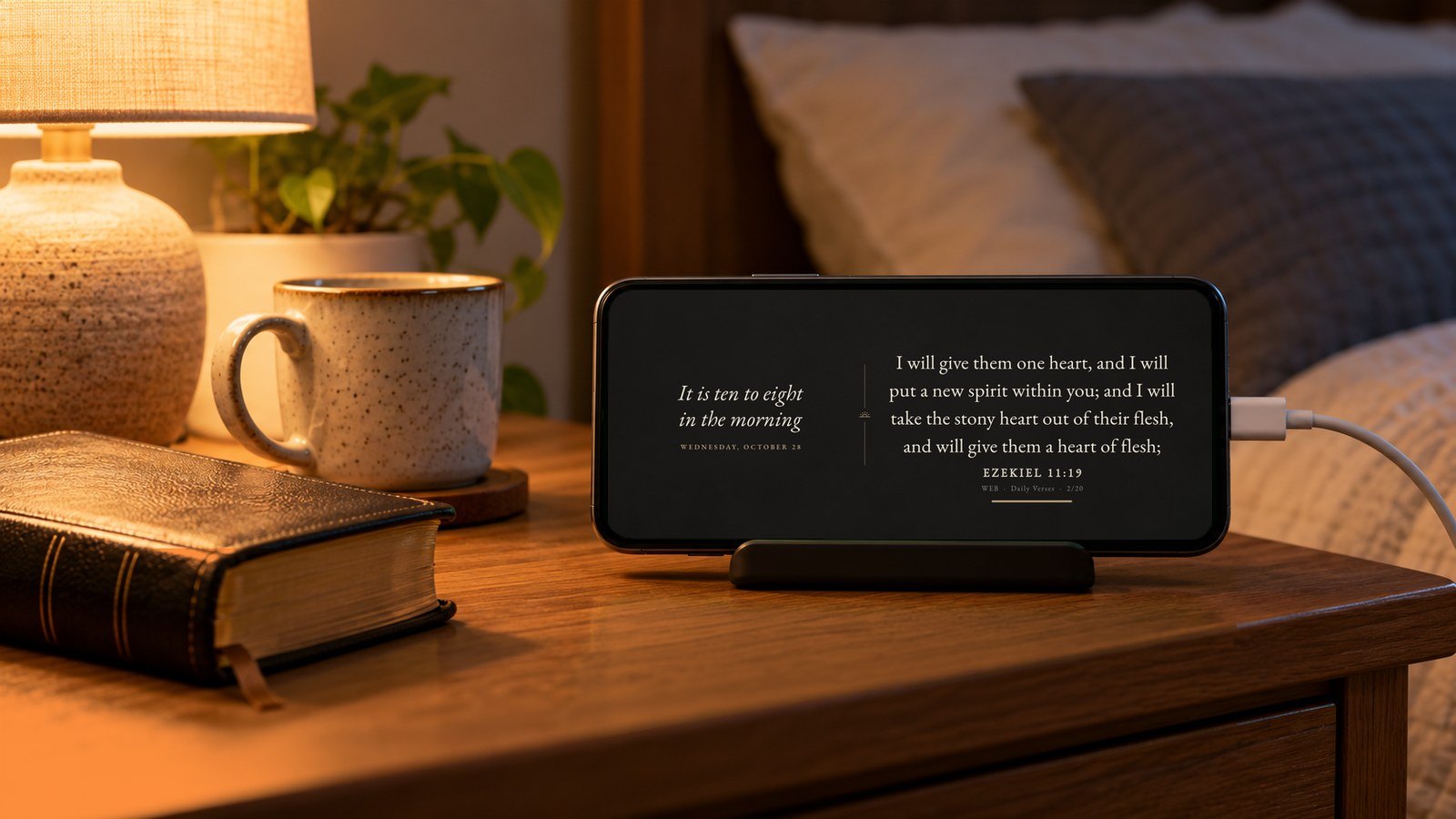
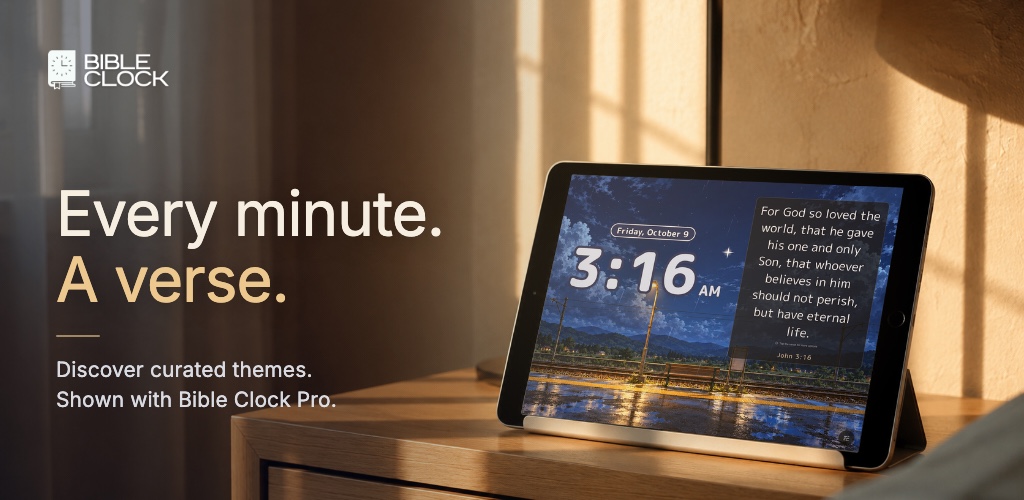
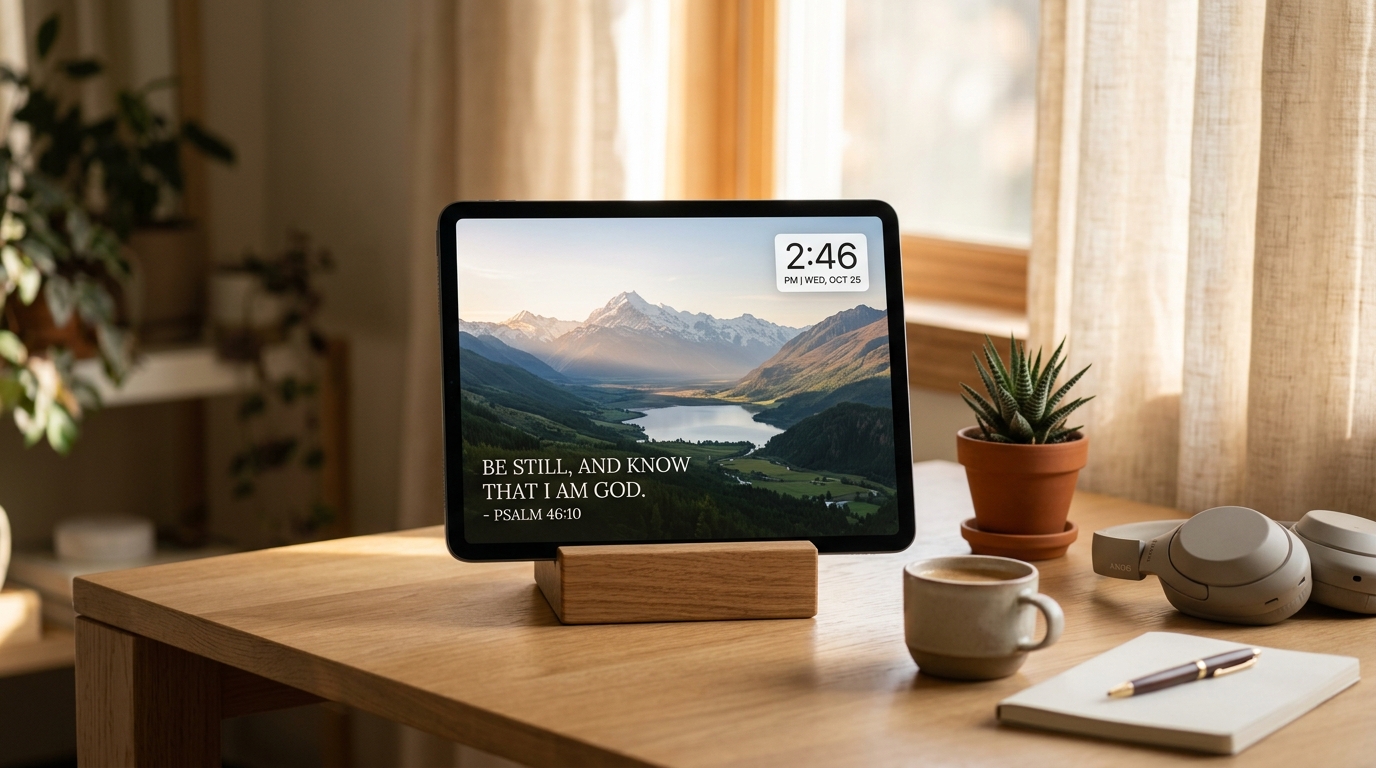
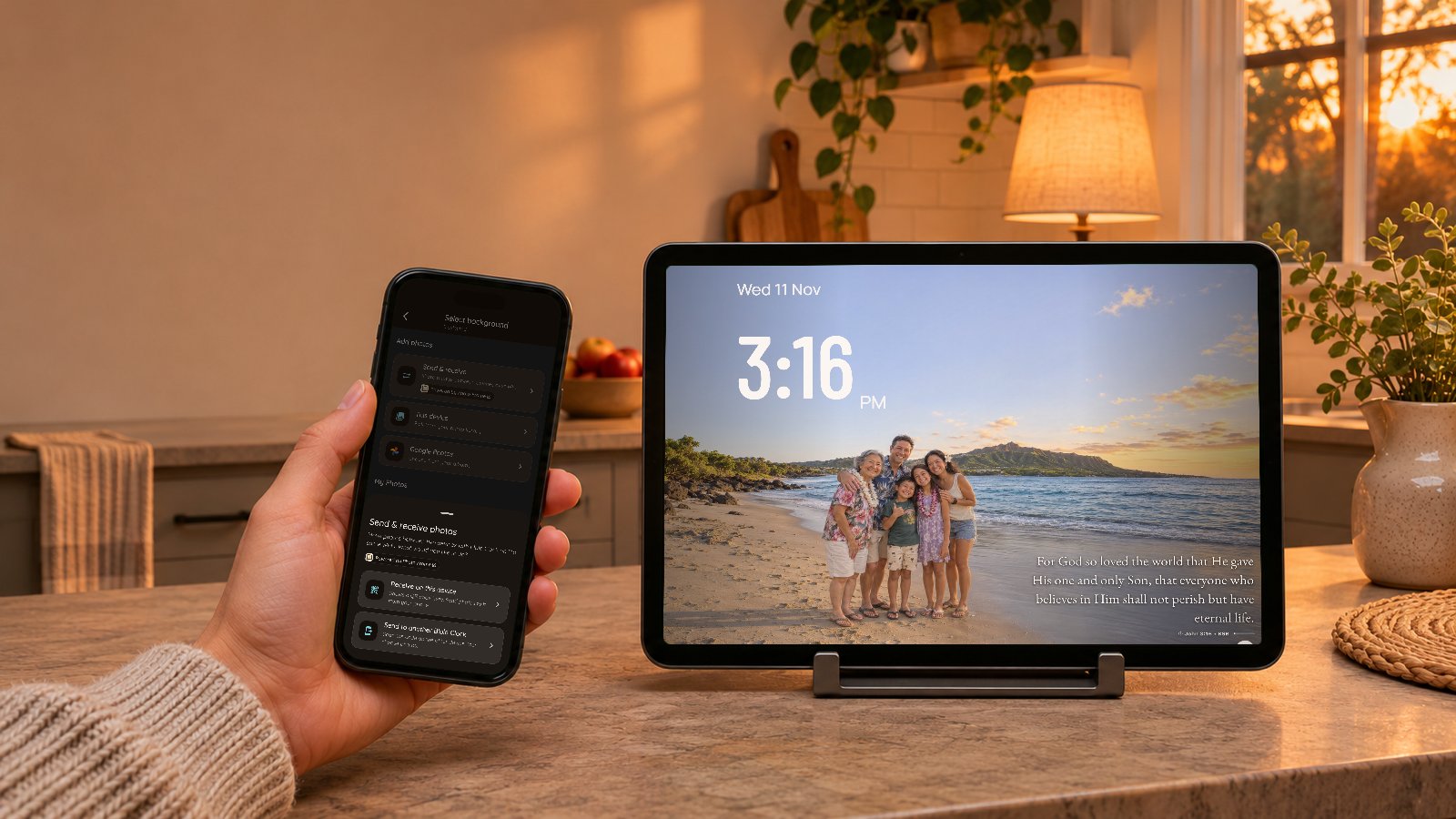
Photo Clock turns a spare tablet or phone into a Bible verse photo frame: your photos in the background, the time in one corner, and Scripture in the other. There was one awkward part. The photos you want to show are usually on your phone, and the screen showing them is somewhere else.
Until now, getting a new photo onto the clock meant emailing it to yourself, syncing an album, or picking up the tablet and digging through its gallery. Send & receive fixes that. Scan a code, choose photos on your phone, and they appear on the clock a moment later.
Send photos to your tablet over Wi-Fi
Send & receive moves photos between two devices that both run Bible Clock on the same Wi-Fi. One device receives, the other sends. Most of the time that means:
- Receiving: the tablet on your nightstand, the old iPad in the kitchen, or the phone you keep on a charger as a desk clock.
- Sending: the phone in your pocket, where your photos already are.
The photos go straight into Photo Clock on the receiving device. You don’t need a cable, a shared album, or an account.
How to send photos from your phone to Bible Clock
Make sure both devices are on the same Wi-Fi and have the latest version of Bible Clock.
On the device that will show the photos:
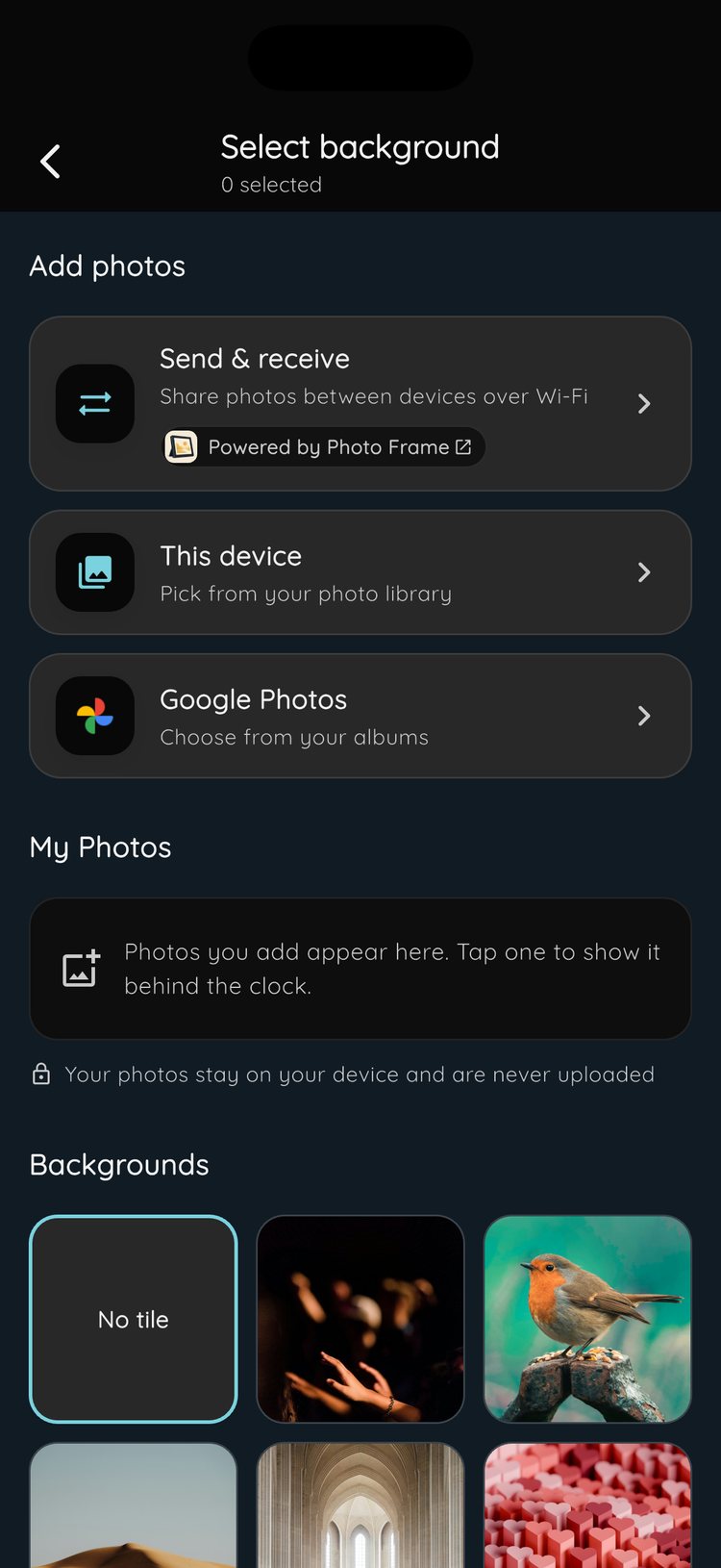
- In Bible Clock, open the page where you add photos for Photo Clock (the app calls it Photos).
- Tap Send & receive at the top of Add photos.
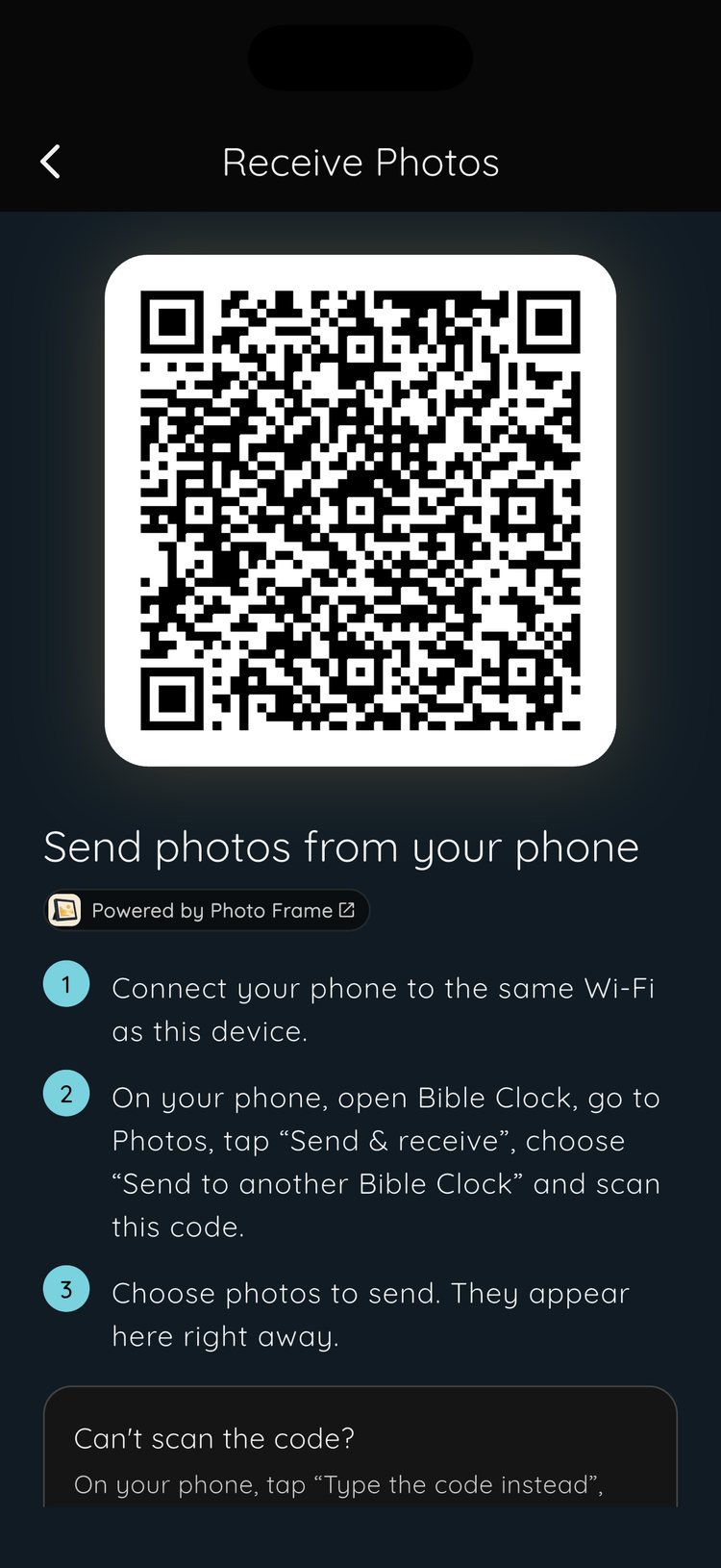
- Choose Receive on this device. A QR code appears.
On your phone:
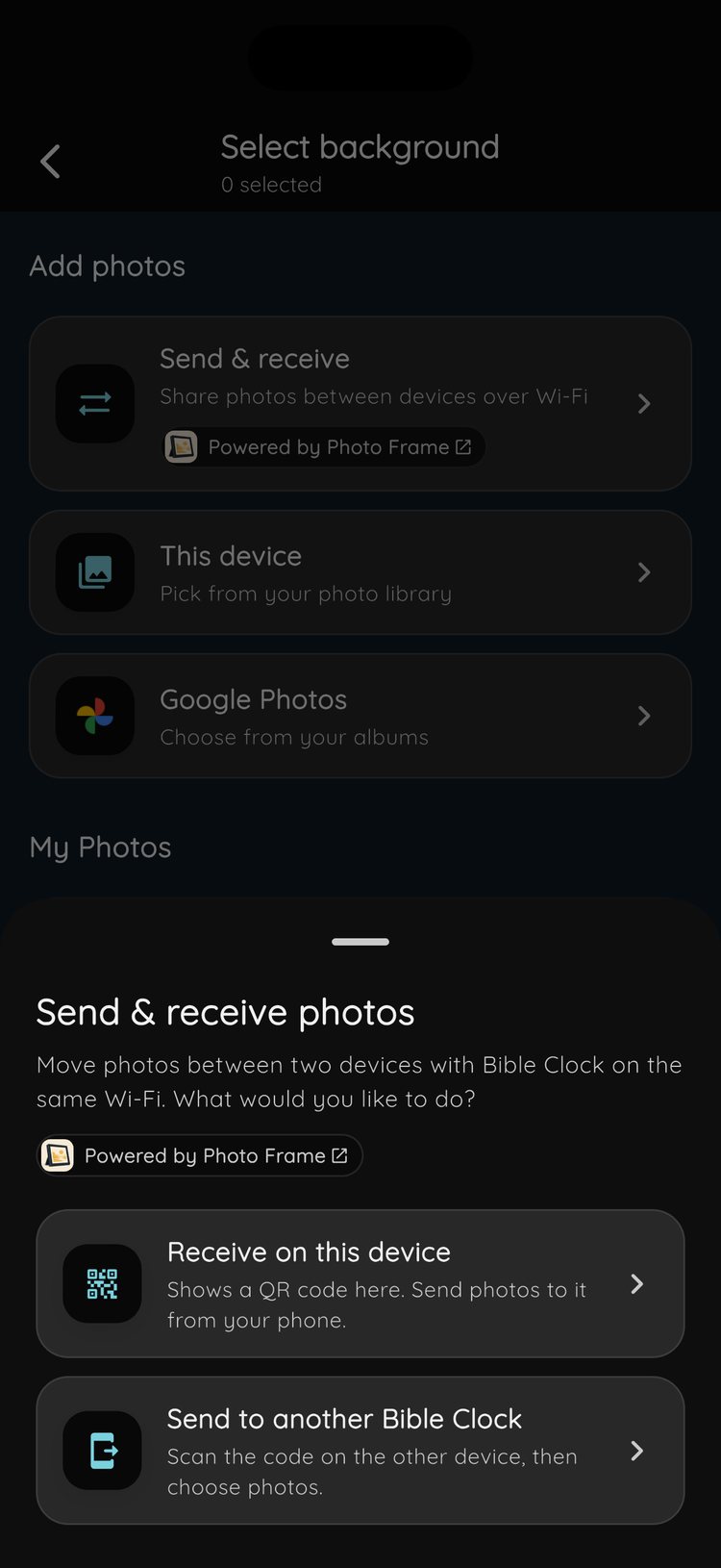
- Open the same Photos page in Bible Clock and tap Send & receive.
- Choose Send to another Bible Clock.
- Scan the QR code on the other device.
- Choose the photos you want to send.
That’s it. The receiving screen counts photos as they arrive, and your phone shows the progress of each one. When you’re done, tap End Transfer on the receiving device.
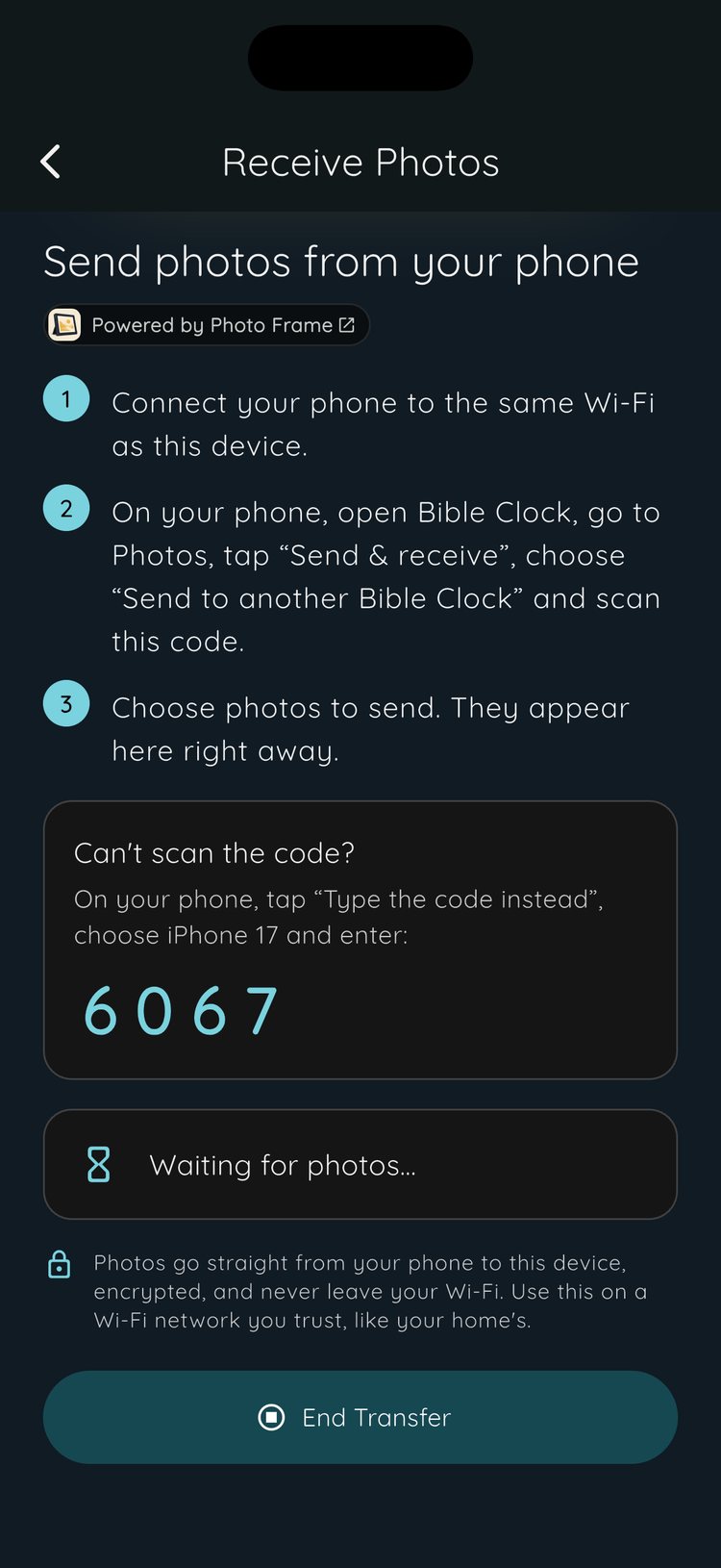
Can’t scan the code?
Sometimes the camera can’t read the screen, maybe because of glare or because the tablet is mounted on a wall. On your phone, tap Type the code instead. Bible Clock lists the devices on your Wi-Fi that are waiting for photos. Pick yours and type the 4-digit code shown under its QR code.
Your photos stay on your devices
We kept this feature simple on purpose. Your family photos don’t need to travel through someone else’s server to get from your phone to a screen across the room.
- No cloud. Photos go straight from your phone to the other device and never leave your Wi-Fi.
- Encrypted. The connection between the two devices is encrypted.
- Short-lived. Each transfer gets a new code. If no photos arrive for 15 minutes, the receiving device stops waiting on its own.
- Only photos. Files that aren’t photos, or are too large, are skipped, and photos already on the device aren’t added twice.
Because the transfer stays on your local network, use it on a Wi-Fi you trust, like the one at home.
The first time you send, your phone asks to let Bible Clock find devices on your local network. Bible Clock explains why before the prompt appears. It uses this access only to reach your other device.
Built on Photo Frame
Send & receive comes from Photo Frame, our app for turning a tablet into a digital picture frame. You’ll see a small Powered by Photo Frame badge on the Send & receive card. If you want a frame that’s all about photos, without the clock and verses, Photo Frame is worth a look.
A few ideas for using it
- After a trip or a family gathering, send the best photos to the nightstand clock before you go to bed.
- For grandparents, set up an old tablet as a Bible verse photo frame. Next time you visit, send the newest grandkid photos from your phone in a minute.
- Through the seasons, swap the kitchen display to Christmas photos in December and spring flowers at Easter.
Get Bible Clock
Bible Clock is free to download on Android and iPhone. Send & receive is part of Bible Clock Pro, along with Photo Clock, the animated themes, time-based verses, Reflection insights, and more. Pro is a one-time upgrade, not a subscription.
New to Photo Clock? Our Photo Clock guide shows how to set it up. Then grab your phone, pick a few favorite photos, and send them to the screen where you see God’s Word every day. You’ll find download links on the Bible Clock project page.
Frequently asked questions
What does Send & receive do in Bible Clock?
It moves photos from one device to another over your Wi-Fi. The device on your nightstand or desk shows a QR code, you scan it with Bible Clock on your phone, and the photos you pick appear in Photo Clock on the other device.
Do both devices need Bible Clock?
Yes. Install Bible Clock on both devices and connect them to the same Wi-Fi network. Send & receive is part of Bible Clock Pro, so both devices need Pro.
Do my photos go through the internet or a cloud service?
No. Photos go straight from your phone to the other device over your Wi-Fi, encrypted, and never leave your network. There is no account to create and nothing is uploaded to a server.
What if my phone cannot scan the QR code?
Tap Type the code instead on your phone. Pick the other device from the list, then type the 4-digit code shown under its QR code.
Why did the receiving device stop waiting for photos?
If no photos arrive for 15 minutes, Receive Photos ends on its own to keep the device private. Tap Start again to get a new code.
Why does Bible Clock ask for local network access?
Your phone needs permission to find and connect to devices on your Wi-Fi. Bible Clock uses it only to send photos to your other device. On Android 17, update to Bible Clock 3.3.1 or later so the app asks for this permission.