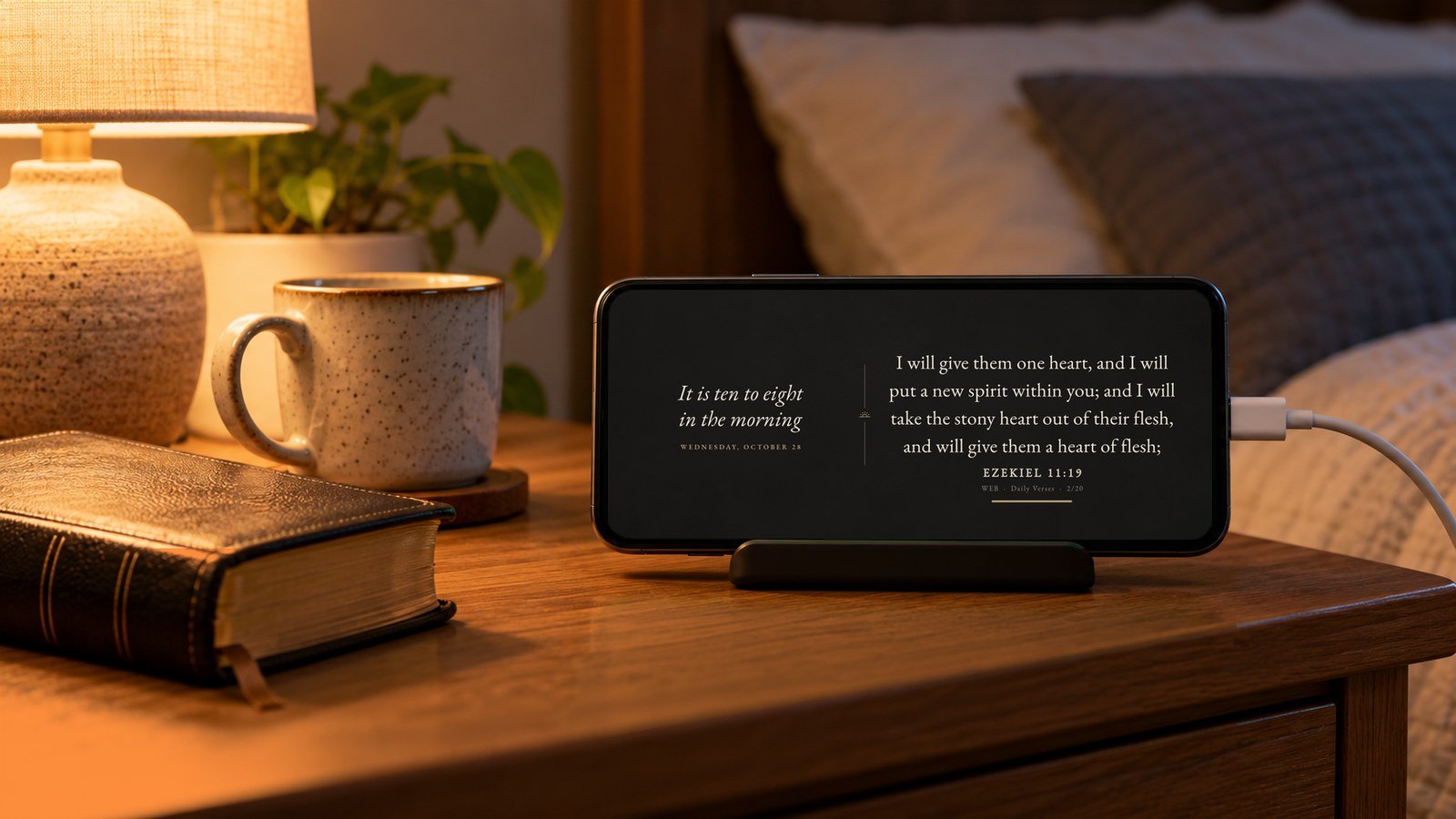
Bible Clock 3.2.4: Show Scripture While Your Phone Charges
Keep CodeInFaith in your Google feed
Add us as a preferred source to see more of our latest articles in Google Search.
Most of us charge our phones in the same spot every night. A nightstand, a desk, a kitchen counter. The phone sits there for hours, and the screen stays dark.
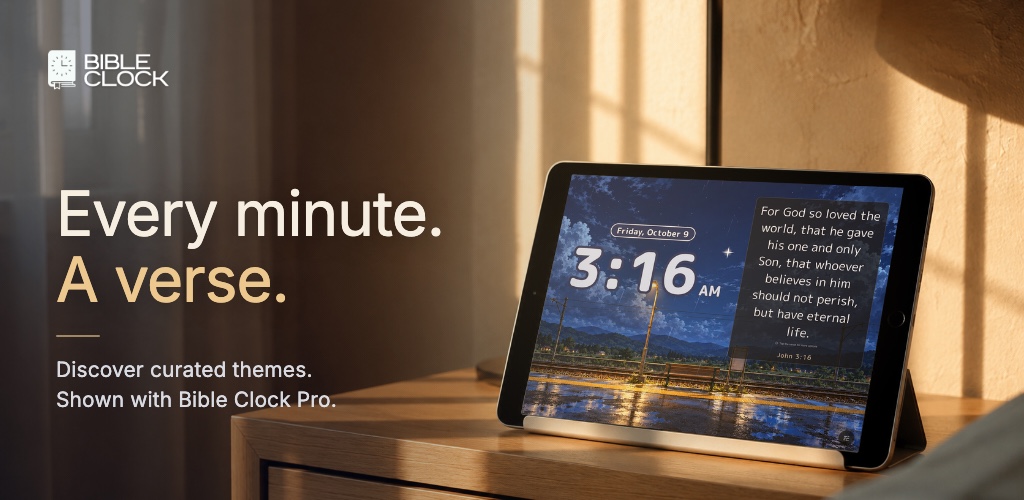
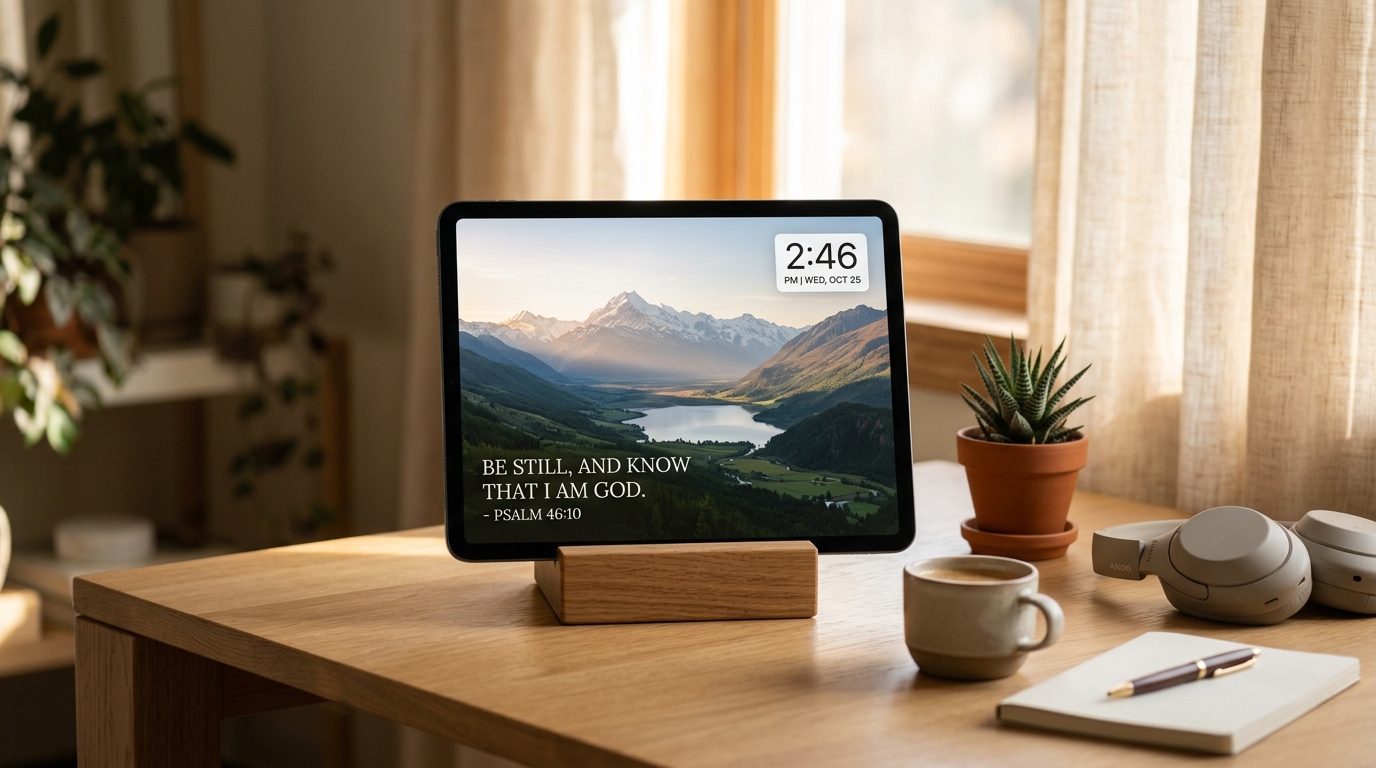
Bible Clock 3.2.4 puts that screen to use. With the new Show while charging setting, your phone or tablet becomes a Bible verse clock every time you plug it in. You see the time, the date, and a verse from Scripture without opening the app.
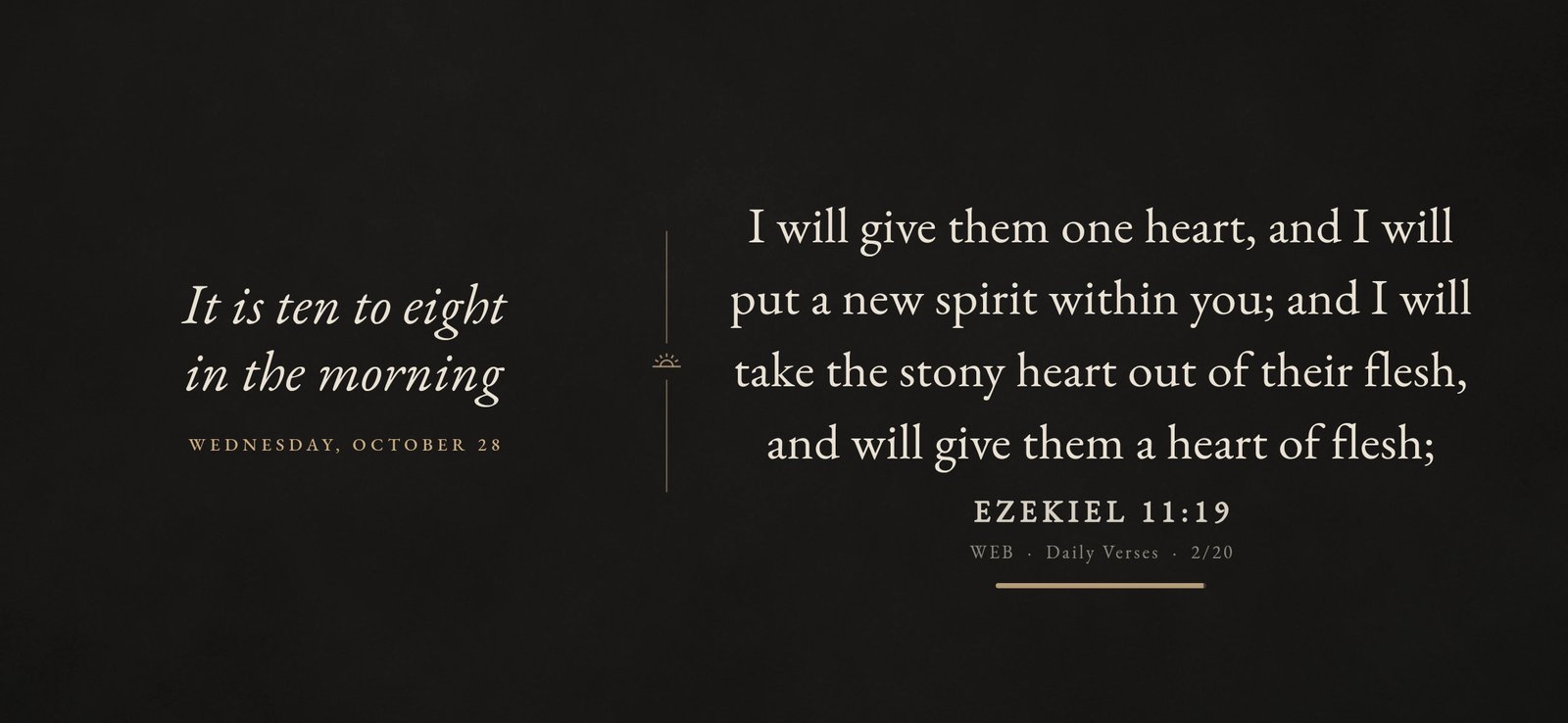
A Bible verse screen saver on Android
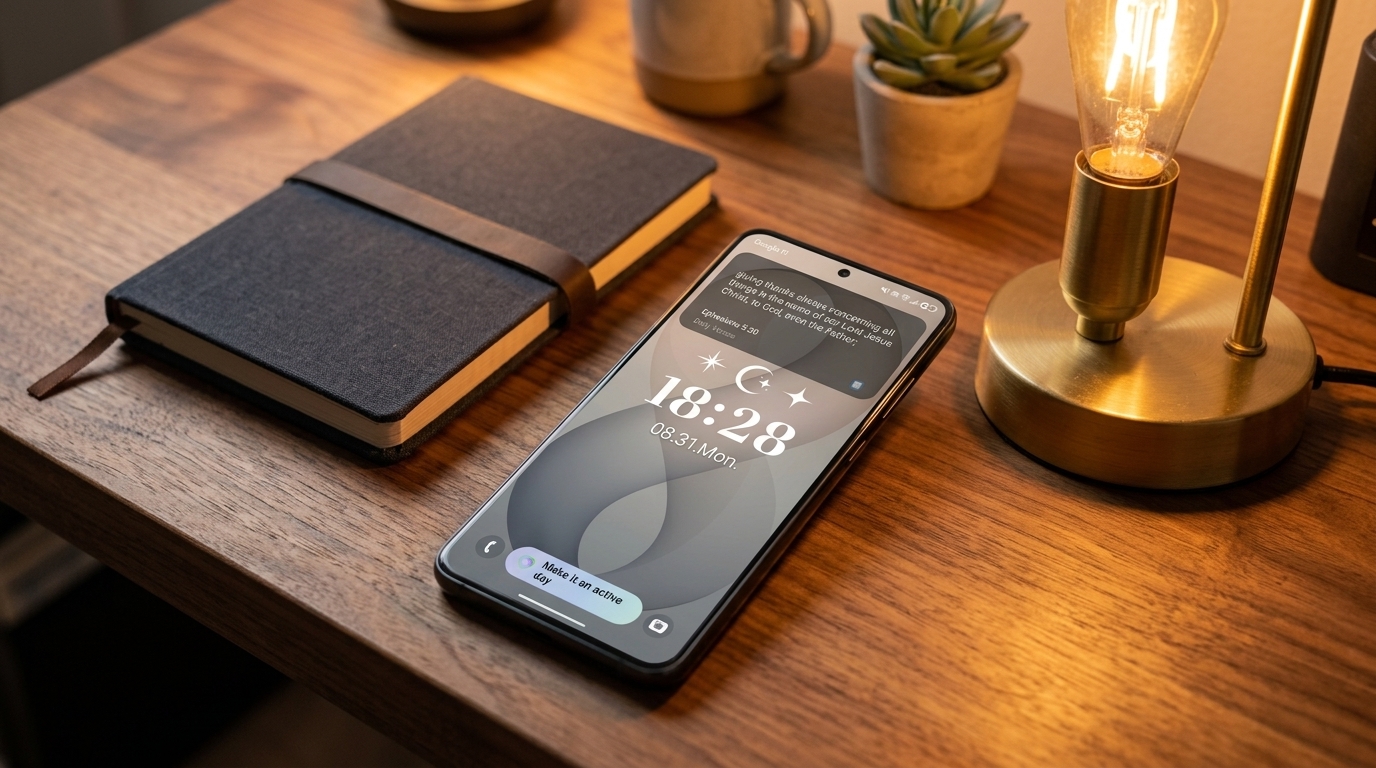
On Android, Bible Clock can now be your screen saver. Android’s screen saver (once called Daydream) is the screen your phone shows while it charges. Pick Bible Clock there, and the clock and a verse appear on their own each time the phone starts charging.
It’s the same Bible Clock you know, cleaned up for a screen you won’t touch:
- No buttons on screen. The options button and the setup tips are hidden, so you see only the time and Scripture.
- The look you chose. The screen saver uses the theme, verse collection, and Bible version you set in the app.
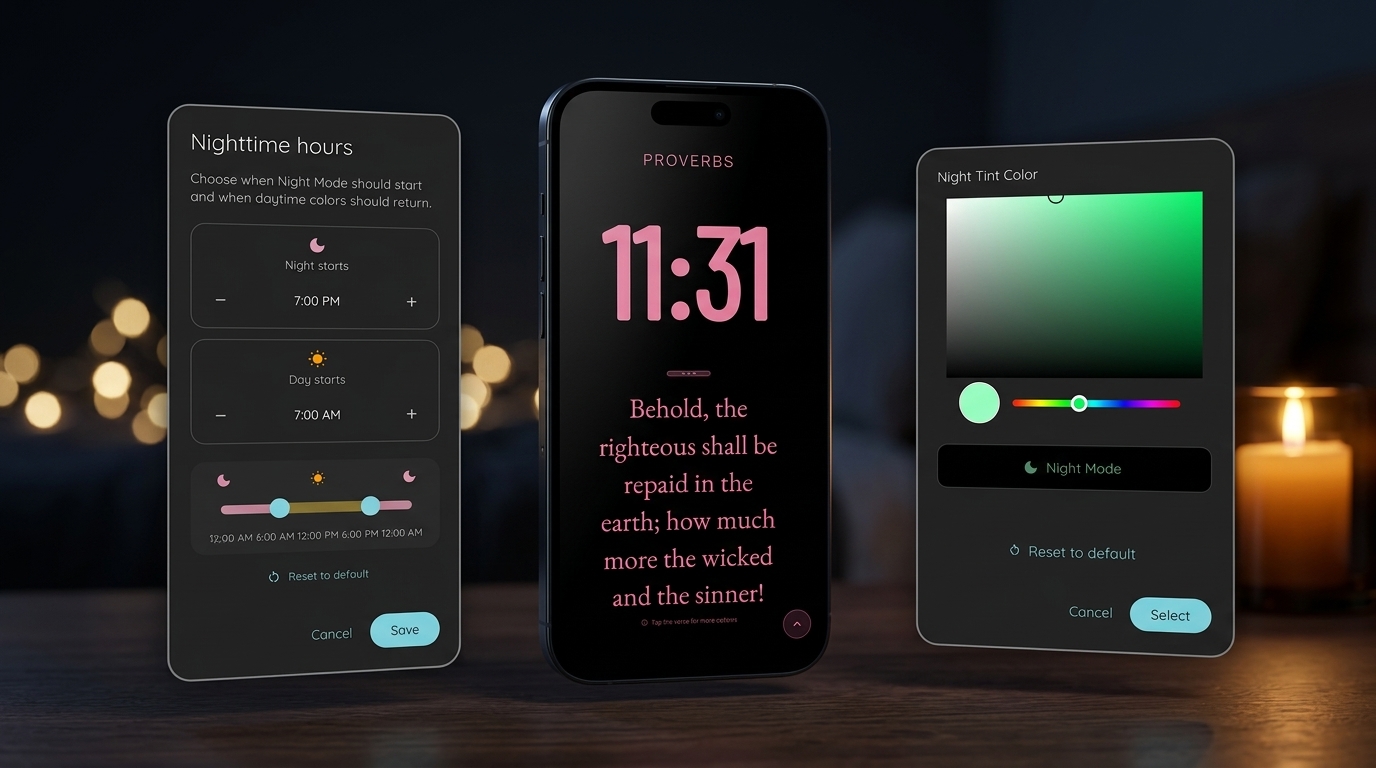
- Dimmer at night. If you use Night Mode, the screen dims during your night hours.
- One touch to close. Touch the screen and the screen saver closes, like any Android screen saver.
The screen saver is free. If the look you chose needs Bible Clock Pro and Pro isn’t active, the screen saver uses a free theme instead. Your saved settings don’t change.
How to set it up on Android
It takes less than a minute:
- Update Bible Clock to version 3.2.4.
- Open Settings and go to Comfort & Screen.
- Tap Show while charging, then tap Open screen saver settings.
- On Android’s Screen saver page, choose Bible Clock.
- Set When to start to While charging.
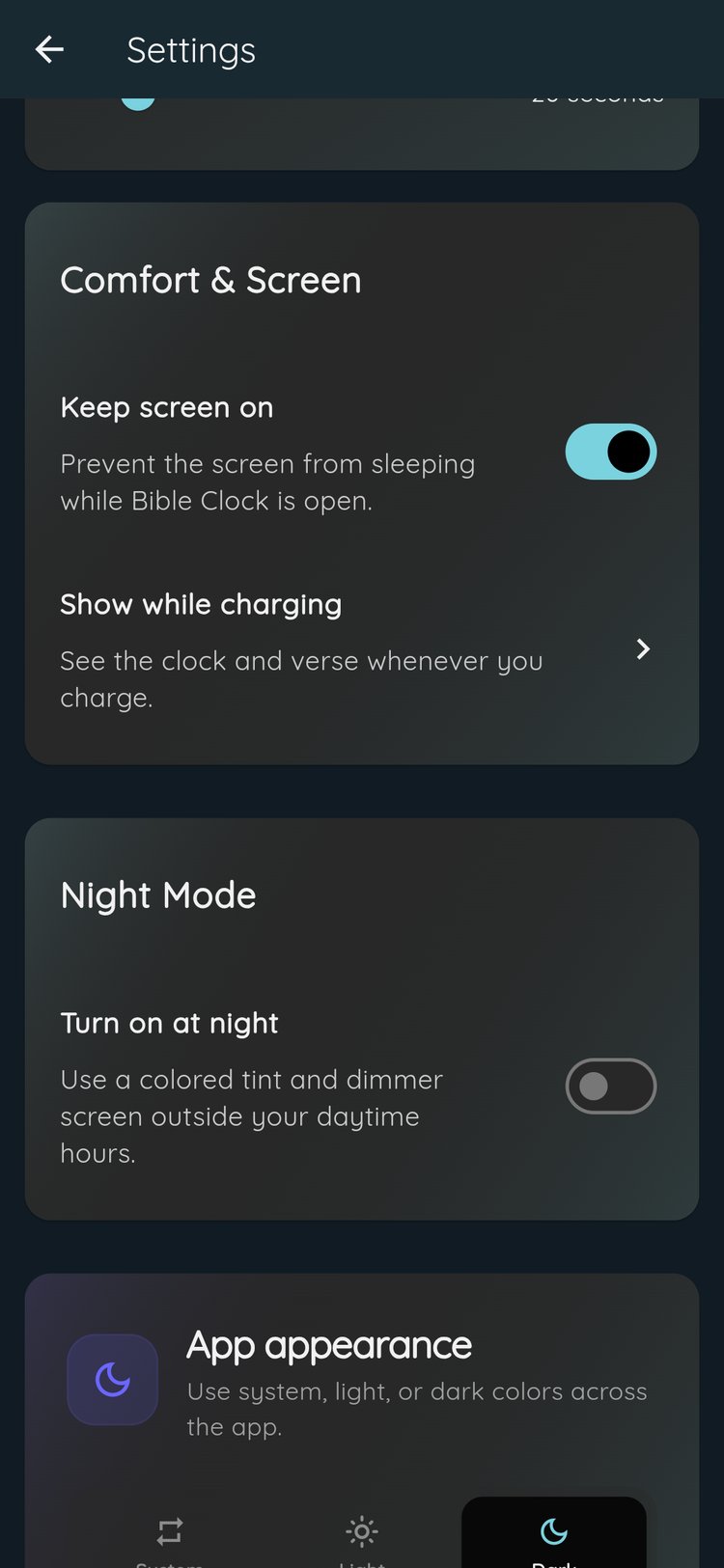
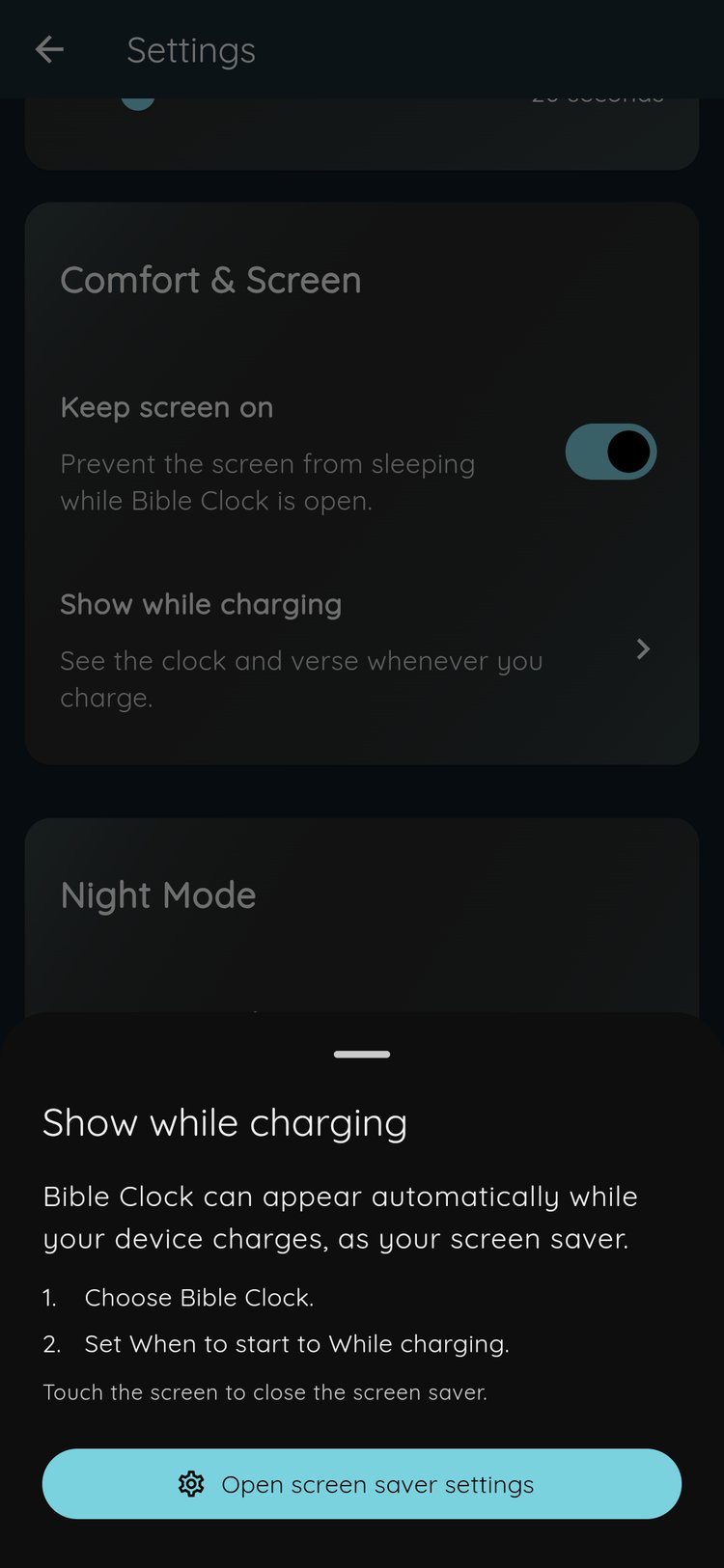
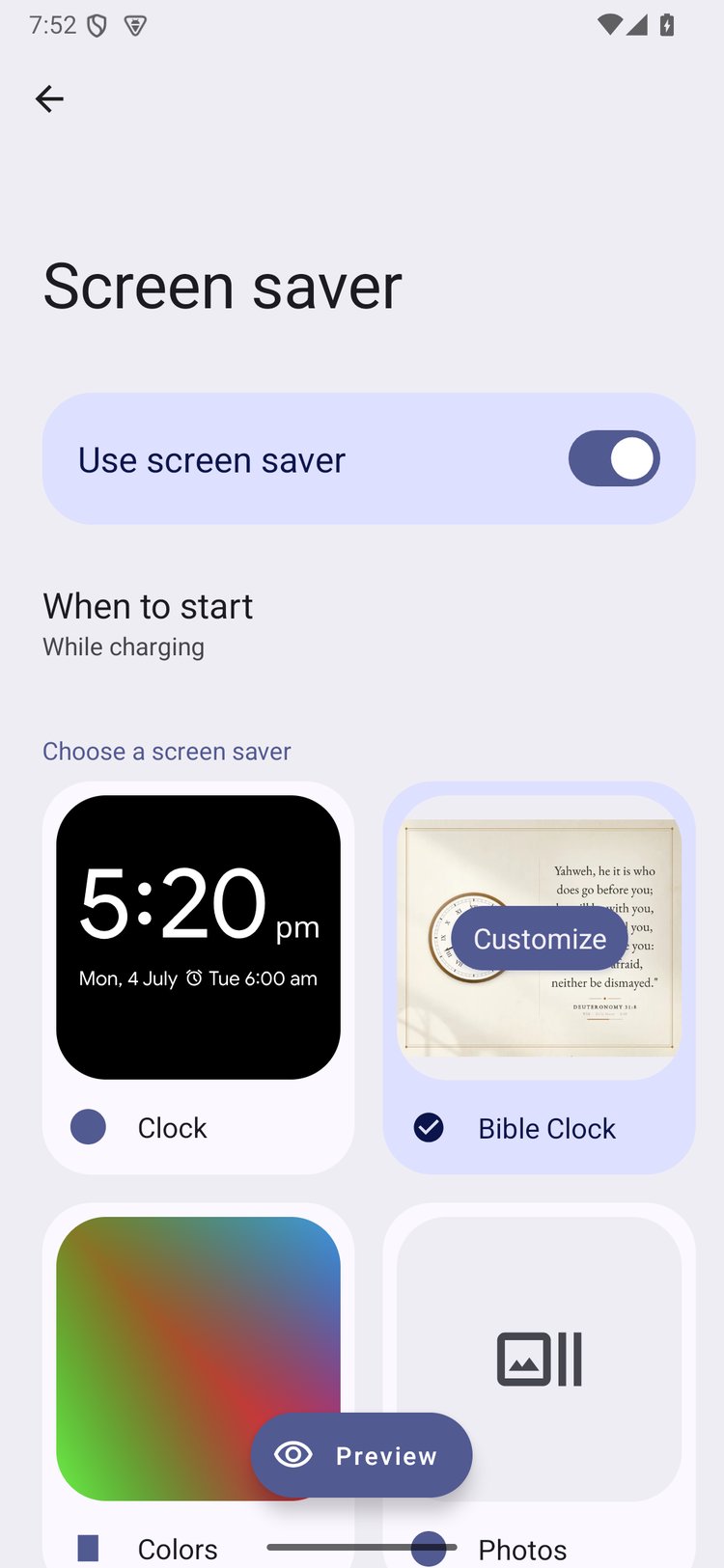
The exact names on the system page can vary a little between phone makers. Some phones, including some Samsung models, don’t have a Screen saver page at all. Bible Clock tells you when that’s the case. You can still turn on Keep screen on, which keeps the clock showing while the app is open.
On iPhone: StandBy and a Shortcuts automation
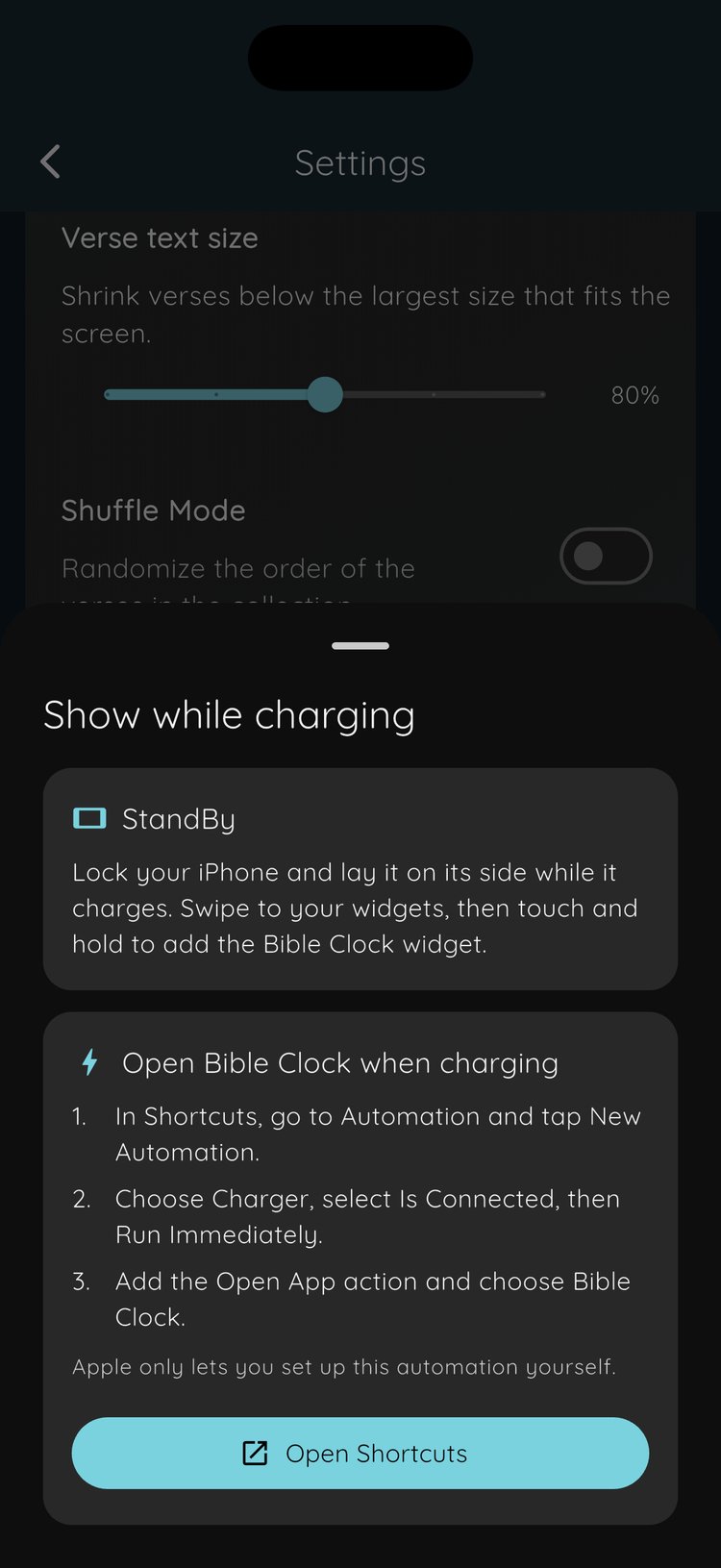
iOS doesn’t let an app open itself, so on iPhone the same Show while charging row opens a short guide with two options.
StandBy. Lock your iPhone and lay it on its side while it charges. Swipe to your widgets, then touch and hold to add the Bible Clock widget. Your verse now shows in StandBy every time you charge.
Open Bible Clock when charging. If you’d rather see the full app, set up a Shortcuts automation once:
- In Shortcuts, go to Automation and tap New Automation.
- Choose Charger, select Is Connected, then Run Immediately.
- Add the Open App action and choose Bible Clock.
Apple only lets you create this automation yourself, so the guide includes an Open Shortcuts button to take you straight there.
Why we built it
Bible Clock is made for a screen you leave running. Before this update, that meant opening the app each time and keeping the screen on. Now the phone you charge every night does it for you. You plug in before bed and see a verse. You wake up and the first thing on the screen is Scripture, not a pile of notifications.
It also gives an old phone or tablet a job. Leave it on a charger in the kitchen or on your desk, and it turns into a Bible verse clock that stays on.
Also in this update
Reflection now links to Edenify. When you tap a verse to reflect on it, some verses now show a card that opens Edenify, our Christian meditation app, with related guided meditations. If Edenify isn’t installed, the card takes you to the store or the website.
Get Bible Clock 3.2.4
Bible Clock is free to download on Android and iPhone, and Show while charging is free too. Bible Clock Pro is a one-time upgrade, not a subscription, and adds the animated themes, Photo Clock, time-based verses, Reflection insights, and more.
Update Bible Clock, plug in your phone, and let the next thing you see be a verse. You’ll find download links on the Bible Clock project page.
Frequently asked questions
What does Show while charging do?
On Android, it sets Bible Clock as your screen saver, so the clock and a Bible verse appear on their own whenever your phone or tablet charges. On iPhone, it shows you how to add the Bible Clock widget to StandBy or set up a Shortcuts automation that opens Bible Clock when you plug in.
Is the Bible Clock screen saver free?
Yes. The screen saver is free. It shows the look you chose in the app. If that look needs Pro and Pro is not active, the screen saver uses a free theme instead and leaves your saved settings unchanged.
How do I close the screen saver?
Touch the screen. The screen saver closes, like other Android screen savers.
Why can't Bible Clock open by itself on iPhone?
iOS does not let apps open themselves. Apple only lets you create a Shortcuts automation yourself, so Bible Clock walks you through the three steps and gives you a button that opens Shortcuts.
My Android phone has no Screen saver setting. What can I do?
Some phones, including some Samsung models, do not have a Screen saver page. Bible Clock tells you when that is the case. You can still turn on Keep screen on in Settings so the clock stays visible while the app is open.
Does the screen saver dim at night?
Yes. If you use Night Mode, the screen saver dims the screen during your night hours, the same way the app does.