How to Record Console Gameplay Without a PC (Switch, PS3, and More)
Turn an Android phone or USB-C iPad into a portable game screen with a UVC capture card, then record it with the screen recorder you already have.
Keep CodeInFaith in your Google feed
Add us as a preferred source to see more of our latest articles in Google Search.
Recording console gameplay used to mean a capture card, a laptop, and capture software, plus a laptop fast enough to keep up. If you just want to save a speedrun attempt, clip a retro boss fight, or film a quick video for your channel, that is a lot of gear.
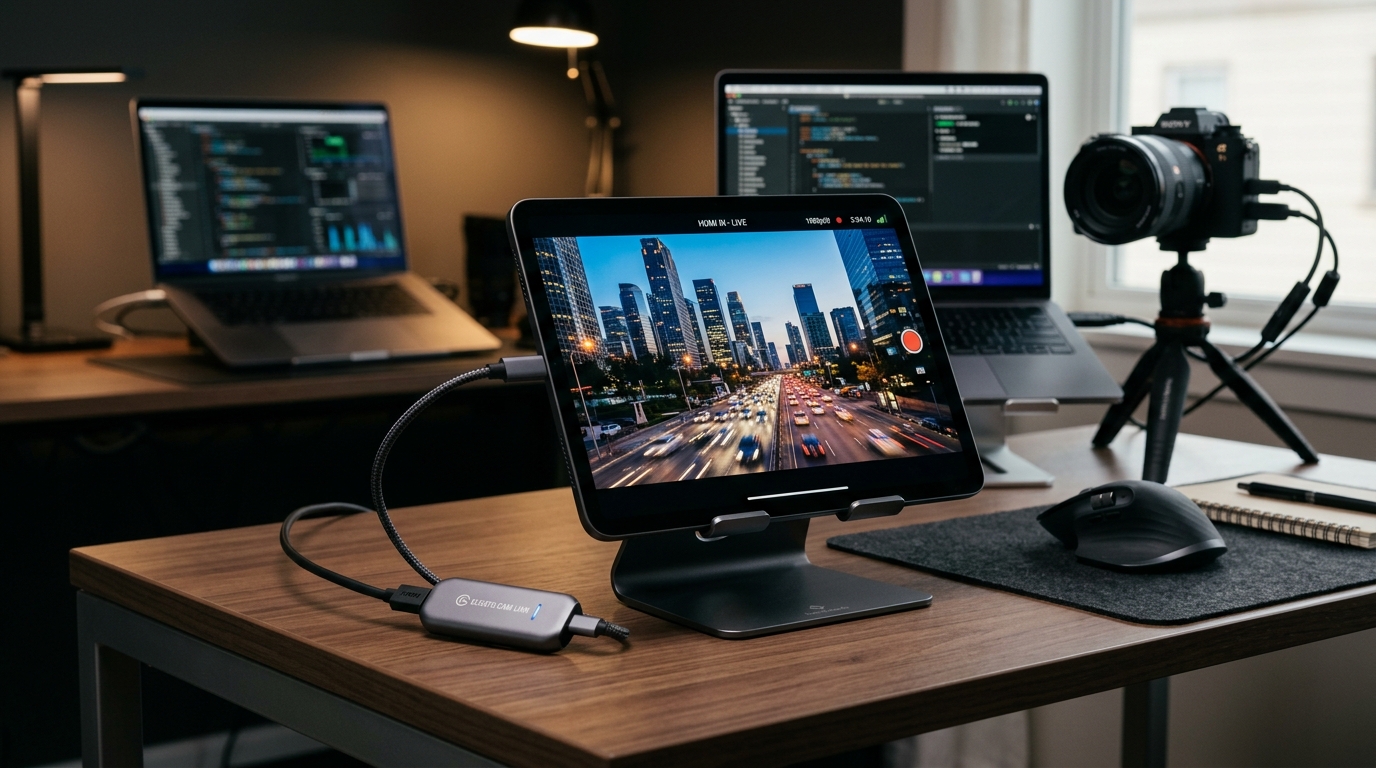
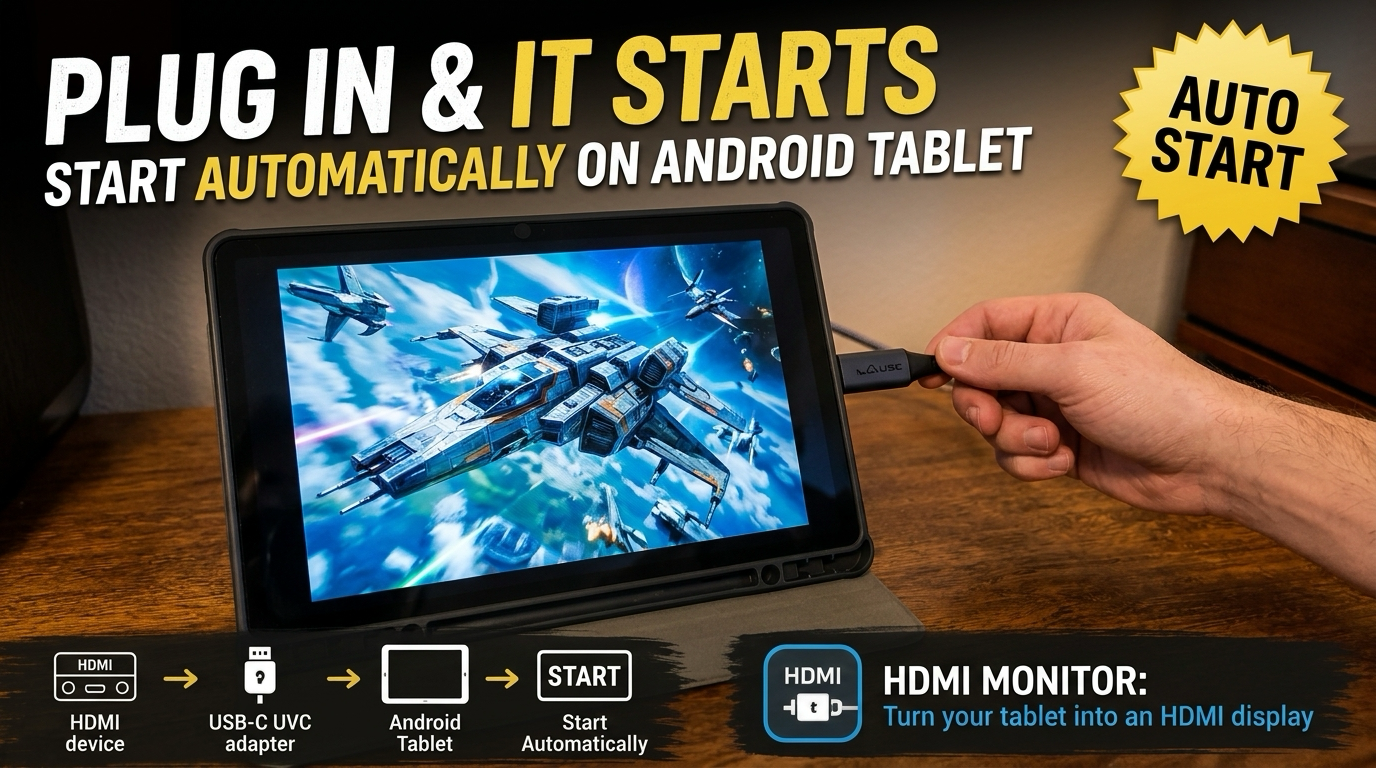
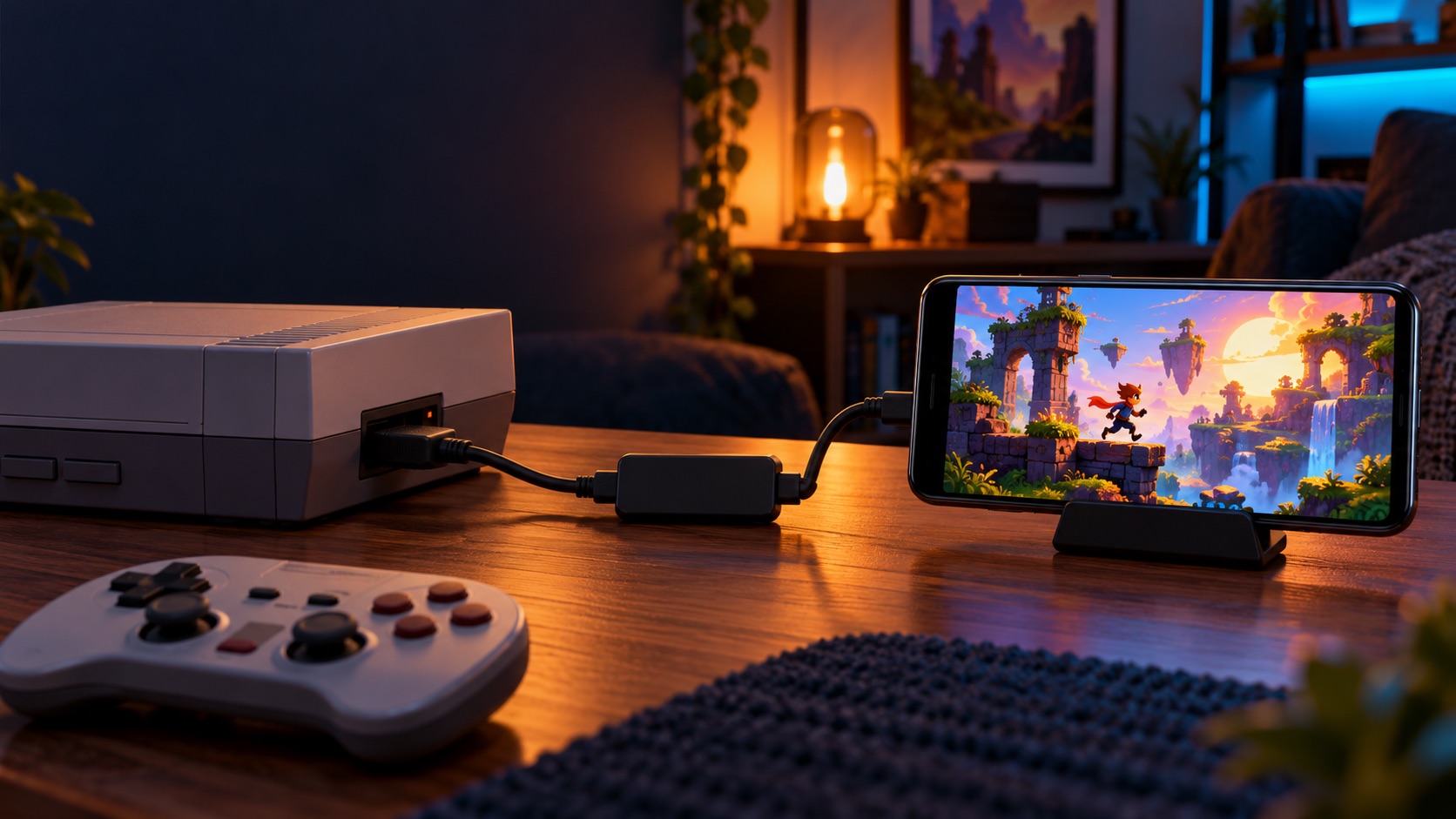
There is a smaller setup. The phone or tablet in your pocket already has a good screen, a battery, and a built-in screen recorder. Add a USB capture card and the HDMI Monitor app, and that device becomes a portable HDMI display. Start your phone’s screen recorder and you are recording gameplay without a PC.
This guide shows how to do it on Android and on iPad, what you need, and where the limits are.
A Real Setup: PS3 to an Android Phone
This post started with a message from an HDMI Monitor user. They connected a PlayStation 3 to their Android phone through a USB HDMI capture card, displayed the game at 1920×1080, 50 fps, and recorded it with the phone’s built-in screen recorder.
They told us the results looked better than what they got from OBS on their mid-range laptop.
That is one person’s setup with one phone, one capture card, and one laptop for comparison, so your numbers may differ. It does show the idea works, and the hardware is simple enough to try.
[!NOTE] About the PS3: The PlayStation 3 protects its HDMI output with HDCP, and most capture cards will not show protected video at all. This user’s capture card displayed it, but many will not. If you want to record PS3 gameplay, test your exact capture card first. See Important Notes below.
What You Need
- An Android phone or tablet, or a USB-C iPad. On Android, the device needs USB host (OTG) support. On Apple devices, you need an iPad with a USB-C port running iPadOS 17 or later. The app also installs on USB-C iPhones, but compatibility varies. Lightning devices are not supported.
- A UVC HDMI capture card. This is a small USB adapter that converts HDMI into a standard USB video signal. Most budget USB-C HDMI capture dongles use the UVC standard. Here are the ones we use.
- An HDMI cable from your console to the capture card.
- The HDMI Monitor app, listed as HDMI Monitor for Tablet on Google Play and the App Store.
- Optional: a capture card with USB-C Power Delivery (PD) pass-through so you can charge your phone or tablet during long sessions. Charging still depends on the adapter’s wattage and whether your device and charger negotiate PD correctly.
That’s the whole kit. No PC, no capture software, no drivers.
How to Record Gameplay on Android
Step 1: Connect your console
- Plug an HDMI cable from your console (or its dock) into the capture card.
- Plug the capture card into your phone or tablet’s USB-C port.
- Turn on the console.
Step 2: Open HDMI Monitor
Launch HDMI Monitor, tap Scan Device, then tap Start. Android will ask for permission to use the USB device. It also asks for microphone access, because Android treats audio from a USB capture card as microphone input. That permission lets the app play the HDMI sound; it does not record you.
Step 3: Choose a resolution
Open Settings in HDMI Monitor:
- Signal Preset picks a capture mode for you. Smooth FPS is the one meant for games, video, and camera feeds.
- Video Quality lets you pick an exact mode instead. Once the signal is running, it lists the modes your capture card reports, such as
1920 × 1080 · 60 FPS. Choose one, or leave it on Auto.
The modes you see depend on your capture card and what the console sends. A higher resolution is not always better for recording. If the picture stutters, try a lower mode.
Step 4: Start Android’s screen recorder
Most Android phones running Android 11 or later have a screen recorder in Quick Settings. Swipe down from the top of the screen and look for Screen record or Screen recorder. If you don’t see it, tap the edit (pencil) icon and drag the tile into your Quick Settings. Samsung and some other brands use their own recorder with slightly different names and options.
- Go fullscreen in HDMI Monitor.
- Start the screen recorder from Quick Settings.
- If the recorder offers audio options, choose the one that records device or media sound, not the microphone.
- Play.
- Stop the recording from the notification shade when you are done. The video is saved to your gallery.
[!TIP] Do a 30-second test recording first. Check the picture, the frame rate, and whether game audio made it into the file before you record a full session.
How to Record Gameplay on iPad
The iPad workflow is the same idea: HDMI Monitor shows the console, and iPadOS records the screen.
Step 1: Connect your console
- Plug an HDMI cable from your console into the capture card.
- Plug the capture card into your iPad’s USB-C port.
- Turn on the console.
Step 2: Open HDMI Monitor
Launch HDMI Monitor, tap Scan Device, then tap Start.
Step 3: Choose a signal preset
On iPad, HDMI Monitor uses the Signal Preset setting to choose a capture mode. Try Smooth FPS for games. If the picture won’t start or looks unstable, switch to Compatibility. If you want the sharpest image for text-heavy games, try Best Quality.
Step 4: Start iPadOS Screen Recording
- If you haven’t used Screen Recording before, add it to Control Center. On recent iPadOS versions, open Control Center, tap +, then Add a Control, and pick Screen Recording. On older versions, go to Settings > Control Center.
- Go fullscreen in HDMI Monitor.
- Swipe down from the top-right corner to open Control Center and tap the Screen Recording button. Recording starts after a short countdown.
- Play.
- Stop the recording from Control Center or the red indicator at the top of the screen. The video is saved to Photos.
As on Android, do a short test first and check the sound in the saved video.
Why Record This Way
- No PC required. You don’t need a laptop that can keep up with capture software. The phone or tablet does the displaying and the recording.
- Simple setup. One cable, one adapter, one app. No drivers, no scene setup, no encoder settings to tune.
- Portable. It fits in a bag. Play and record at a friend’s place, in a hotel room, or anywhere your console goes.
- Affordable hardware. Basic UVC capture cards usually cost around $20 to $25, and you likely already own the phone or tablet.
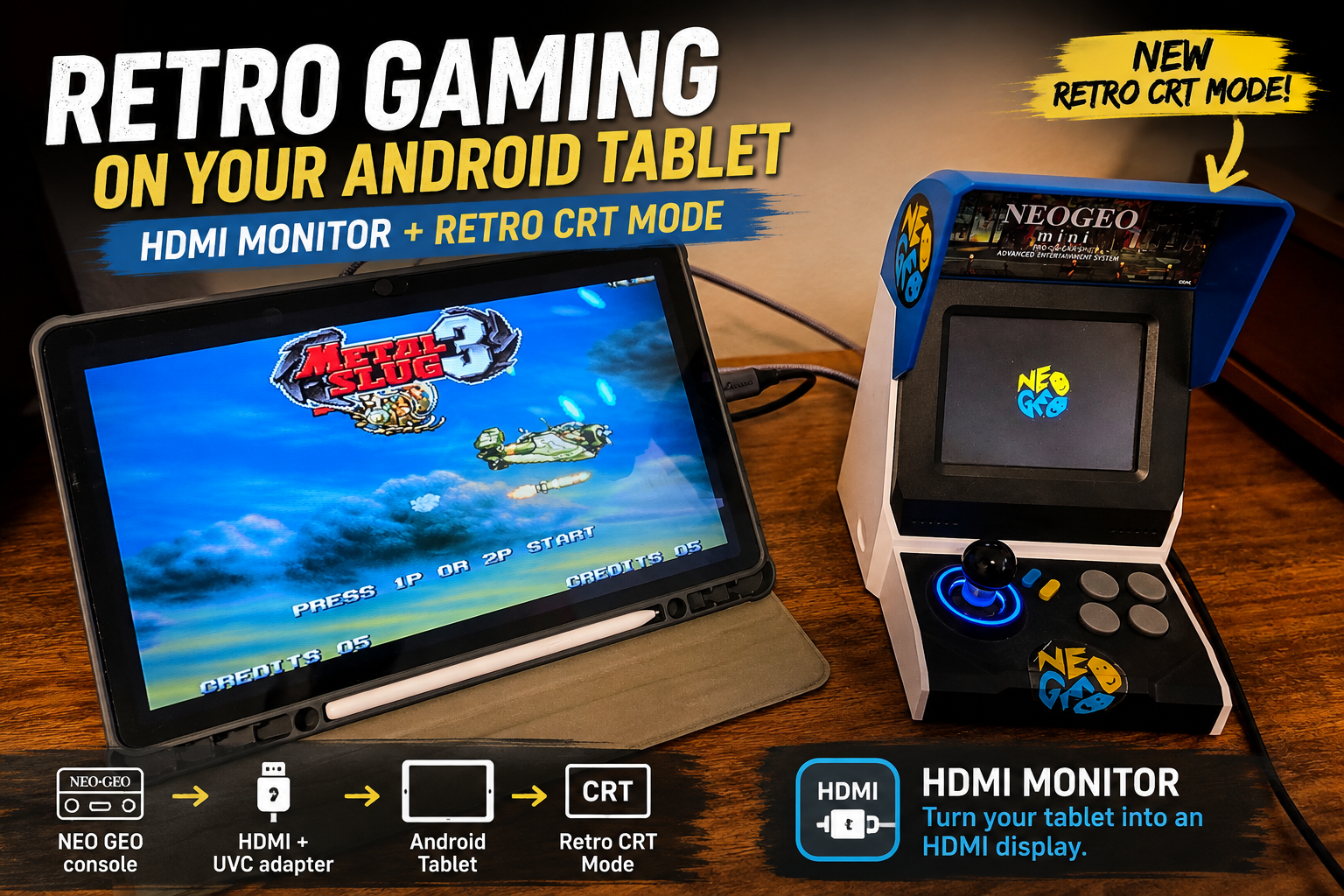
- Good for retro consoles. Older consoles with HDMI output, mini consoles, and handhelds with HDMI docks are easy to plug in and capture. HDMI Monitor Pro also includes a Retro Game Mode with a CRT-style filter.
Important Notes Before You Start
HDMI Monitor displays video; it does not record it. The app shows the live picture and sound from your capture card. The recording comes from the screen recorder built into Android or iPadOS.
Recording quality depends on your device. Resolution, frame rate, and smoothness of the saved video are set by your phone or tablet and its screen recorder, not by HDMI Monitor. A device that displays the game smoothly may still drop frames while recording. The 1080p, 50 fps result in the story above is one user’s report on one Android phone.
Game audio in the recording is not guaranteed. HDMI Monitor can play HDMI audio when your capture card supports it. Whether the screen recorder saves that sound depends on the device, the operating system, and the recorder’s audio settings.
Some consoles won’t show up because of HDCP. HDCP is copy protection on some HDMI signals, and capture cards can’t display protected video. The PlayStation 5 needs HDCP turned off in its settings. The PlayStation 3 and Blu-ray or streaming apps usually won’t display at all, though some capture cards behave differently. Nintendo Switch games, most retro consoles, and PCs usually aren’t protected.
Free time limit. The free version of HDMI Monitor includes 15 minutes of fullscreen monitoring a day. Pro is a one-time purchase that adds unlimited monitor time, Retro Game Mode, and Stay Awake in Fullscreen.
Watch your battery and storage. Capturing and recording at the same time uses a lot of power, and video files add up quickly. A capture card with PD pass-through charging helps on long sessions, as long as your device and charger negotiate PD correctly.
Try It With the Phone or Tablet You Already Have
If you’ve been putting off recording your gameplay because you don’t have a capture PC, try a capture card and the phone or tablet you already own. Start with a short test, check the video and sound, and adjust from there.
Frequently asked questions
Does HDMI Monitor record gameplay?
No. HDMI Monitor shows the live picture and sound from your capture card. To save a video, use the screen recorder built into Android or iPadOS while HDMI Monitor is on screen.
Can I record PS3 gameplay this way?
Sometimes. The PS3 protects its HDMI output with HDCP, and most capture cards will not show protected video. One HDMI Monitor user did get a PS3 picture on an Android phone, but it depends on the capture card, so treat it as something to test rather than a guarantee.
Will the recording include game audio?
It depends on your device. HDMI Monitor can play HDMI audio when the capture card supports it, but whether the screen recorder saves that sound is up to the phone or tablet and its operating system. Do a short test recording first.
Which iPads work?
iPads with a USB-C port running iPadOS 17 or later. The app also installs on USB-C iPhones, but compatibility varies. Lightning devices are not supported.