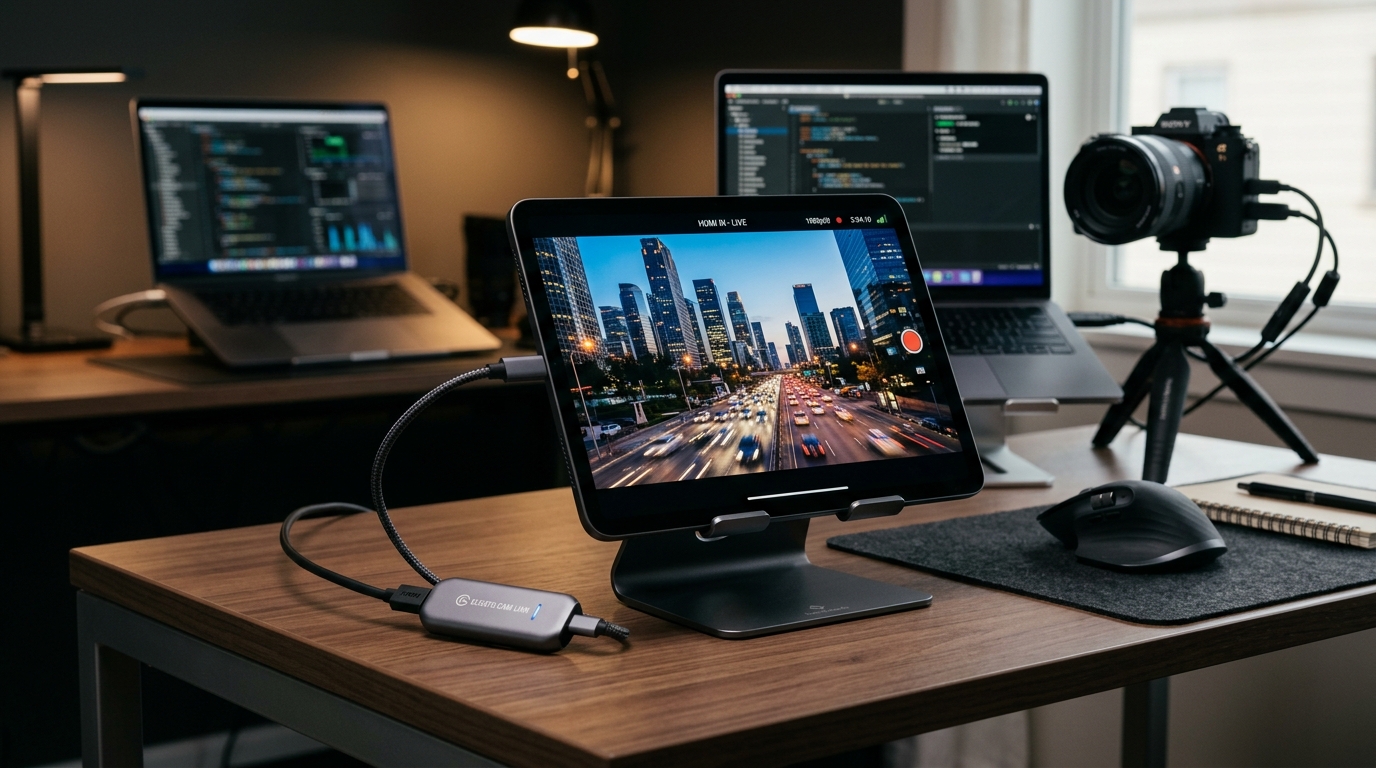
HDMI Monitor Is Now on iPad: Turn Your USB-C iPad into an HDMI Display
Use a USB-C iPad on iPadOS 17+ with a UVC capture card to view cameras, consoles, and PCs, with live audio when the adapter supports it.
Keep CodeInFaith in your Google feed
Add us as a preferred source to see more of our latest articles in Google Search.
When we created HDMI Monitor, our goal was simple: take the high-resolution screens people already carry and turn them into HDMI displays using standard USB capture hardware.
iPadOS 17 opened the door for USB capture cards on USB-C iPads. HDMI Monitor is now on the App Store.
Whether you need a director’s monitor for a mirrorless camera, a portable gaming screen for a Nintendo Switch or Steam Deck, or a compact display for a laptop or mini PC, a USB-C iPad can serve as an HDMI display with video and audio when your capture adapter supports both.
What Makes iPadOS Support Possible?
Apple added built-in support for external USB Video Class (UVC) capture devices in iPadOS 17 on USB-C iPads.
HDMI Monitor uses that support:
- Capture-card detection: The app finds compatible UVC HDMI dongles when they are connected to the USB-C port.
- Live audio: When the adapter also carries USB audio, HDMI Monitor can play it on iPad speakers, wired headphones, or Bluetooth earbuds.
- Fullscreen preview: Smooth frame rates, pinch and pan, and hardware-accelerated rendering. Latency still depends on the capture adapter, USB bandwidth, and source.
Key Features on iPad
1. Synchronized Real-Time Audio Monitoring
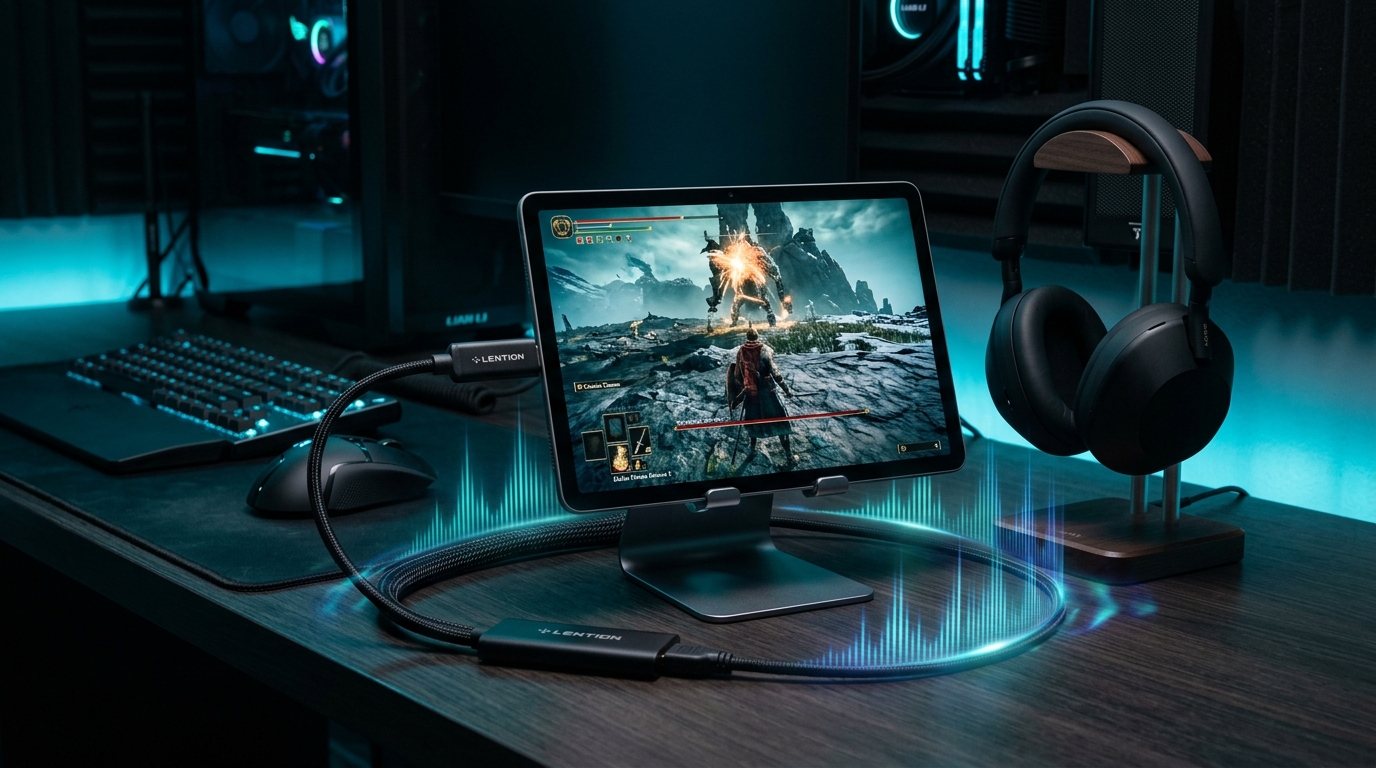
No need for audio splitters, extra headphone cables back to the source, or muted gaming sessions. When your capture adapter supports standard USB audio and your source outputs sound over HDMI, HDMI Monitor plays the audio through speakers or headphones, with fullscreen mute/unmute controls. Use wired headphones when you want the lowest audio delay.
2. Intuitive Preview & Display Controls
- Pinch-to-Zoom & Pan: Zoom in on camera details, examine pixel alignment, or reposition your preview with natural multitouch gestures.
- Aspect Ratio Modes: Quickly switch between Fit (preserving native source aspect ratio) and Fill (filling the full screen).
- Rotation & Flip: Rotate 90°, 180°, or 270°, or flip horizontally/vertically to accommodate tabletop stands, inverted camera rigs, or teleprompter setups.
3. Safe Hardware Eject & Quick Return to Fullscreen
External USB capture devices can be sensitive to abrupt disconnections. HDMI Monitor includes a Safe Eject action that stops the stream, cleans up audio, and releases the hardware before you unplug. If you leave fullscreen to check settings, you can jump back into fullscreen without reconnecting.
4. Pro Enhancements
For power users, creators, and retro enthusiasts, HDMI Monitor Pro delivers:
- Unlimited Fullscreen Monitoring: Remove daily viewing limits for production shoots, gaming sessions, and all-day work. (Free users receive up to 15 minutes of fullscreen monitoring each day).
- Power Stay-Awake: Keep your display awake while in fullscreen so the screen does not time out during reference work.
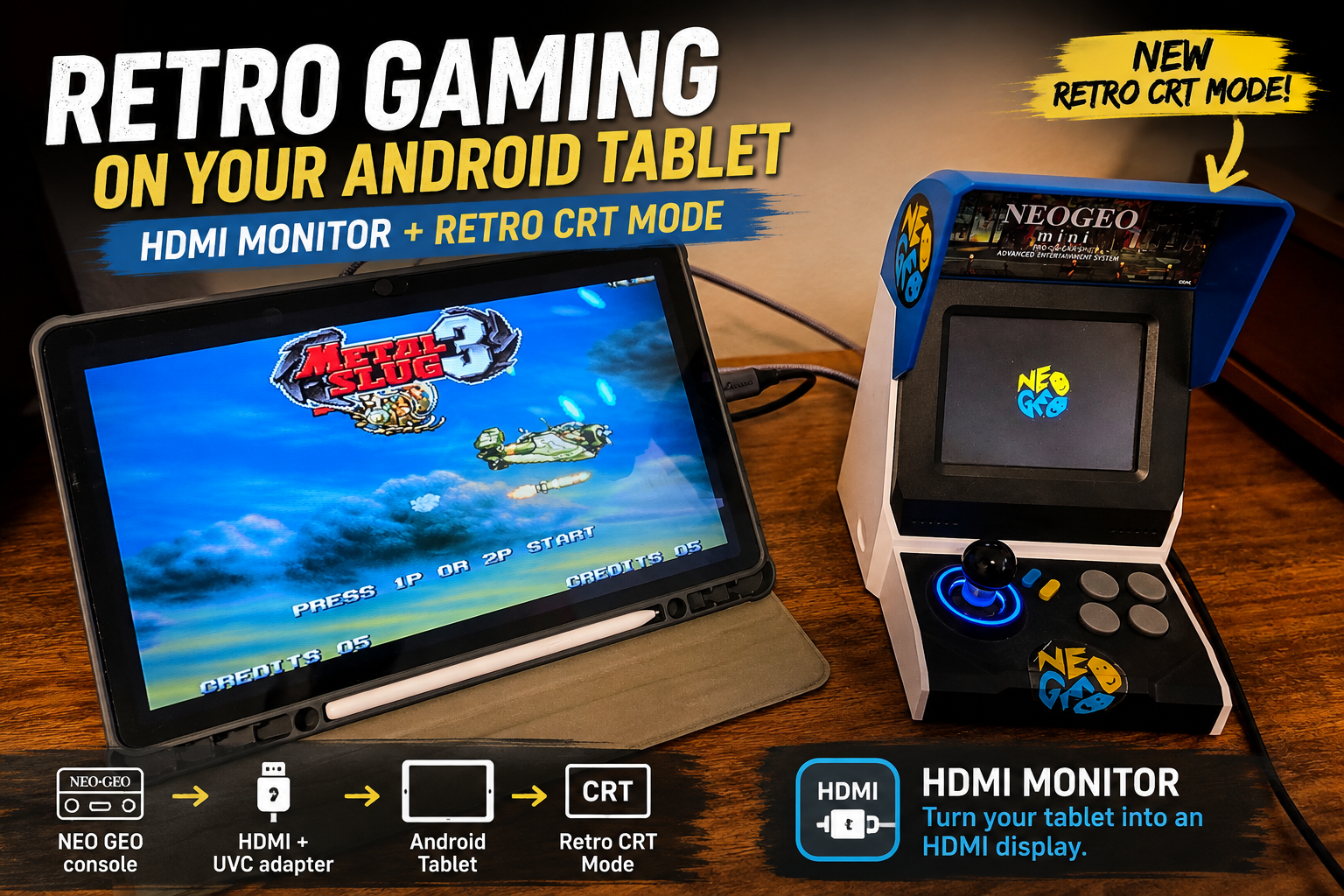
- Retro Game Mode: Apply a CRT-style filter with scanlines, rich colors, and subtle perimeter shading when playing retro consoles.
Practical Everyday Setups
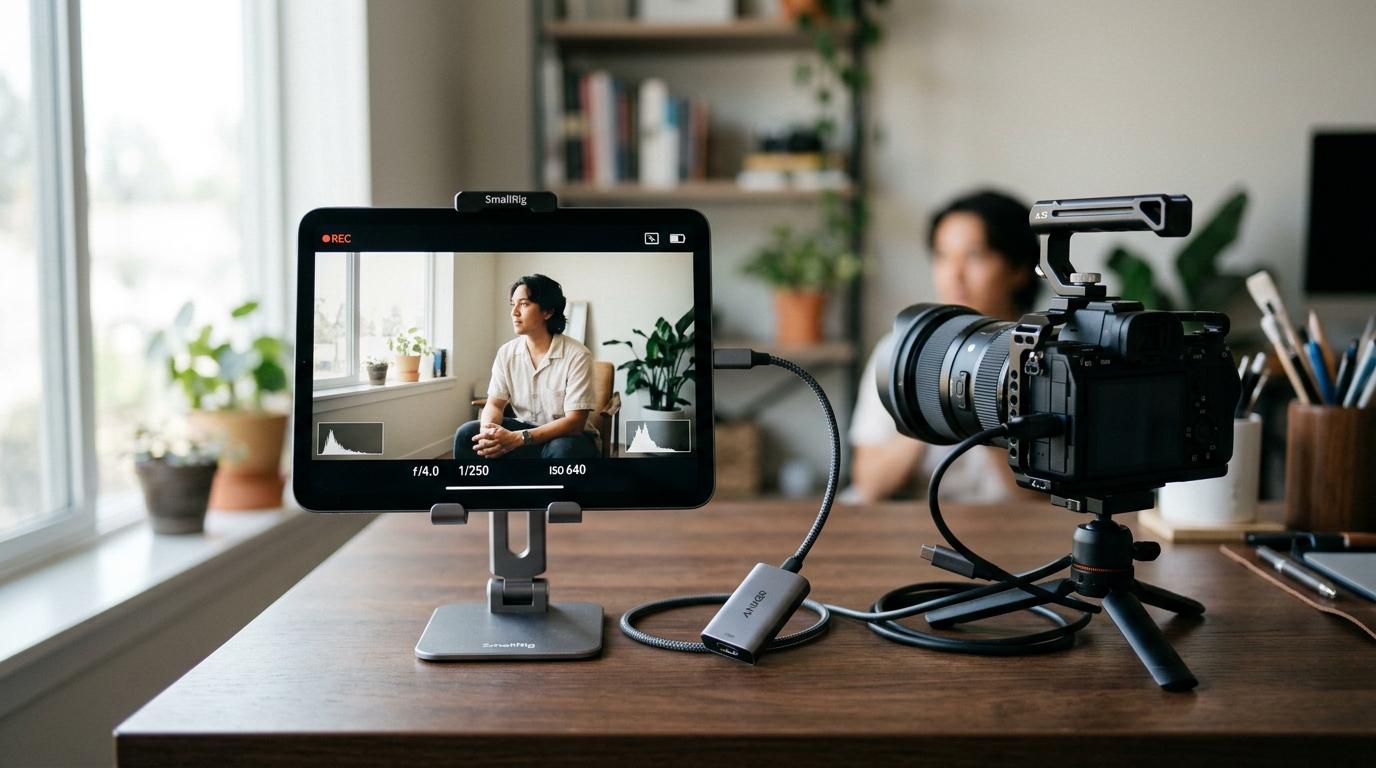
🎬 Camera & On-Location Field Monitoring
Dedicated on-camera monitors often cost hundreds of dollars and use bulky proprietary batteries. A USB-C iPad already has a large, bright display and its own battery. Pairing it with a compatible UVC HDMI capture card turns it into a capable on-set field monitor.
🎮 Portable Console Gaming
Connect a Nintendo Switch dock, Steam Deck, ROG Ally, PlayStation, or Xbox to a USB-C iPad in coffee shops, hotel rooms, or flights. Play on a large display with audio through device speakers, wired headphones, or AirPods. Wired headphones usually have the lowest audio delay.
Protected HDMI sources will not display on a UVC capture card. PlayStation 5 needs HDCP turned off in settings; PlayStation 3, streaming apps, and Blu-ray typically will not show at all.
💻 Laptop Second Screen & Server Diagnostics
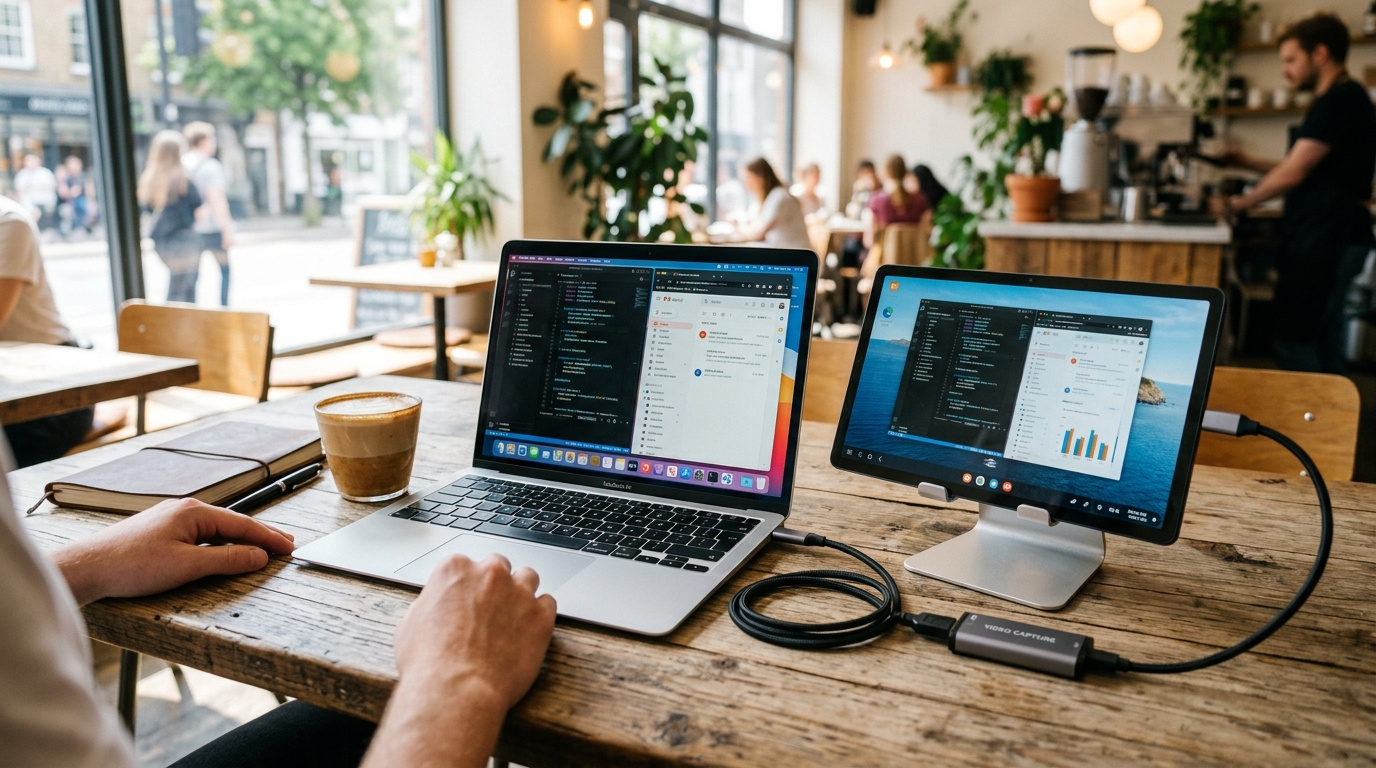
Troubleshooting a headless server, Raspberry Pi, home lab mini PC, or setting up a dual-screen workstation on the go? Plug the HDMI cable into your capture adapter and get display output on your iPad without Wi-Fi or remote desktop software.
Getting Started: How It Works
Setting up HDMI Monitor on a USB-C iPad takes a few steps:
[ HDMI Source ]  --->  [ HDMI Cable ]  --->  [ USB-C Capture Adapter ]  --->  [ USB-C iPad ]
(Camera, Console,                               (Compatible UVC/UAC)           (iPadOS 17+)
PC, Laptop)- Plug in your UVC capture adapter: Connect a compatible USB-C HDMI capture card (here are the ones we use) into the iPad USB-C port.
- Connect your HDMI source: Run a standard HDMI cable from your camera, console, or computer into the capture adapter.
- Set audio output: Ensure your source device has its sound output set to HDMI.
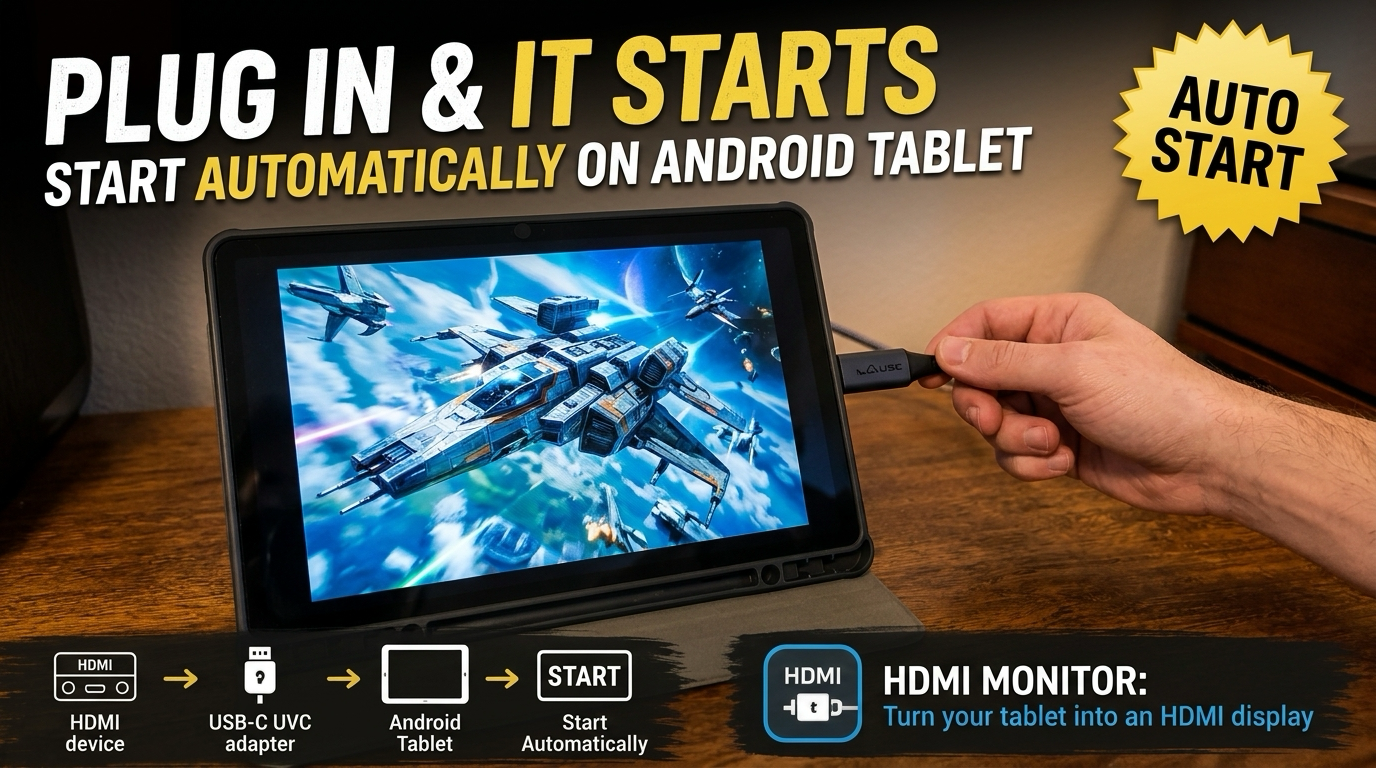
- Open HDMI Monitor: Launch the app, tap Scan Device, and tap Start to begin fullscreen viewing!
[!TIP] Power Tip: If you plan on using HDMI Monitor for multi-hour sessions, look for a USB-C UVC capture card that includes Power Delivery (PD) pass-through charging. You can plug a charger into the dongle so the iPad can draw power while capturing, but charging still depends on the adapter’s wattage and whether the device and charger negotiate PD correctly. Our adapter guide includes one with PD pass-through.
Hardware Compatibility & Requirements
To use HDMI Monitor on Apple devices:
- Devices: iPads with a USB-C port running iPadOS 17 or later. The app also installs on USB-C iPhones; compatibility varies.
- Operating System: iPadOS 17 or later (iOS 17 or later if you try it on iPhone).
- Capture Adapter: A compatible USB Video Class (UVC) HDMI capture card. Compact USB-C dongles and broadcast-grade capture devices are common choices; results vary by adapter and source.
- Note: Lightning-connector devices are not supported. Apple’s external capture support requires USB-C.
Download HDMI Monitor for Tablet on the App Store
HDMI Monitor for Tablet is now on the App Store. It is designed for iPad and also installs on USB-C iPhones.
Using an Android tablet instead?
Frequently asked questions
Which Apple devices support HDMI Monitor?
HDMI Monitor is designed for iPads with a USB-C port running iPadOS 17 or later. It also installs on USB-C iPhones; compatibility varies. Lightning devices and versions older than iOS 17 / iPadOS 17 do not support external UVC video capture.
Does it require an expensive, proprietary capture card?
No. HDMI Monitor is built for standard USB Video Class (UVC) and USB Audio Class (UAC) capture adapters. Compatible USB-C HDMI capture dongles and premium cards such as the Elgato Cam Link are typical options; adapter quality and USB bandwidth still affect results.
Is HDMI audio monitoring supported on iPad?
Yes. HDMI Monitor can play incoming digital audio from a compatible capture adapter on iPad speakers, wired headphones, or Bluetooth earbuds. Latency depends on the adapter, Bluetooth codec, and source device. Wired headphones usually have the lowest delay.
Does HDMI Monitor convert the USB-C port into a direct HDMI input?
No. Apple devices do not have hardware HDMI-in circuitry in their USB-C ports. An external UVC HDMI capture card or dongle is required to convert the HDMI signal into a standard USB video stream.
What is the app called on the App Store and Google Play?
On both the Apple App Store and Google Play, the app is listed as "HDMI Monitor for Tablet". The iOS listing is designed for iPad and also installs on USB-C iPhones.
What are the usage limits for the free tier?
The app offers up to 15 minutes of free fullscreen viewing each day. You can upgrade to Pro for unlimited monitor time, the screen stay-awake Power setting, and Retro Game Mode.