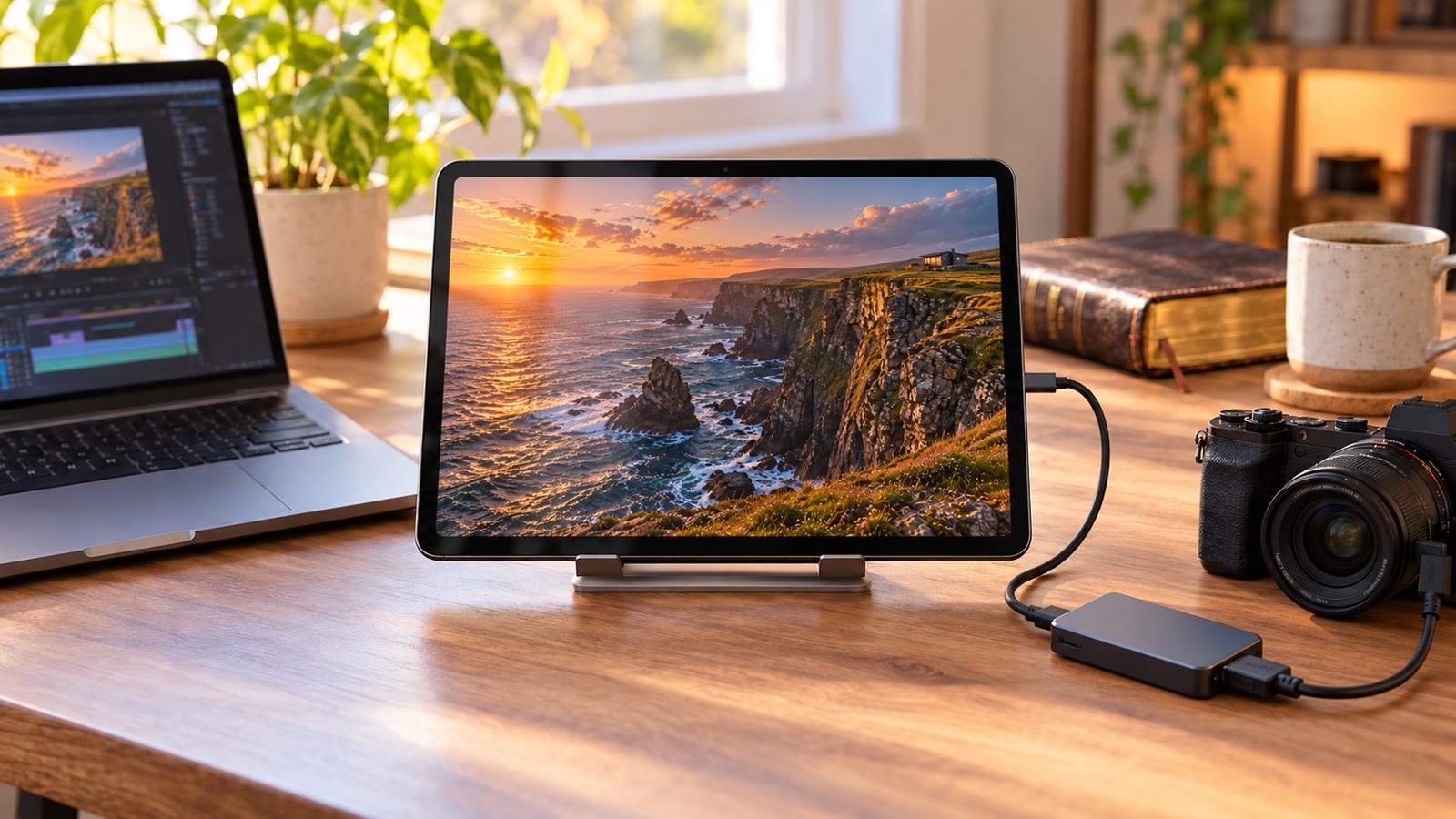
Tablet vs. External Monitor: Why a Tablet Is the Smarter Second Screen
An external monitor only does one job. A tablet can be your HDMI monitor, your camera field monitor, a Bible clock, and still the device you use every day.
Keep CodeInFaith in your Google feed
Add us as a preferred source to see more of our latest articles in Google Search.
You need a second screen. Maybe for your laptop, a game console, a camera, or a Raspberry Pi on the workbench. The obvious answer is to buy an external monitor.
Before you do, think about what that monitor does on the days you don’t need it. Most of them do nothing at all. They aren’t touchscreens, they can’t run apps, and once they’re unplugged they’re just a panel waiting for a cable.
A tablet costs more. But it’s a monitor when you need one and a full device the rest of the time. Here is why we think a tablet is the better buy.
An external monitor does one job
A typical external monitor is built to do one thing: show a signal from something else. That’s fine at a desk that never changes. The trouble is everywhere else:
- It’s not a touchscreen. Most external monitors can’t be tapped, swiped or pinched.
- It can’t do anything by itself. No apps, no browser, no reading, no video calls.
- It’s idle most of the week. If you only need a second screen now and then, the monitor spends most of its life in a drawer or on a shelf.
You pay for a screen, and you get a screen. Nothing more.
A tablet costs more, and does a lot more
Let’s be honest about price. A tablet usually costs more than a basic external monitor. You also need a small UVC HDMI capture adapter to use it as a monitor, because tablets don’t have an HDMI input.
What you get for that extra money is a device that keeps working when the cable comes out. One tablet can be:
- An HDMI monitor for your laptop, console, camera or mini PC.
- A camera field monitor with focus and exposure tools.
- A Bible clock on your nightstand, desk or kitchen counter.
- Your everyday tablet for reading, browsing, video and calls.
An external monitor covers the first item. A tablet covers all four.
1. Use it as an HDMI monitor with HDMI Monitor
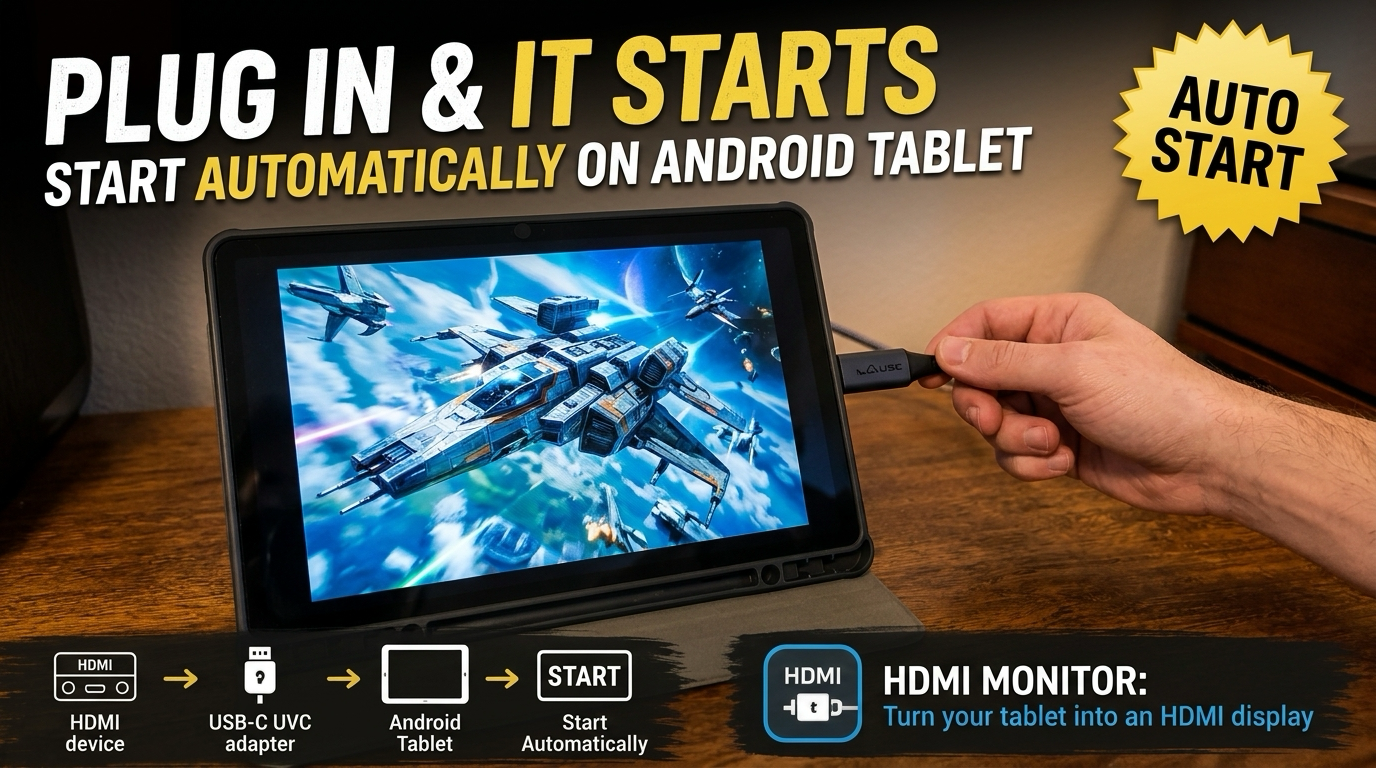
HDMI Monitor turns an Android tablet or USB-C iPad into a fullscreen HDMI display. Here’s the setup:
[HDMI source] ──(HDMI cable)──> [UVC capture adapter] ──(USB-C)──> [Tablet + HDMI Monitor]Plug in the adapter, and with Start Automatically turned on, the picture opens fullscreen. Compatible adapters carry the HDMI sound too, so you can listen on the tablet speakers, wired headphones or Bluetooth earbuds.
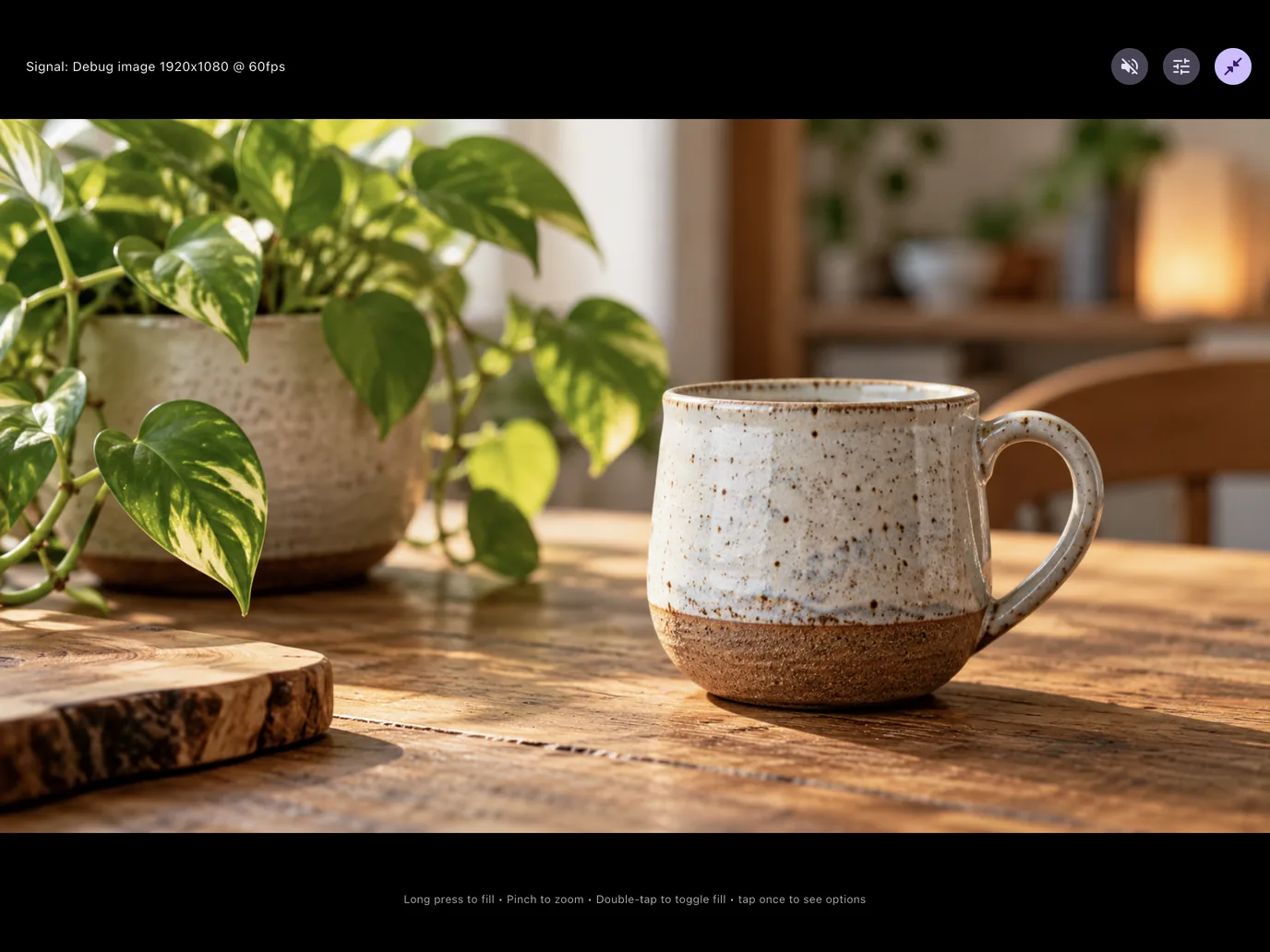
It works with the things people actually connect:
- A laptop at a café, when you want docs or chat on a second screen.
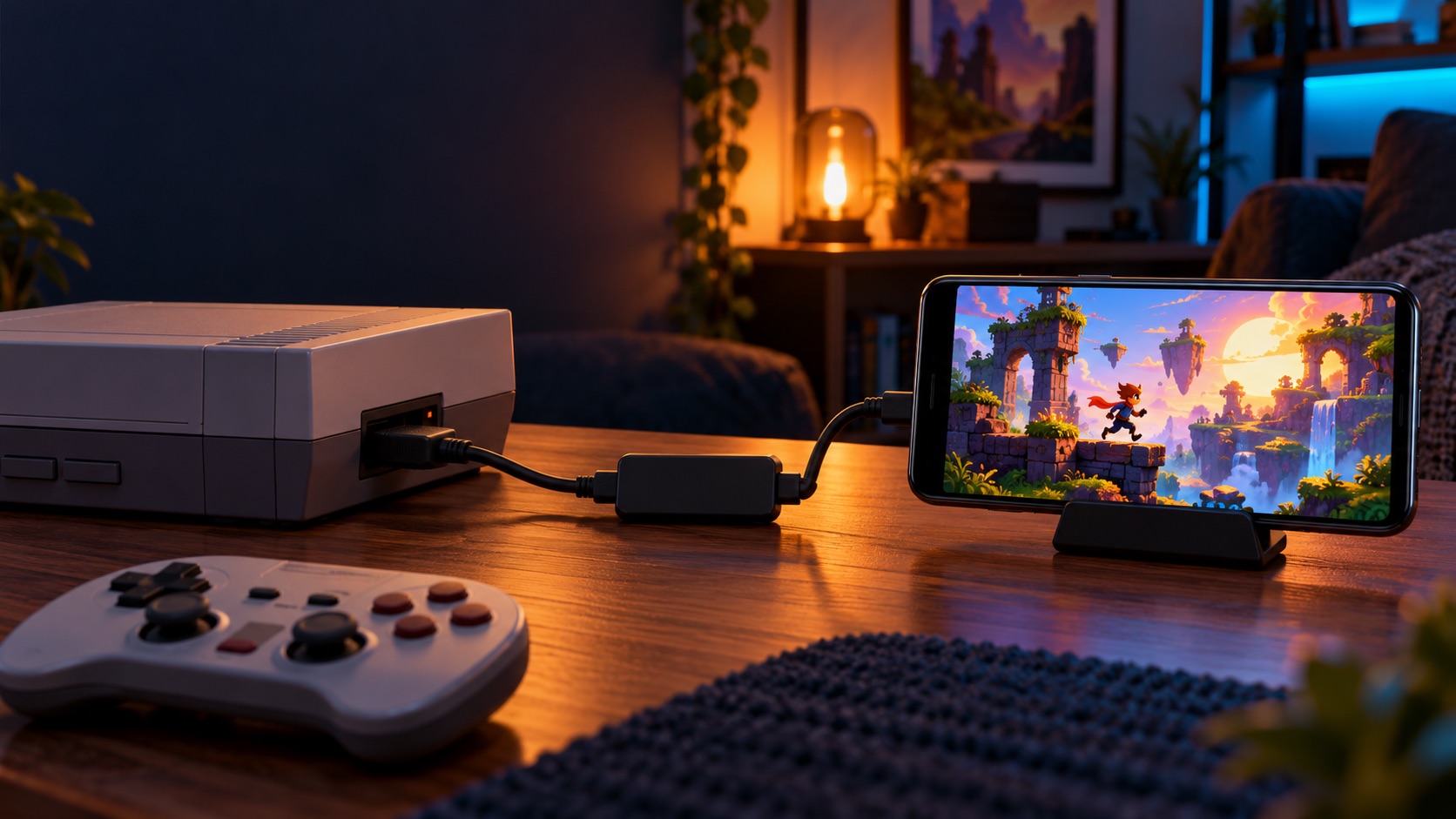
- A handheld or travel console, for games on a bigger screen.
- A mini PC or Raspberry Pi, so you don’t have to carry a monitor to the bench.
You can pick a signal preset, switch between Fit and Fill, rotate or flip the picture, and pinch to zoom up to 4x. The signal stays on your device. The app doesn’t record or upload it.
HDMI Monitor is free to try with 15 minutes of fullscreen monitoring a day. Pro is a one-time purchase that adds unlimited monitor time, Retro Game Mode and Stay Awake in Fullscreen.
Not sure which adapter to buy? See our guide: What UVC capture adapter should you use with HDMI Monitor?
2. Use it as a camera field monitor with Field Monitor
If you shoot video, a camera’s flip screen is small and hard to read in bright light. A dedicated on-camera monitor is another device to buy, mount, charge and pack.
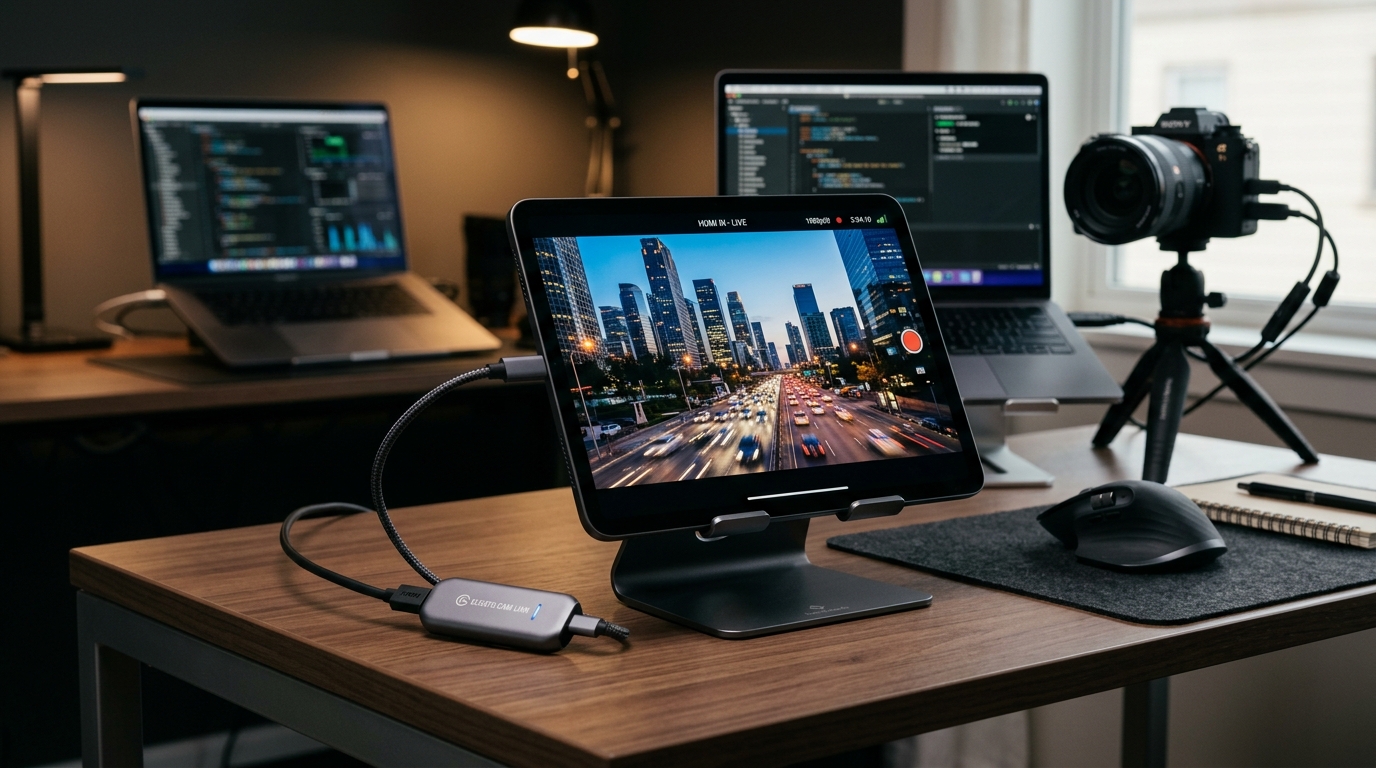
Field Monitor for Camera turns an Android phone or tablet into a field monitor. It uses the same kind of UVC capture card between the camera’s HDMI out and your USB-C port, and adds the tools filmmakers rely on:
- Focus peaking and a 2x punch-in to check critical focus.
- Zebras and a spot meter for exposure.
- False color, waveform, histogram and vectorscope (Pro), with the scopes live in a corner of the screen.
- Built-in log-to-Rec.709 LUTs, plus your own
.cubefiles (Pro). - Framing guides and 16:9 masks, plus every aspect mask and a locked Director View you can hand to a client with Pro.
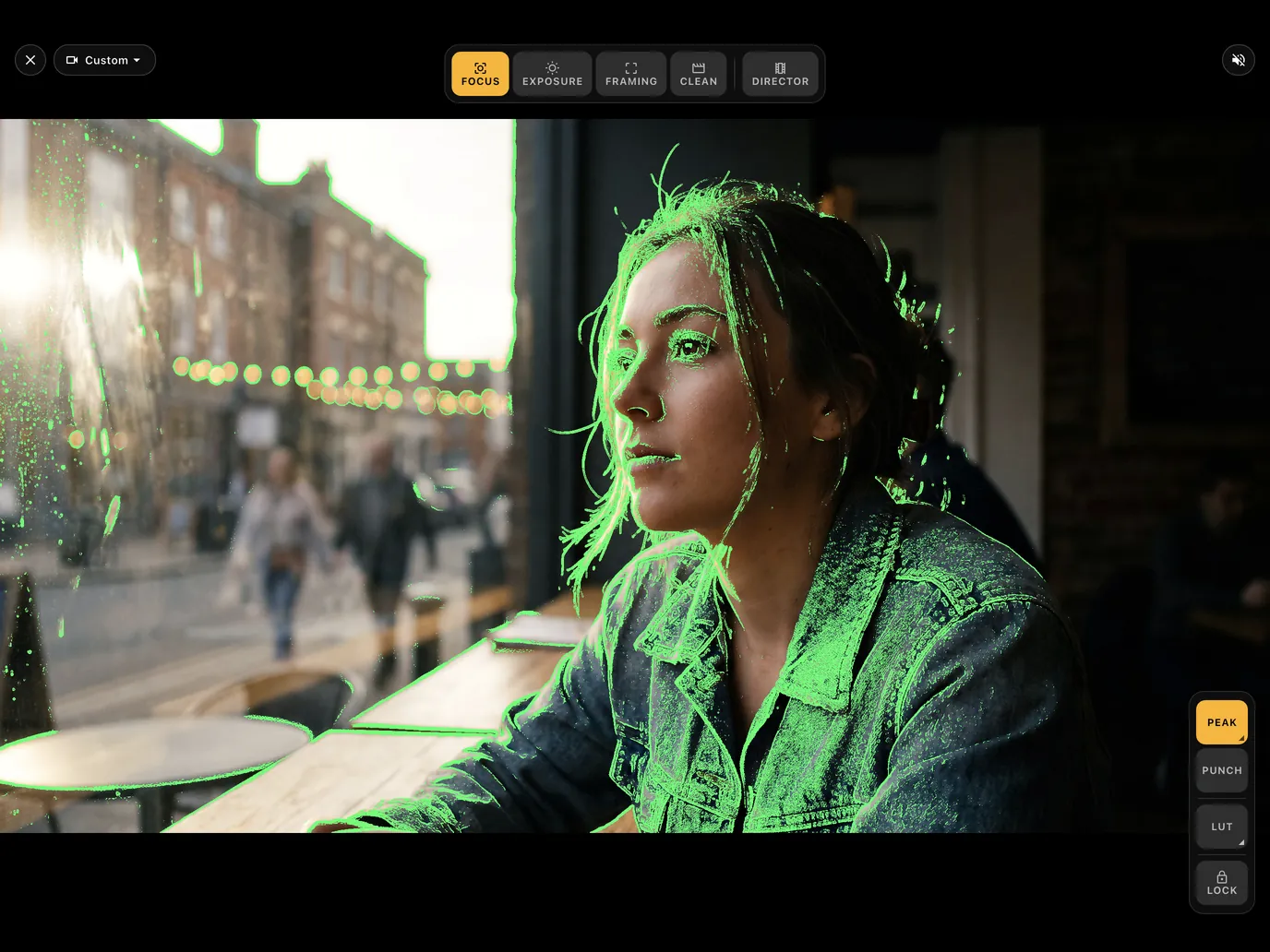
Field Monitor is free to use with free monitoring time every day. Field Monitor Pro is a one-time purchase, not a subscription. It’s available now on Google Play.
When the shoot is over, unplug the card and the tablet goes back in your bag as a tablet. A dedicated field monitor can’t do that.
3. At home, let it show Scripture with Bible Clock
Here is the part an external monitor will never do. When the tablet isn’t a monitor, it doesn’t have to sit dark.
Bible Clock shows the time and a Bible verse together on one screen. Stand the tablet on your nightstand, desk or kitchen counter, and every glance at the clock is a glance at God’s Word.
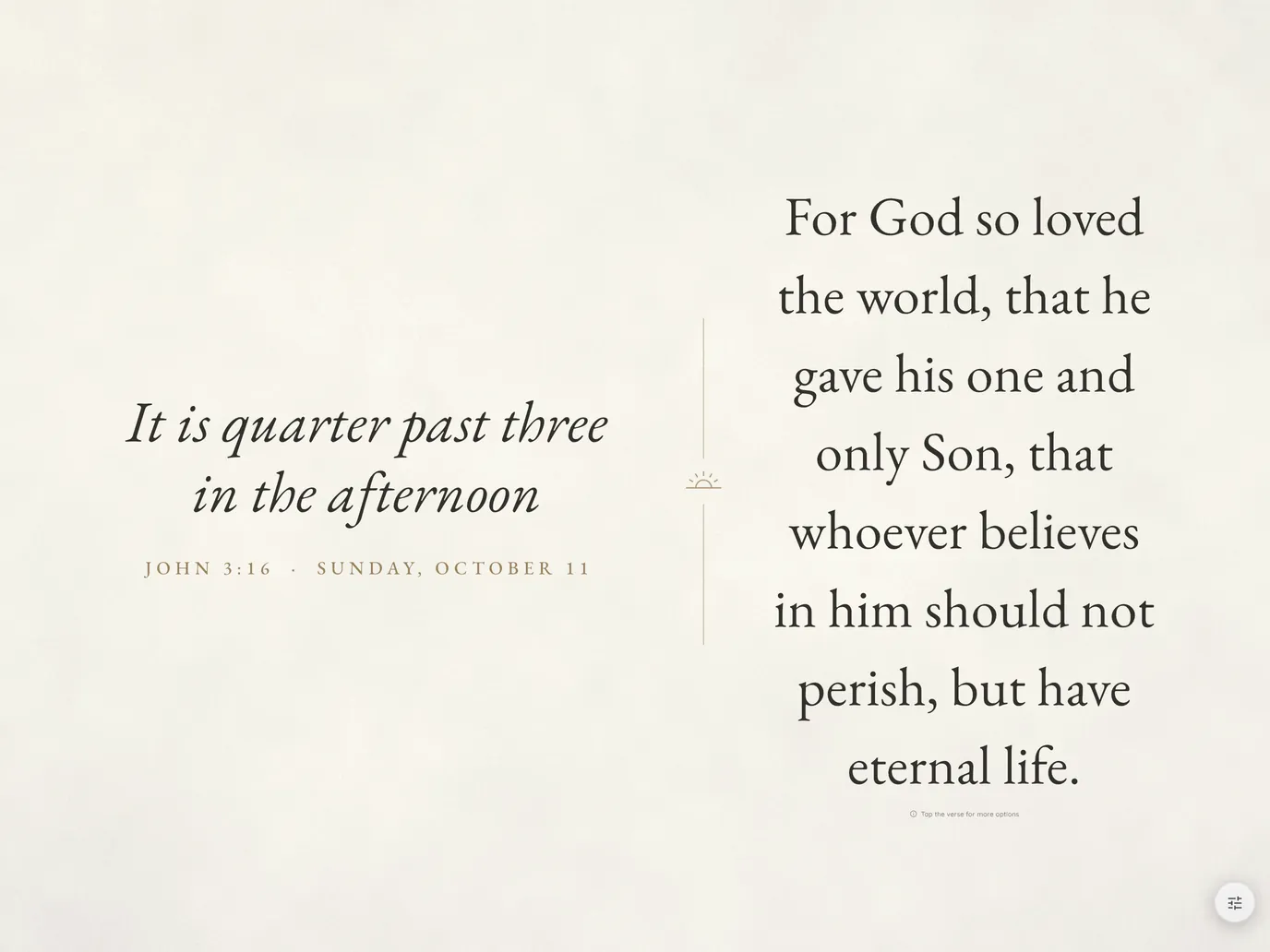
- Curated themes set the clock, the verse lettering and the scene in one tap. Two are free, and Pro adds animated scenes that change from dawn to night.
- Tap any verse to reflect: read the verses around it and save favorites.
- Time-based verses (Pro): at 3:16, see John 3:16.
- Photo Clock (Pro) frames your own photos with the time and a verse. Your photos stay on your device.
- A gentle night display (Pro) with warmer colors in the evening, for a bedside clock that doesn’t glare.
Bible Clock is free to download, with a one-time Pro upgrade.
“Your word is a lamp to my feet, and a light for my path.” (Psalm 119:105)
4. And it’s still your tablet
Everything above is extra. On a normal day the tablet is just a tablet: books, video, recipes, the browser, a video call with family. It has its own battery and its own touchscreen. You never bought a single-purpose screen that waits for a cable.
Tablet vs. external monitor at a glance
| Tablet + our apps | Typical external monitor | |
|---|---|---|
| Price | Usually higher, plus a UVC capture adapter | Usually lower |
| Touchscreen | Yes | Usually no |
| Shows an HDMI source | Yes, with a capture adapter and HDMI Monitor | Yes |
| Camera field monitor tools | Yes, with Field Monitor (Android) | No |
| Useful when unplugged | Yes: Bible Clock, reading, video, apps | No |
| Runs on its own battery | Yes | Varies by model |
What you need
- A tablet. An Android tablet with USB host (OTG) support, or a USB-C iPad on iPadOS 17 or later for HDMI Monitor. Field Monitor is on Android for now.
- A UVC HDMI capture adapter, plus a cable or hub that carries data.
- The apps you want: HDMI Monitor, Field Monitor, Bible Clock.
A few honest limits: tablets can’t take HDMI in through USB-C alone, so the capture adapter is required. Adapters and devices vary. And HDCP-protected video won’t display: a PS5 needs HDCP turned off in its settings, and a PS3, streaming apps and Blu-ray typically won’t show.
The bottom line
If a screen will only ever sit on one desk and show one computer, a basic external monitor is the cheaper choice. But if you want a second screen that earns its place the rest of the week, spend a little more on a tablet. Plug it in and it’s your HDMI monitor or your field monitor. Unplug it and it’s your Bible clock and your everyday tablet.
Learn more on the HDMI Monitor, Field Monitor and Bible Clock pages. Questions? Email us at [email protected].
Frequently asked questions
Can a tablet replace an external monitor?
For many setups, yes. With a UVC HDMI capture adapter and the HDMI Monitor app, an Android tablet or USB-C iPad shows an HDMI source such as a laptop, console, camera or mini PC fullscreen, with sound on compatible adapters.
Can I plug HDMI straight into my tablet?
No. Tablets do not have an HDMI input, and their USB-C ports do not accept video in. A small UVC capture adapter turns the HDMI signal into USB video that the app can show.
Is a tablet more expensive than an external monitor?
Usually, yes. A basic external monitor often costs less than a tablet. The difference is what you get for the money: a monitor only shows a signal, while a tablet is also a full touchscreen device you can use every day.
Which app should I use for a camera?
Use Field Monitor for Camera if you want filmmaking tools like focus peaking, false color, scopes and LUTs. It is available on Google Play for Android phones and tablets. HDMI Monitor is the general-purpose display for laptops, consoles, cameras and mini PCs on Android and iPad.
What can I do with the tablet when it is not a monitor?
Anything you normally do on a tablet: read, watch, browse, take video calls. You can also set it on a nightstand, desk or kitchen counter and run Bible Clock, which shows the time and a Bible verse together.