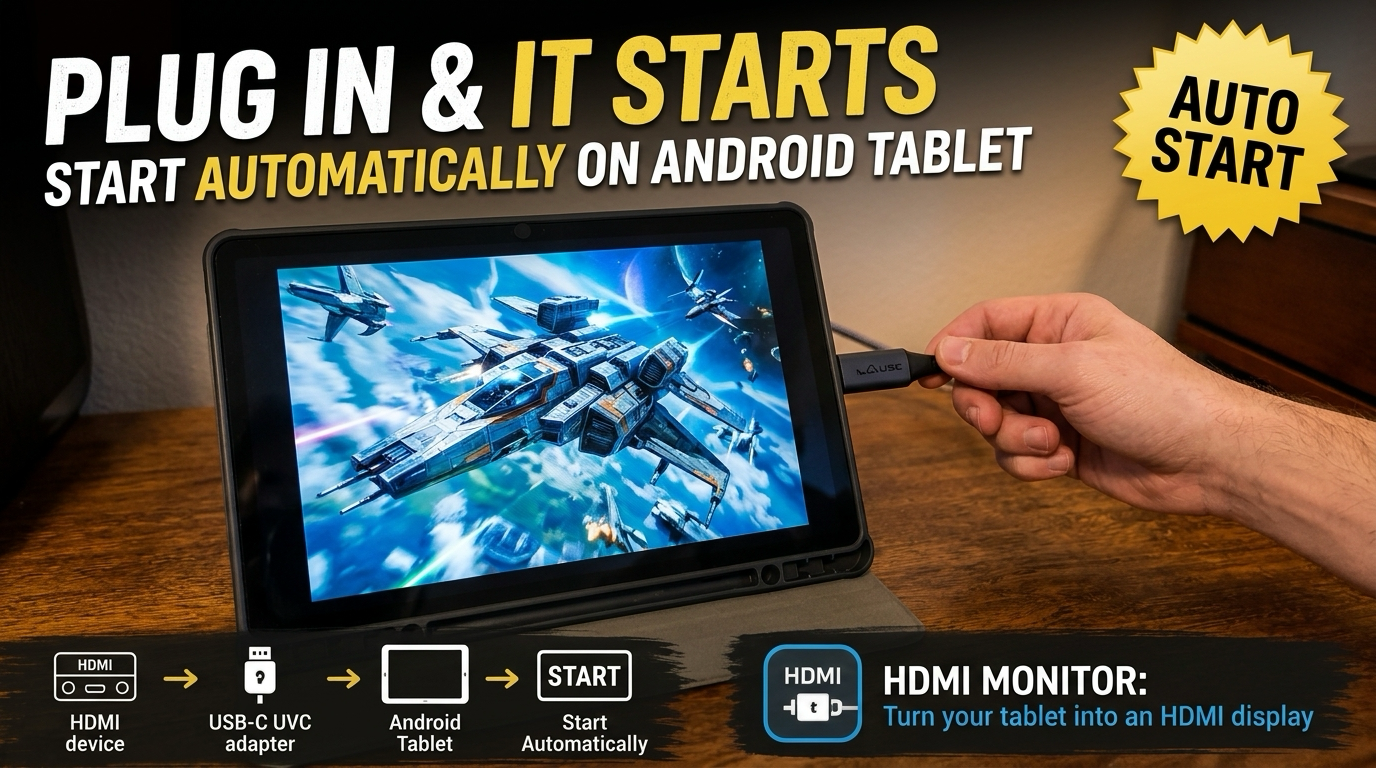
HDMI Monitor 1.6: Plug In and Your HDMI Signal Starts Automatically
Keep CodeInFaith in your Google feed
Add us as a preferred source to see more of our latest articles in Google Search.
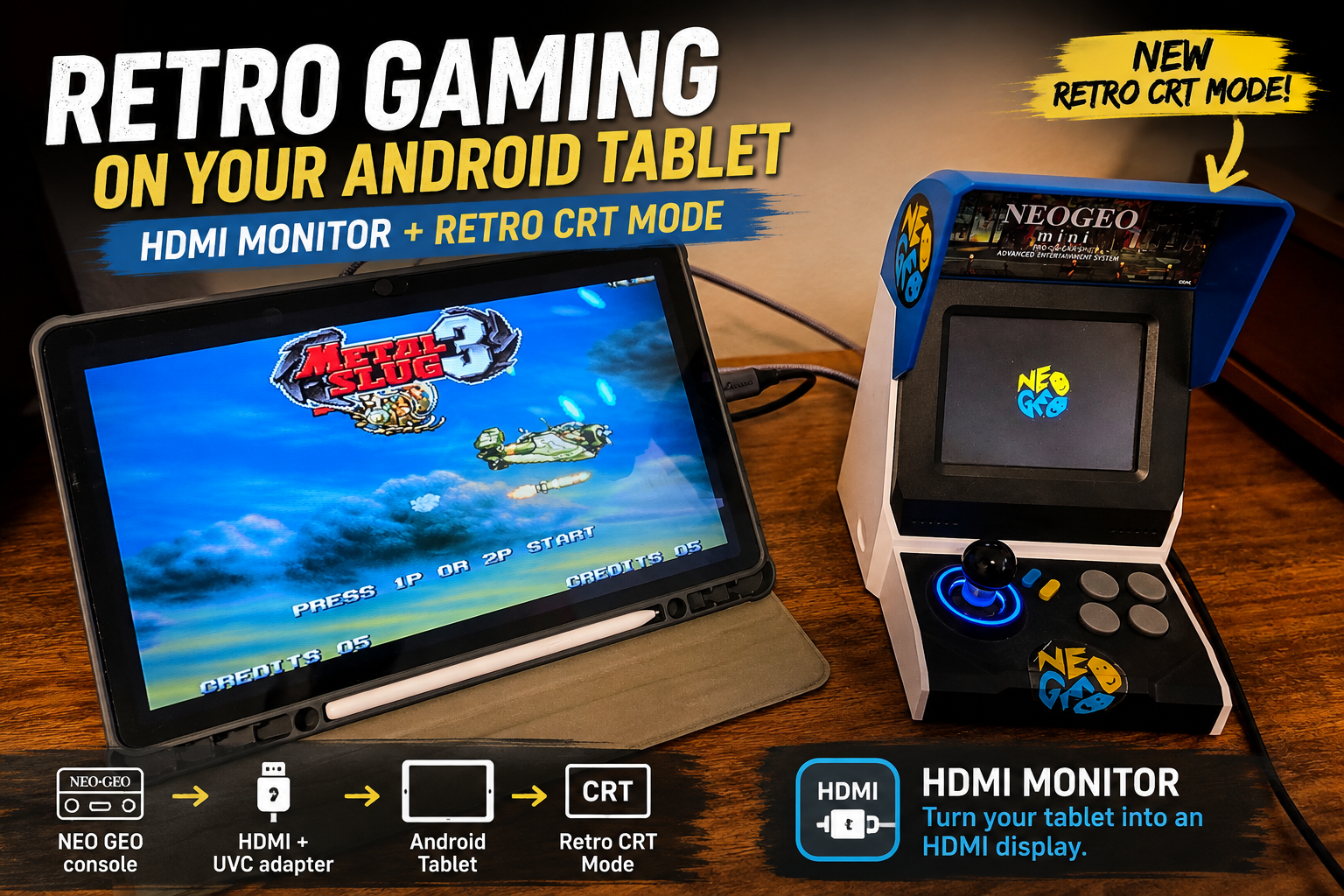
Most of the time, you open HDMI Monitor for one reason: to see your HDMI source on your tablet. Until now, that meant plugging in the capture adapter, then tapping to start. It’s a small step, but you repeat it every time you set up.
HDMI Monitor 1.6 for Android removes that step. Plug in a compatible capture adapter and the app goes straight to fullscreen. If the cable comes loose mid-session, your signal picks up where it left off once you plug it back in.
Start automatically when you plug in
The new Start Automatically setting is on by default. When HDMI Monitor is open and ready, and you connect one compatible UVC capture adapter, the app selects it and opens the fullscreen preview for you.
A few details keep it predictable:
- One adapter, one action. If more than one capture adapter is connected, HDMI Monitor shows the device list instead of guessing which one you meant.
- It’s free. Start Automatically is available to everyone, not just Pro users.
- It respects your daily limit. If you’re on the free plan and have already used today’s fullscreen time, plugging in selects the adapter but won’t open fullscreen straight into an upgrade screen.
- You can turn it off. Prefer to start manually? Switch off Start Automatically in Settings.
On Android, the system may ask which app should open the capture adapter when you plug it in. If you choose to always open HDMI Monitor for that adapter, you won’t need to tap through the permission prompt on future connections.
Reconnect and resume in place
USB-C cables get bumped. Adapters get unplugged by accident. Before 1.6, losing the connection sent you back to the main screen to start again.
Now HDMI Monitor stays in fullscreen and shows a “Reconnect it to resume” message. Plug the same adapter back in and you’ll see “Connecting…” while the adapter settles, then your signal comes back without any taps.
While the app waits for you to reconnect, audio stops and the free-usage timer and keep-awake setting pause. If you’d rather not wait, exit fullscreen and the resume is cancelled.
Free viewing time pauses when you step away
If you use HDMI Monitor on the free plan, your daily fullscreen time now pauses while the app is inactive, like when you switch to another app, and resumes when you come back. Your minutes count only while you’re actually watching.
Smaller improvements
- Two-column Settings on larger tablets. On bigger screens, Settings uses the extra width, so you scroll less to find what you need.
- More reliable reconnects. Capture startup, shutdown, and replug handling have been tightened so adapters reconnect more consistently.
- Better automatic mode selection. When HDMI Monitor picks a video mode for you, it now prefers standard display resolutions over unusual aspect ratios.
Update to HDMI Monitor 1.6
HDMI Monitor 1.6 is available now on Google Play for Android. Update the app, plug in your capture adapter, and let it take you straight to your signal.
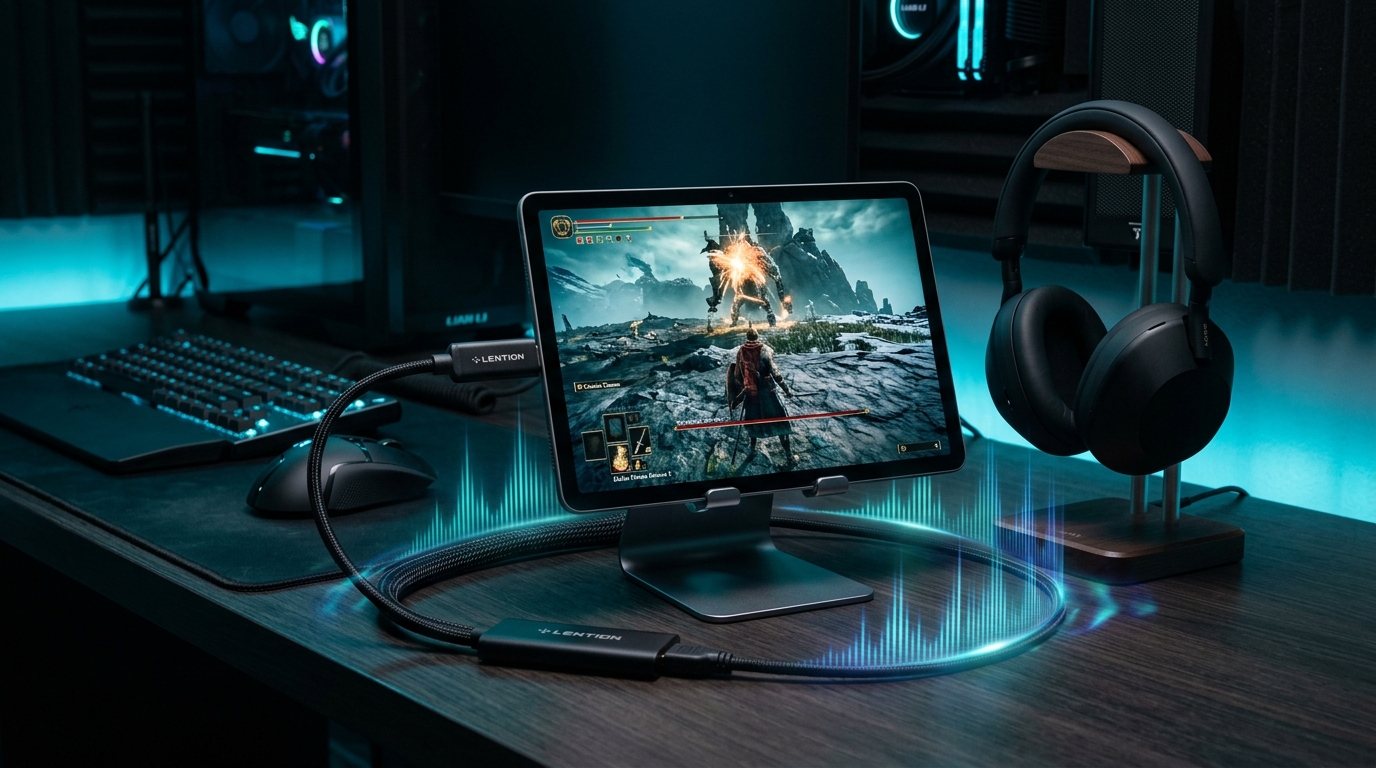
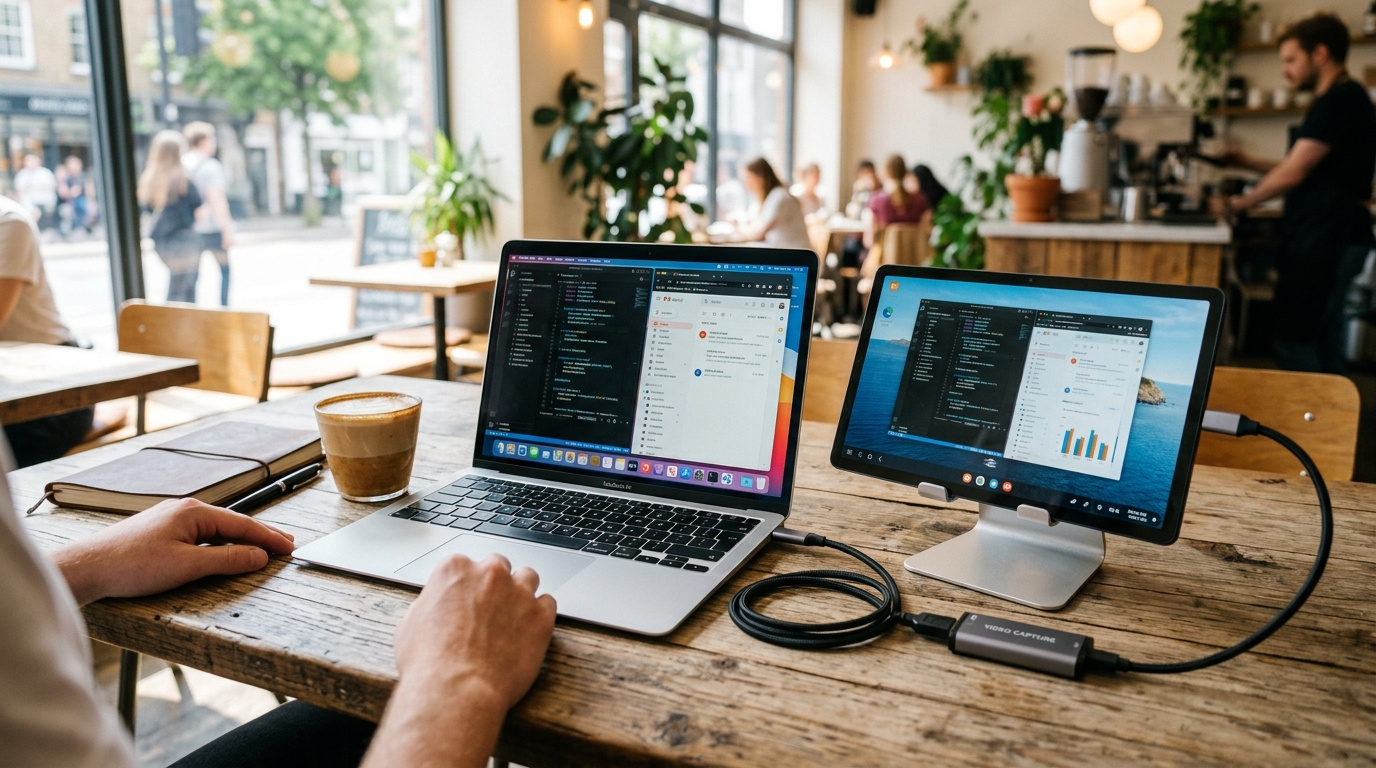
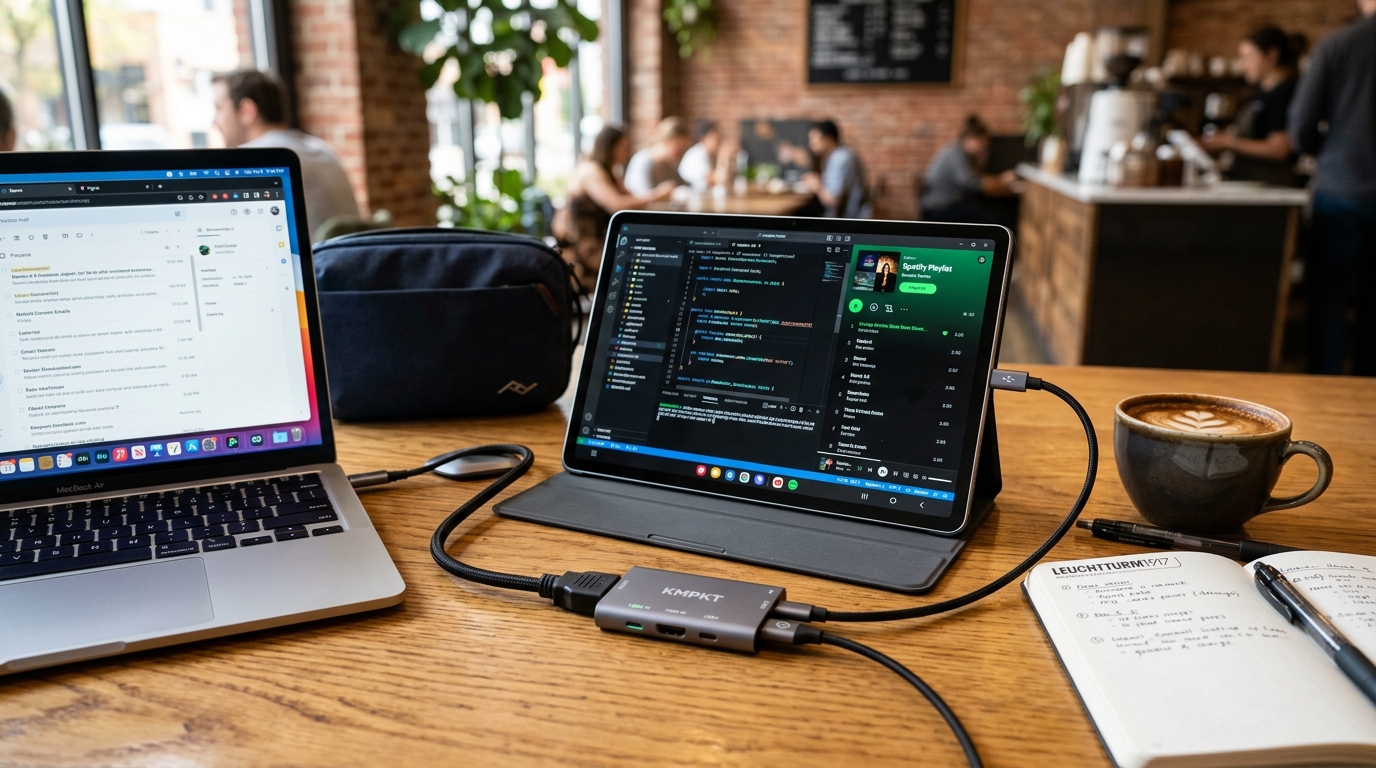
New to HDMI Monitor? You’ll need an Android tablet, an HDMI source, and a compatible USB UVC capture adapter. The app doesn’t add HDMI input to your tablet’s USB-C port on its own. If you’re choosing hardware, start with our guide to which UVC capture adapter to use with HDMI Monitor.