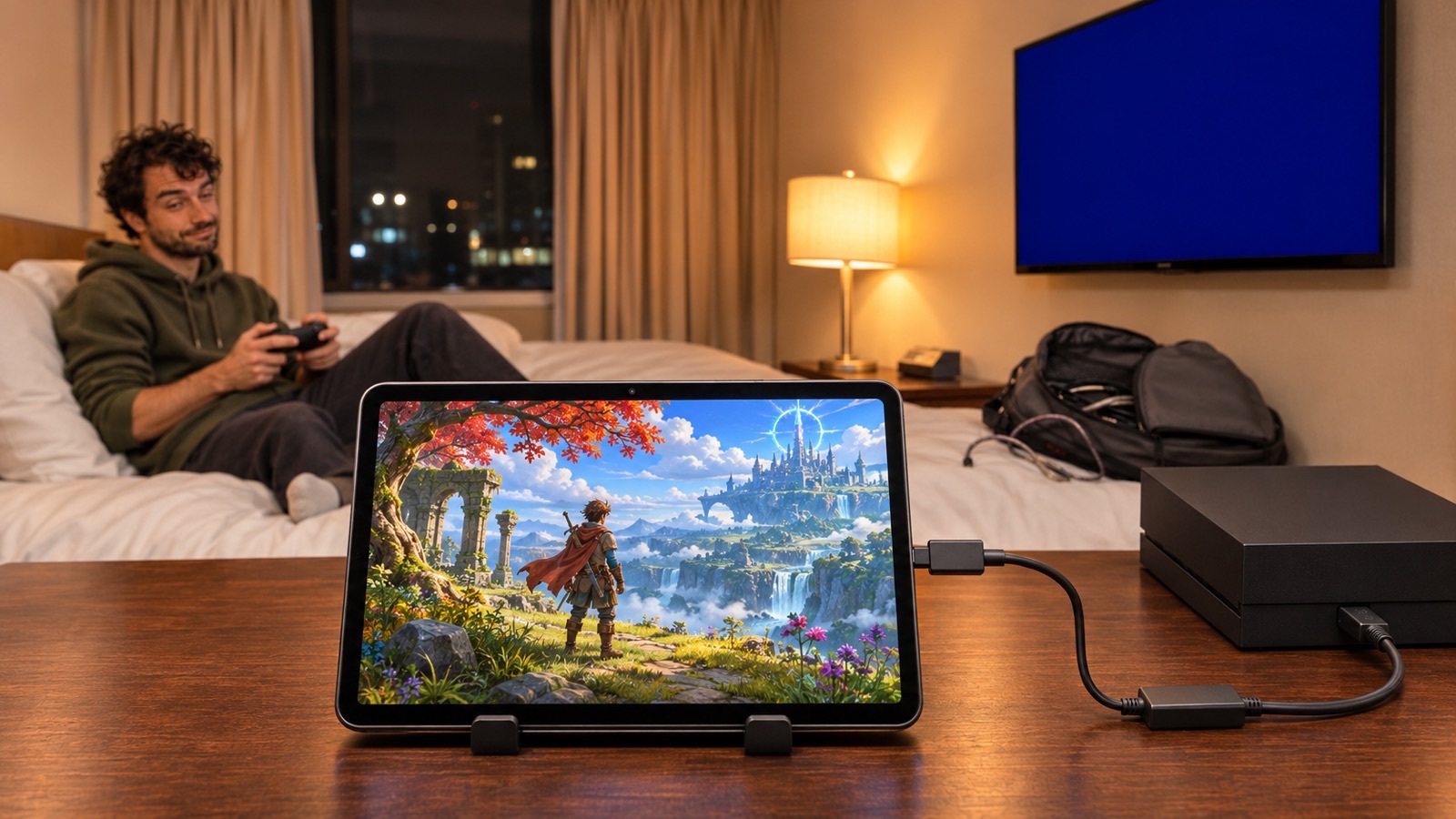
Hotel TV Blocks HDMI? Play Your Console on an iPad or Android Tablet
Locked hotel TV inputs do not have to end game night. A small capture card turns the tablet in your bag into the screen.
Keep CodeInFaith in your Google feed
Add us as a preferred source to see more of our latest articles in Google Search.
You packed the console, the controller and the cables. You check in, find the HDMI port on the hotel TV, plug in, and press Input. Nothing. The TV stays on the hotel’s welcome screen, or the button simply does not respond.
It happens a lot. Many hotel TVs are locked down so guests stay on the hotel’s channels and info pages. The HDMI ports may be disabled, hidden behind a wall mount, or impossible to select with the remote.
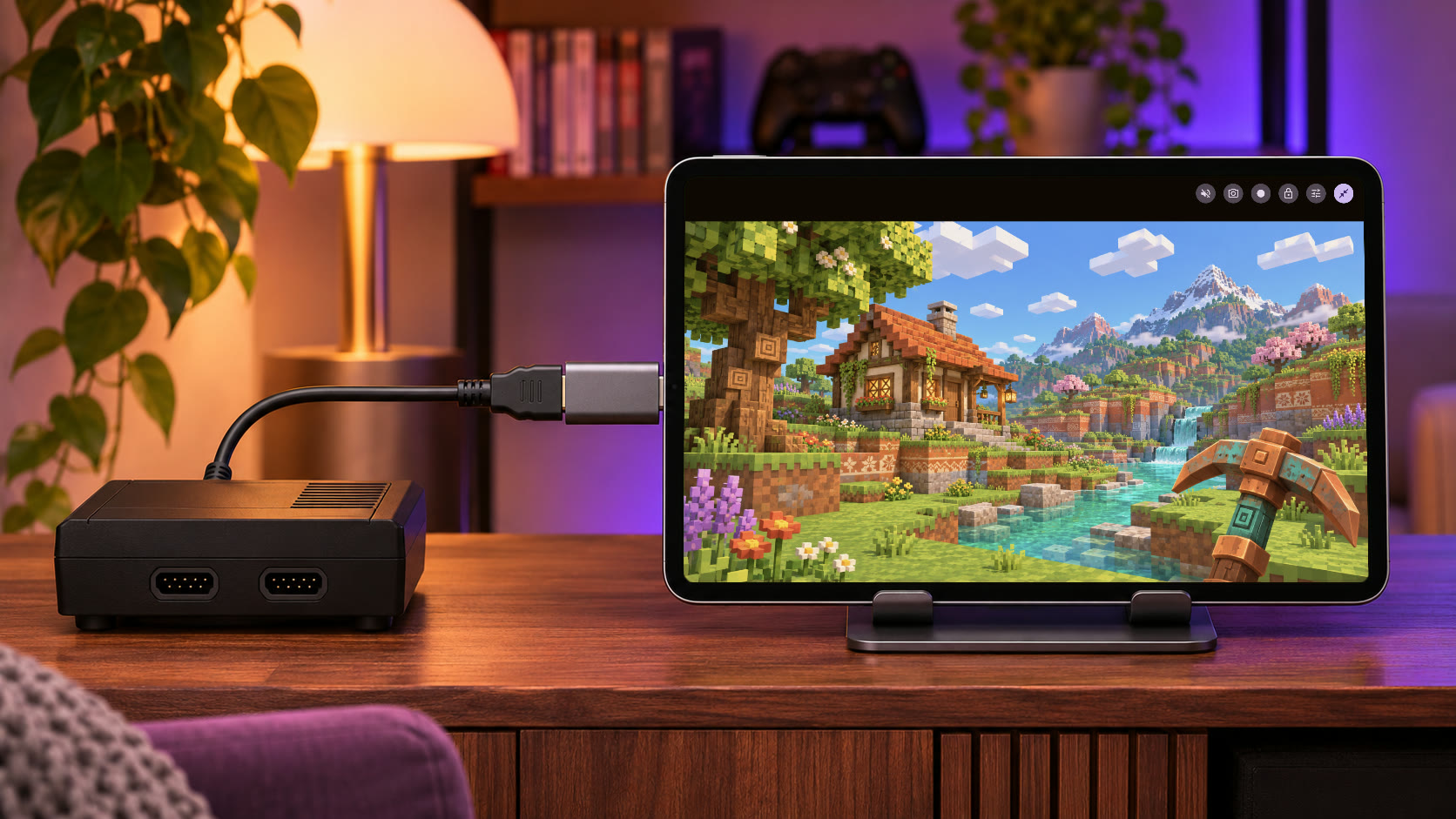
The good news: you probably already packed a better screen. If you travel with an iPad or an Android tablet, a small USB capture card and the HDMI Monitor app turn it into a portable game display, with sound.
Why Hotel TV HDMI Is Often Locked
Hotels set up their TVs for the hotel, not for your console. A common setup keeps the TV on the hotel’s own channels and welcome screen, so the input menu is hidden or does nothing. Some rooms also mount the TV so tightly that the HDMI ports are out of reach.
It is the hotel’s equipment, so we would not recommend digging through hidden service menus or unplugging anything behind the TV. Bringing your own screen is easier and works independently of the hotel TV. The same kit also works on trains, in rental homes, and at the in-laws’ place.
What You Need
The whole kit fits in a pouch:
- A tablet. An Android tablet with USB host (OTG) support, or an iPad with a USB-C port running iPadOS 17 or later. Lightning devices are not supported.
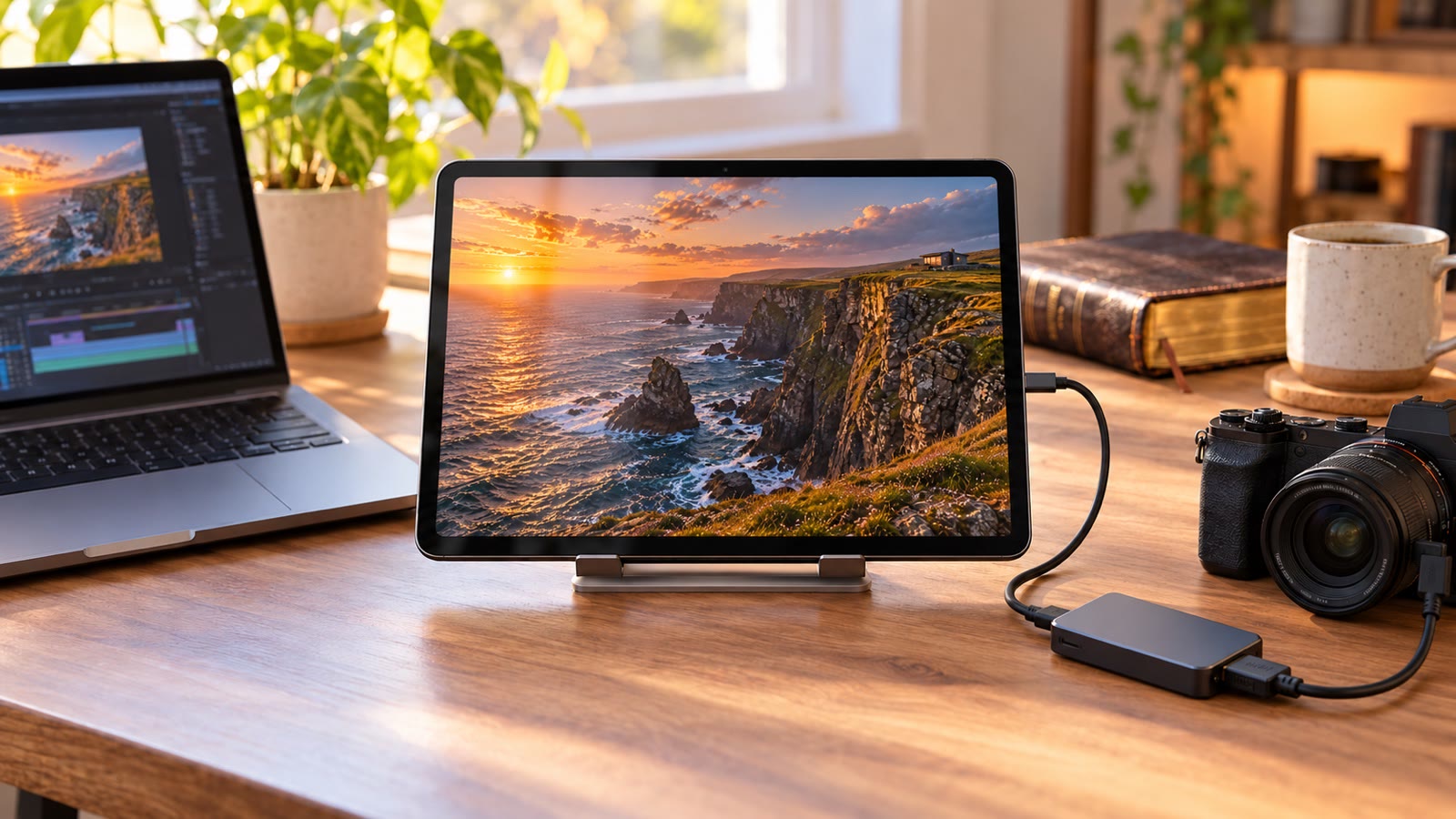
- A UVC HDMI capture card. This is the key piece. Tablets have no HDMI input, and a USB-C port cannot take HDMI by itself, so a plain HDMI-to-USB-C cable will not work. A capture card converts the HDMI signal into standard USB video (UVC), and usually audio too. Here are the ones we use.
- An HDMI cable from the console (or its dock) to the capture card.
- Your console and its own power supply.
- The HDMI Monitor app, listed as HDMI Monitor for Tablet on Google Play and the App Store.
- Nice to have: a capture card with USB-C Power Delivery (PD) pass-through so the tablet can charge while you play, a tablet stand, and wired headphones.
How to Play Your Console on a Tablet
1. Connect everything
- Plug the HDMI cable from your console into the capture card.
- Plug the capture card into the tablet’s USB-C port.
- Turn on the console.
2. Open HDMI Monitor
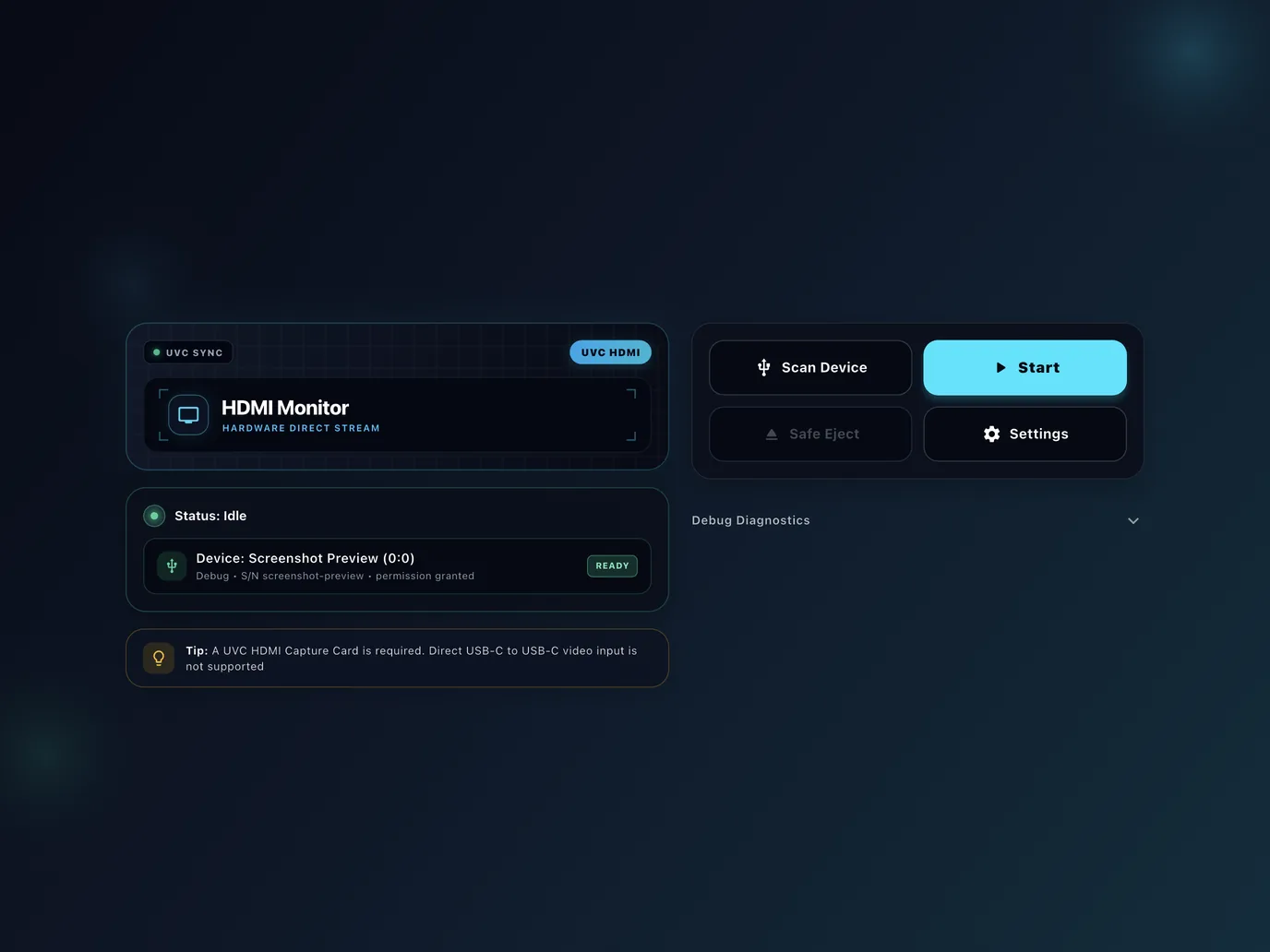
With the app open and Start Automatically on, the picture opens fullscreen as soon as you connect a compatible capture card. If the card was already plugged in, tap Scan Device, then Start.
On Android, the app asks for permission to use the USB device, and for microphone access. That second one is because Android treats audio from a USB capture card as microphone input. The permission lets the app play the game sound; it is not used to record you.
3. Pick a signal preset for games
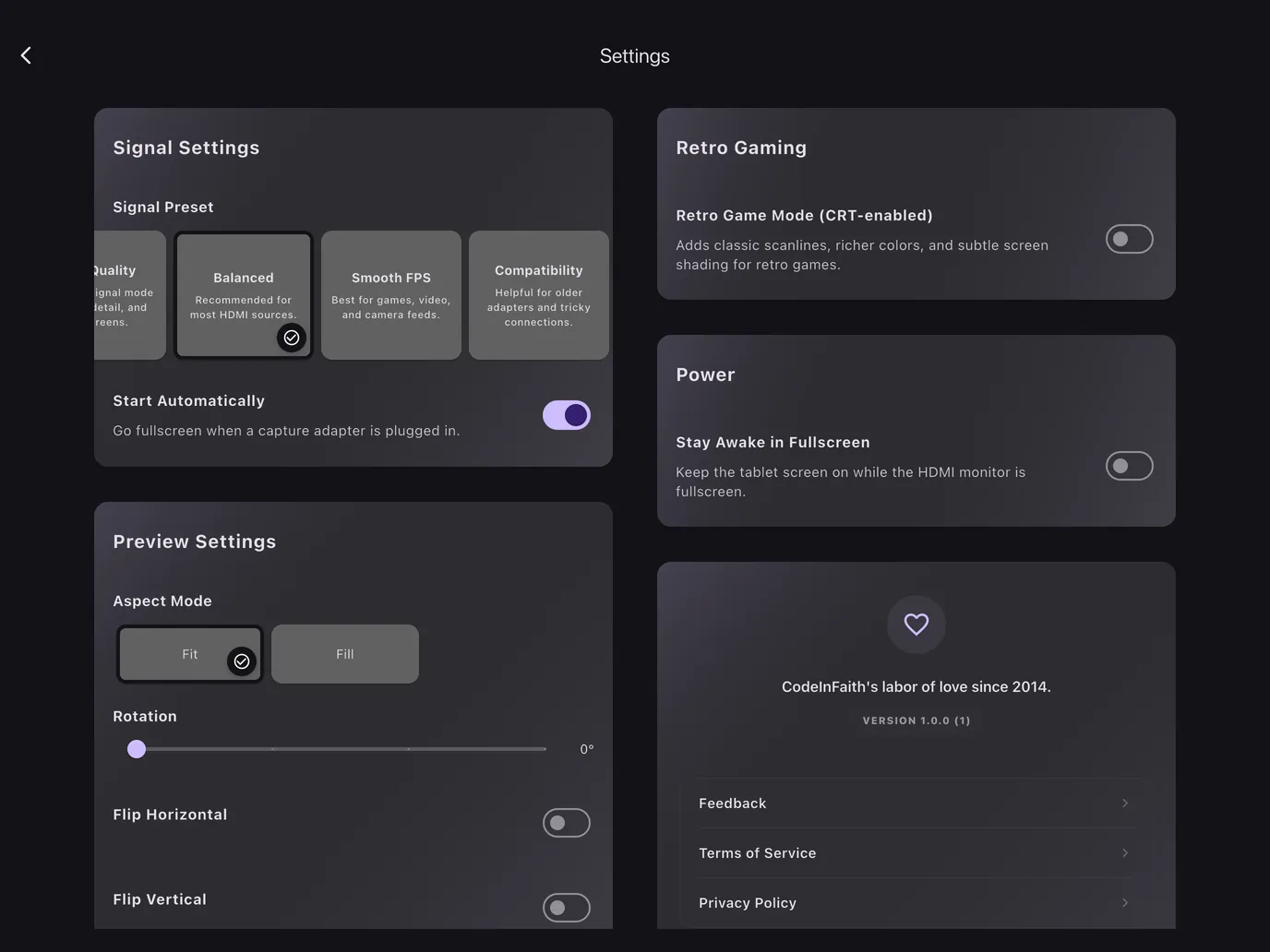
Open Settings and choose Smooth FPS, the preset meant for games, video and camera feeds. If the picture will not start or looks unstable, try Compatibility. Use Fit to see the whole picture, or Fill to cover the screen and crop the edges.
4. Turn on the sound
If your capture card also provides USB audio, the game sound plays on the tablet. Set your console’s sound output to HDMI. You can listen on the tablet speakers, wired headphones or Bluetooth earbuds. Wired headphones have the lowest delay, which matters for rhythm and fighting games.
5. Play
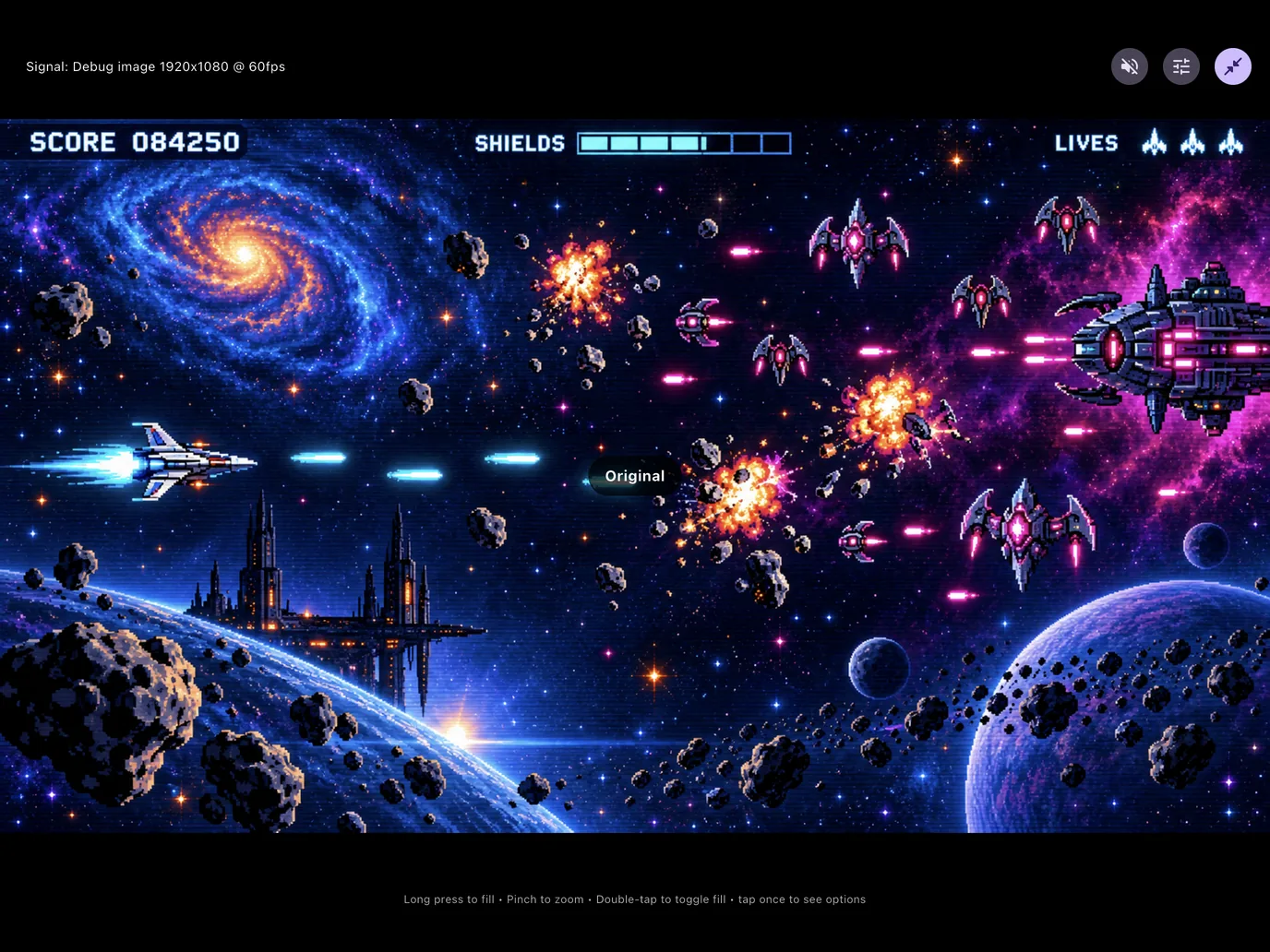
That is it. Your console is now fullscreen on the tablet, and the hotel TV can stay on the welcome channel.
Tips for a Smooth Hotel Game Night
- Do a test at home first. Capture cards and tablets vary. Make sure your exact card, cable and console work together before you are in a hotel room with no backup.
- Check HDCP on PlayStation. HDCP is copy protection, and capture cards cannot show protected video. On PS4, go to Settings > System and clear Enable HDCP. On PS5, look under Settings > System > HDMI. Nintendo Switch games and most retro consoles usually are not protected. Streaming apps often are, so they may show a black screen.
- Plan for power. Showing live video uses battery. A capture card with PD pass-through lets you charge during long sessions, as long as your tablet and charger negotiate PD correctly.
- Use Safe Eject. Tap Safe Eject before unplugging so the app releases the capture card cleanly. On Android, if a cable slips out mid-game, plug it back in and monitoring resumes on its own.
- Retro fans, try the CRT look. HDMI Monitor Pro has a Retro Game Mode with scanlines and richer colors for older consoles.
Free vs Pro
You can test your whole setup for free. The free version includes 15 minutes of fullscreen monitoring a day, with HDMI audio and every signal and picture control.
For a full evening of games, HDMI Monitor Pro is a one-time purchase, not a subscription. It adds unlimited monitor time, video recording and snapshots, Retro Game Mode, and Stay Awake in Fullscreen, which keeps the tablet screen on while you play.
The HDMI signal is processed on your tablet. Nothing is uploaded, and no account is needed.
Not Just for Hotels
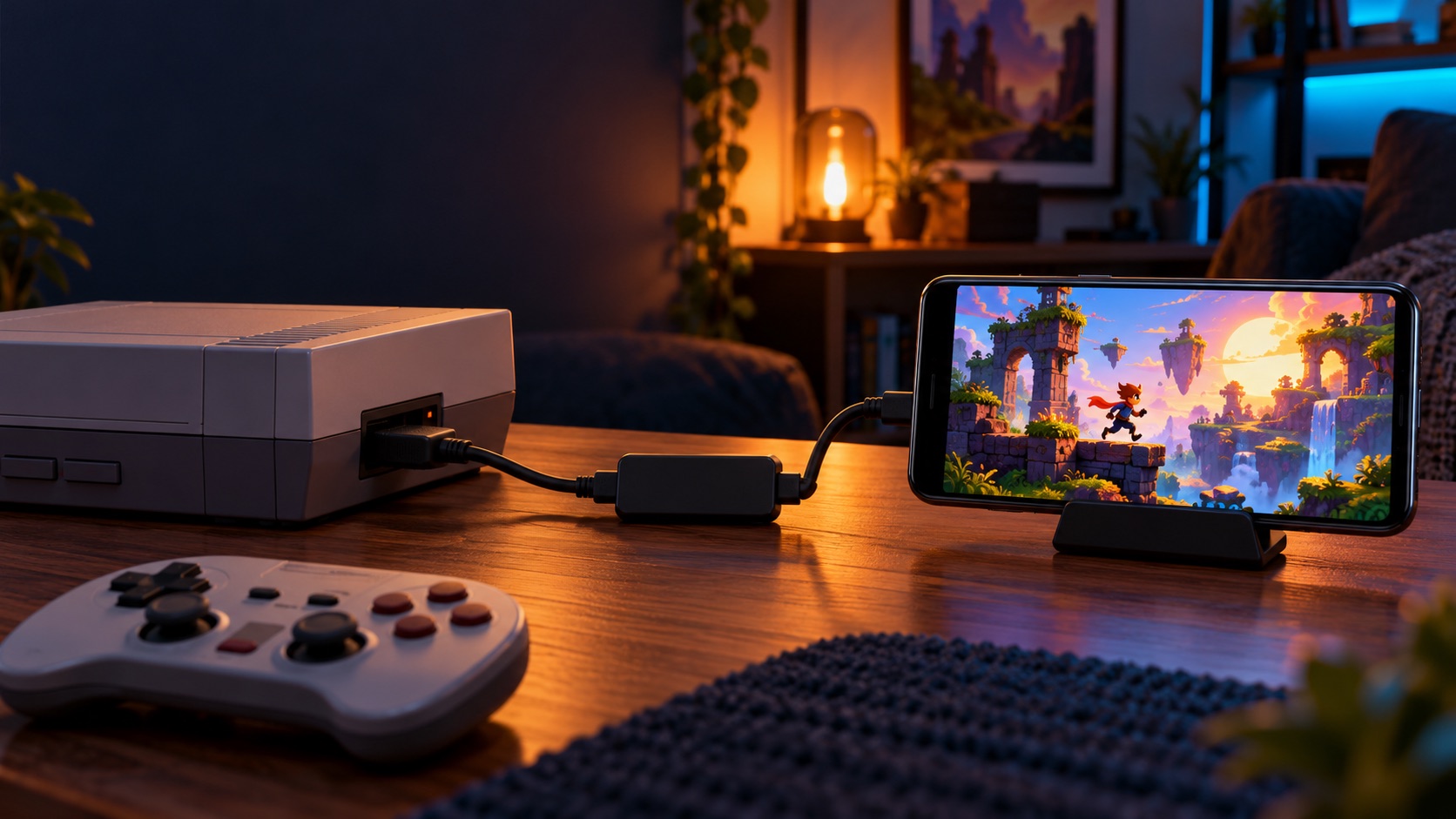
The same setup works anywhere the TV is busy, missing or locked: a family holiday where the living room TV is taken, a cabin with no TV, a long train ride with a handheld dock, or a dorm room. If you also want to save your best runs, see how to record console gameplay without a PC.
Next time a hotel TV ignores your console, you will not need to call the front desk. Plug the console into your tablet and play.
Frequently asked questions
Why can I not use the HDMI port on a hotel TV?
Many hotel TVs are set up by the hotel so guests stay on its own channels and info screen. The input button may do nothing, or the HDMI ports may be disabled or out of reach. It is the hotel’s equipment, so the simplest fix is to bring your own screen.
Can I plug HDMI straight into my tablet’s USB-C port?
No. Tablet USB-C ports do not accept HDMI or USB-C video input. You need a UVC HDMI capture card, which converts the HDMI signal into USB video that HDMI Monitor can show.
Which tablets work?
Android tablets with USB host (OTG) support, and iPads with a USB-C port running iPadOS 17 or later. The app also installs on USB-C iPhones, but compatibility varies. Lightning devices are not supported.
Is HDMI Monitor free?
Yes, to start. Free includes 15 minutes of fullscreen monitoring a day with HDMI audio and all signal and picture controls. Pro is a one-time purchase that adds unlimited monitor time, video recording and snapshots, Retro Game Mode, and Stay Awake in Fullscreen.