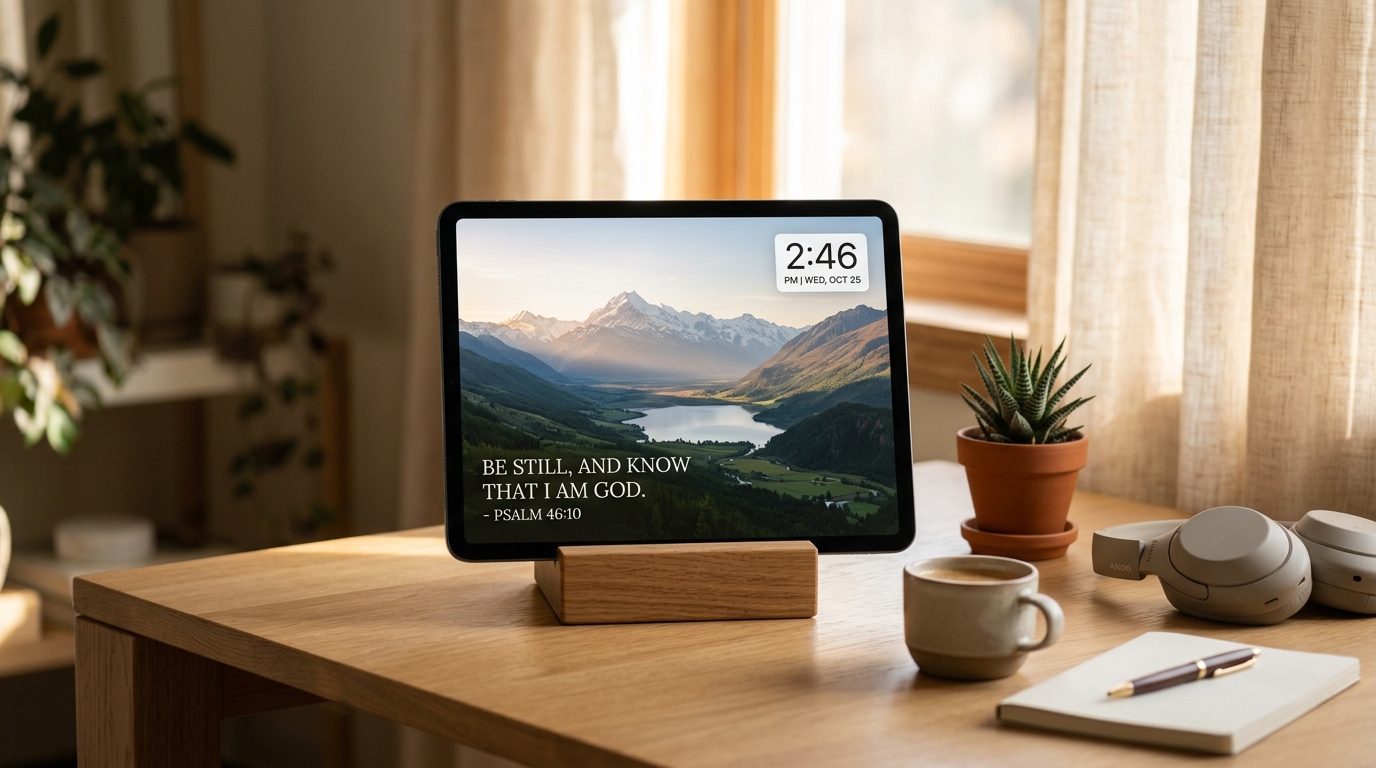
Bible Verse Photo Clock: How to Turn Your Screen into a Christian Digital Picture Frame (Bible Clock 2.19.3)
Transform your phone, tablet, or desk display into an ambient Christian photo frame with Bible Clock 2.19.3—featuring the redesigned Photo Clock mode (formerly Flow Mode), cinematic frameless layouts, and refined landscape sizing.
Keep CodeInFaith in your Google feed
Add us as a preferred source to see more of our latest articles in Google Search.
When we first introduced Guided Flow Mode in Bible Clock, the goal was simple: provide a gentle, meditative rhythm that walked through Scripture one deliberate breath at a time. It cycled your screen across three full-screen stages: the clock, the verse, and the reference.
Yet as more believers placed Bible Clock on their office desks, bedside nightstands, kitchen counters, and tablet stands, we noticed a consistent pattern in how people live with the app.
You wanted your screens to feel like living photo frames—showcasing personal family memories, peaceful scenery, and God’s creation—without losing the quiet presence of the time and God’s Word. But the older full-screen sequence animations often took over the entire canvas, concealing the very photos and wallpapers you wanted to see.
With Bible Clock version 2.19.3, Flow Mode has officially graduated into Photo Clock mode: a redesigned, frameless photo-frame experience crafted specifically to showcase your photos while keeping the clock and Scripture beautifully balanced in view.
What Is Photo Clock Mode?
Photo Clock turns your phone, tablet, or foldable into an elegant digital photo frame centered on God’s Word.
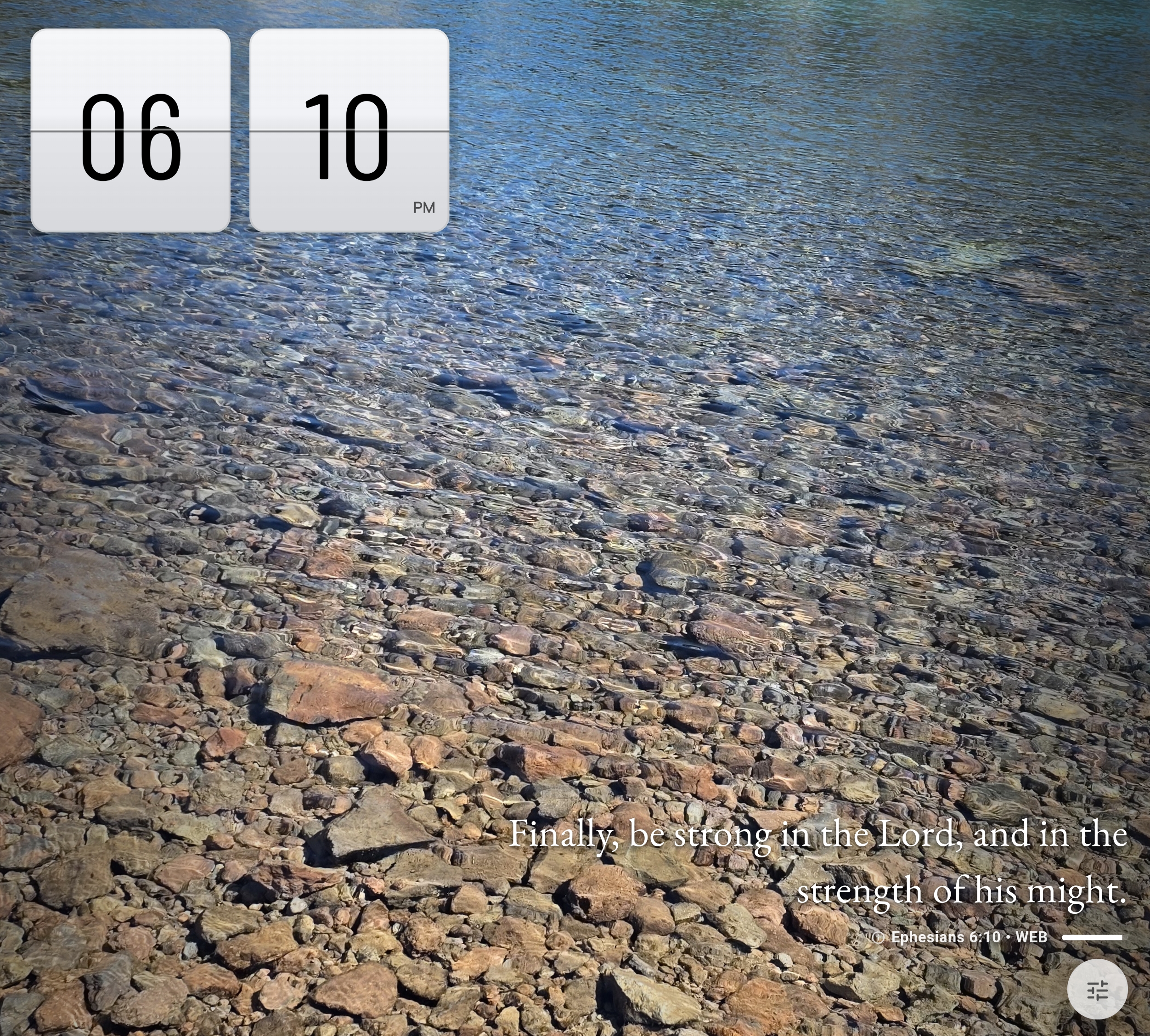
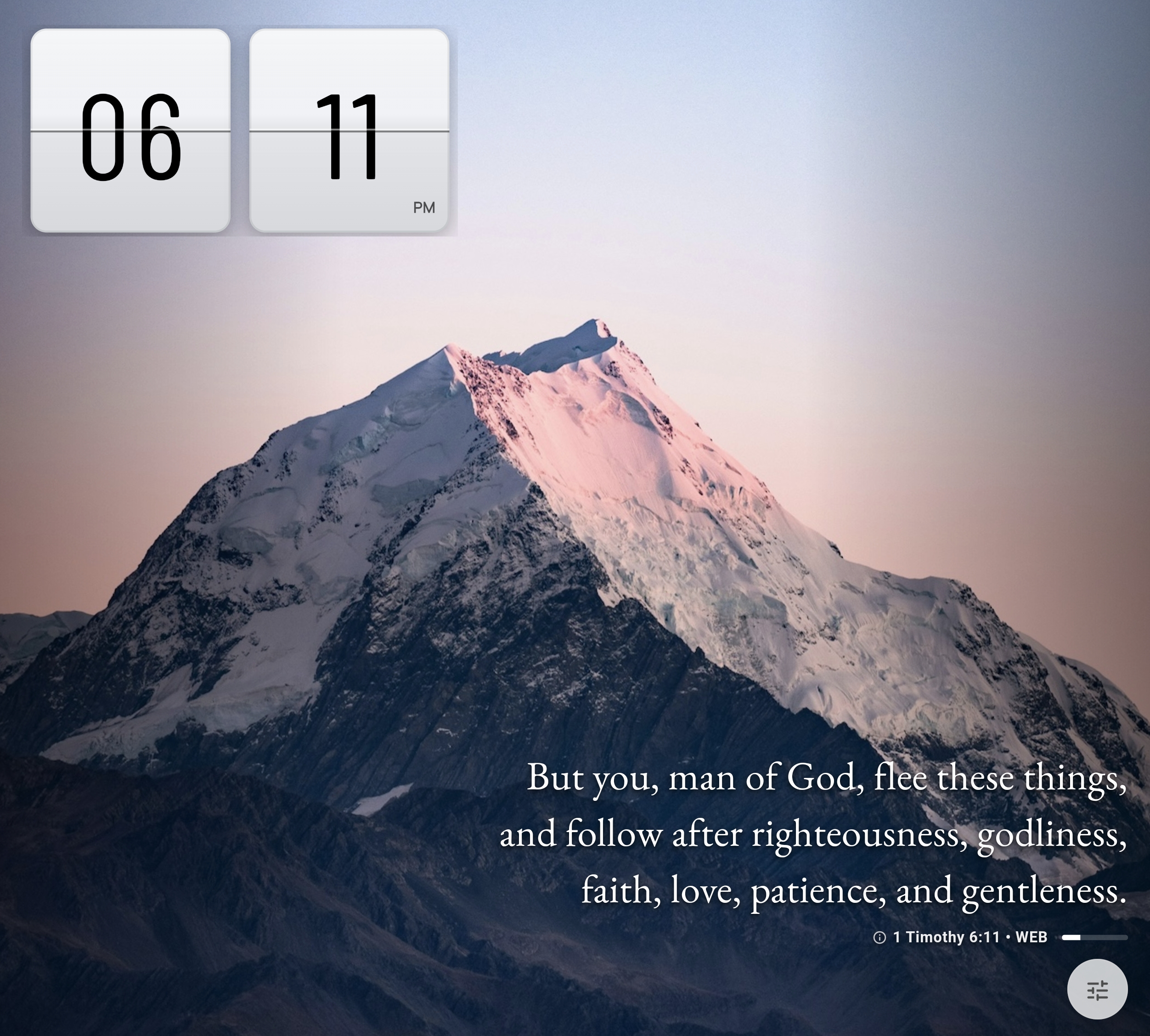
Rather than taking turns between showing the time and showing Scripture, Photo Clock brings both together in a minimal, perimeter-focused layout:
- Top-left corner: A clean, compact digital, analog, or flip clock with the current time and date.
- Bottom-right corner: The Bible verse and citation, perfectly proportioned and easy to read at a glance.
- Center stage: Your photo background—completely unobstructed and visible at all times.
Whether you are glancing up from your laptop during a busy workday or waking up in the middle of the night, your screen remains calm, inspiring, and clutter-free.
What Changed From the Old Flow Mode?
If you used the earlier Flow Mode, here is why Photo Clock is a major step forward:
1. Cinematic frameless design
The original Flow Mode relied on heavy frosted cards and full-screen transition cards that blurred or hid your background image. In Photo Clock mode, those bulky container boxes are completely gone.
Instead, verse text, citations, and clock indicators use subtle, layered drop shadows engineered for legibility across light, dark, and high-contrast photography. Your photos look vibrant and natural, exactly as they were meant to be seen.
2. Tap-to-resize clock controls
Not every room has the same viewing distance. If your tablet sits across the bedroom on a nightstand, you need a larger clock face than if your phone is propped inches away from your computer keyboard.
Photo Clock introduces quick clock sizing. Tap the clock in the corner to toggle between four distinct scale profiles:
- Small (100%): Minimalist and discreet, giving maximum spotlight to your photography.
- Medium (120%): Balanced everyday proportion for desks and side tables.
- Large (144%): Crisp and prominent for across-the-room visibility.
- Extra Large (173%): Bold and easily readable from across a bedroom or living space.
3. Refined landscape & tablet sizing in 2.19.3
In version 2.19.3, we resolved a key layout challenge on tablets and landscape phones.
Previous versions could feel crowded when pairing wide clock designs with lengthy Bible verses. In 2.19.3, the sizing engine dynamically allocates horizontal space: the clock scales gracefully while preserving a guaranteed reading width for the Scripture card. Even with longer passages from Psalms or the Epistles, your verse never feels cramped or truncated.
4. Foldable & tabletop posture awareness
If you use a foldable device (like the Samsung Galaxy Z Fold or Google Pixel Fold), Photo Clock recognizes tabletop and half-folded postures. The clock and Scripture intelligently settle onto the upright top panel, turning your foldable into a standalone desk clock without requiring an external stand.
Clearer Controls: Display Styles vs. Verse Sources
Along with Photo Clock mode, Bible Clock has reorganized display settings across both the Home bottom sheet and the Settings screen.
Previously, display modes and verse options were grouped together, which made it confusing to know whether a setting affected the visual layout or how verses were selected. Bible Clock now makes a clean, intuitive distinction:
- Display Style: How the screen looks.
- Clock + Verse (Split View): Classic layout with large, centered clock and Scripture together.
- Photo Clock: Minimal photo-frame layout with corner clock and Scripture over your photos.
- Verse Source: What verses appear.
- Collections: Curated topics (Peace, Hope, Strength), book-by-book browsing, or custom collections.
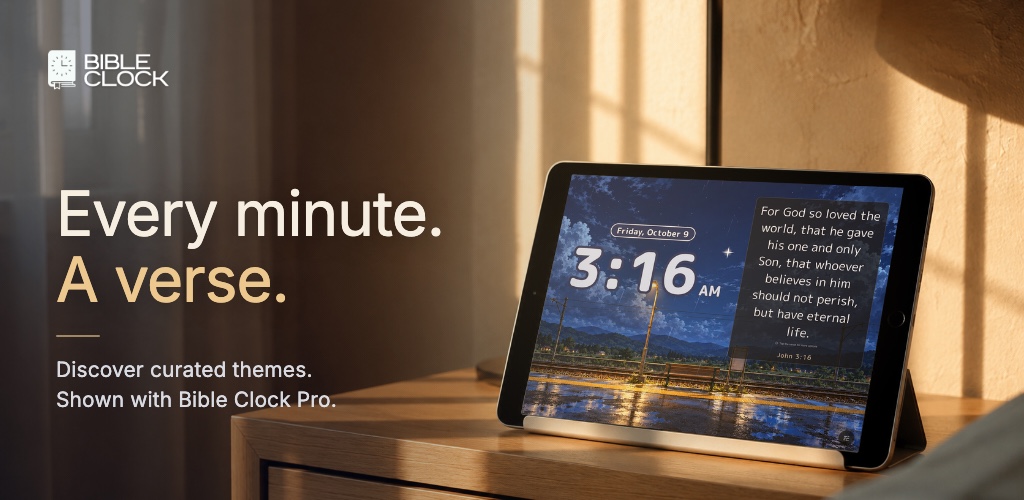
- Time-Based Verses: Matches the current minute to a corresponding chapter and verse (like 3:16 for John 3:16).
This means you can enjoy Photo Clock mode with your favorite topical collection, or pair Photo Clock with Time-Based verses for a delightful surprise every time the minute changes.
Bring Your Own Memories With Bible Clock Pro
While Photo Clock includes peaceful built-in themes for everyone, it truly shines when combined with Bible Clock Pro photo features:
- Personal photo backgrounds: Load family portraits, nature memories, or travel moments directly from your camera roll.
- Google Photos integration: Connect your favorite Google Photos albums so your photo clock automatically rotates through cherished memories alongside God’s promises.
- Custom verse collections: Pair your family memories with Scripture passages you are memorizing together as a household.
How to Enable Photo Clock Mode
Getting started takes just two taps:
- Open Bible Clock.
- Swipe up the bottom sheet (or tap the gear icon to open Settings).
- Under Display Style, tap Photo Clock.
Your screen will instantly transform into an ambient Scripture photo frame. Tap the corner clock anytime to cycle through clock sizes, or tap the verse to open deep verse reflections, context, and sharing.
Available Now
Bible Clock version 2.19.3 is rolling out now on iOS and Android.
Whether you are repurposing an older tablet as a dedicated bedside Scripture clock or looking for a peaceful desk companion throughout your workday, Photo Clock mode helps you keep God’s Word in view all day long.
Explore more features and download links on the Bible Clock project page.
Frequently asked questions
What happened to Flow Mode in Bible Clock?
Flow Mode has been renamed and redesigned as Photo Clock mode. Instead of rotating through three full-screen stages that hid your background images, Photo Clock mode keeps your photos visible like a digital photo frame, with a compact clock in the top corner and Scripture in the bottom corner.
What is new in Bible Clock version 2.19.3?
Version 2.19.3 introduces refined landscape photo clock sizing, ensuring the corner clock and Scripture card share width smoothly on tablets and widescreen displays while preserving full verse readability across small, medium, large, and extra-large clock sizes.
Can I display my own personal photos or Google Photos in Photo Clock mode?
Yes. Bible Clock Pro users can select personal photos or connect Google Photos albums, turning their device into a living Scripture photo display with family memories and daily verses.
How do I switch between Clock + Verse and Photo Clock mode?
Open Bible Clock, swipe up or tap the bottom controls sheet (or open Settings), and select Photo Clock under the Display Style section.