Digital Nomad Dual-Screen Setup: How to Turn Any Tablet into a Portable Second Monitor
Boost your mobile productivity from coffee shops, coworking spaces, and hotels with a lightweight, lag-free second screen.
Keep CodeInFaith in your Google feed
Add us as a preferred source to see more of our latest articles in Google Search.
Working from anywhere in the world sounds like a dream: sipping coffee in a sunny corner cafe, setting up shop in a bustling coworking hub across the globe, or catching up on projects from a quiet hotel balcony.
That is the essence of being a digital nomad.
Yet every remote worker and nomad quickly encounters a frustrating reality: the single-laptop screen bottleneck. Once you are accustomed to a spacious dual-monitor workstation at home, jumping back to a single 13-inch or 14-inch laptop screen can feel cramped and slow down your workflow.
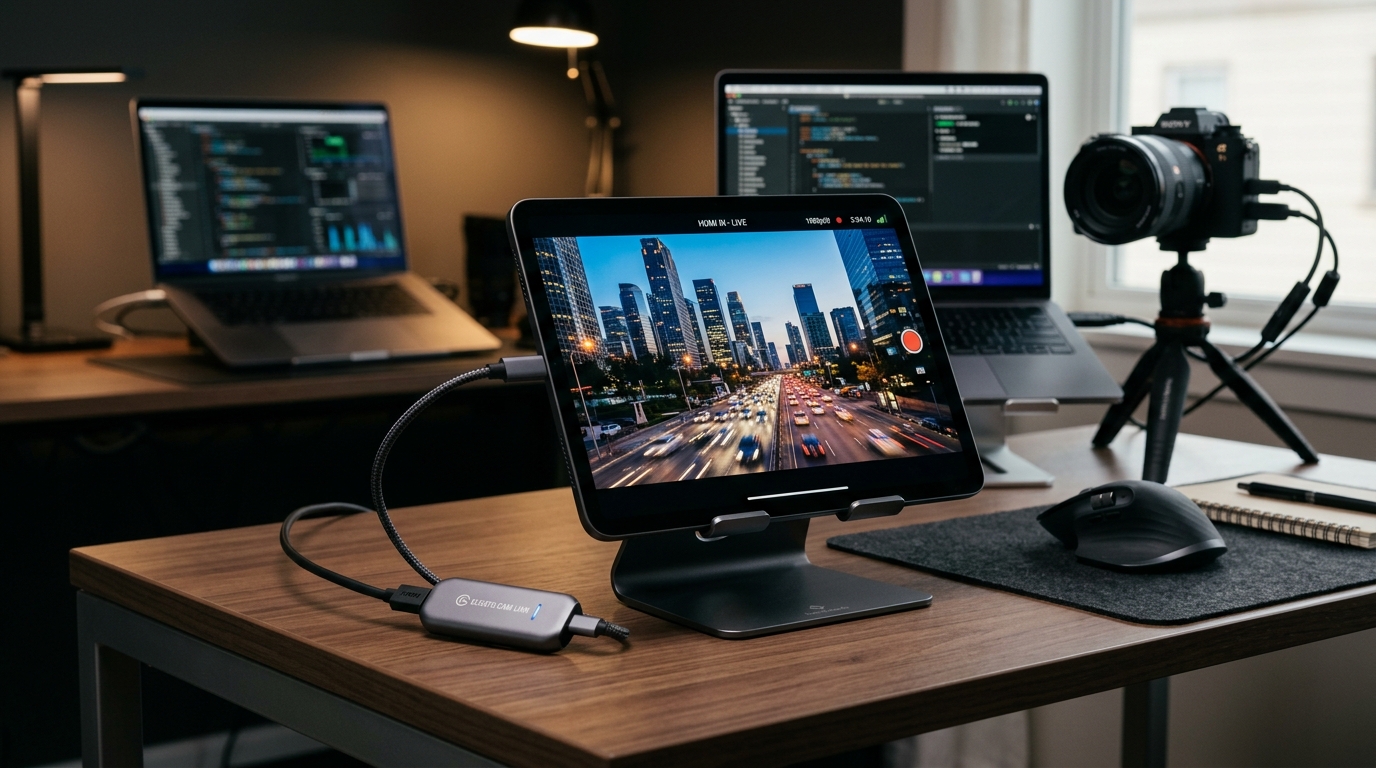
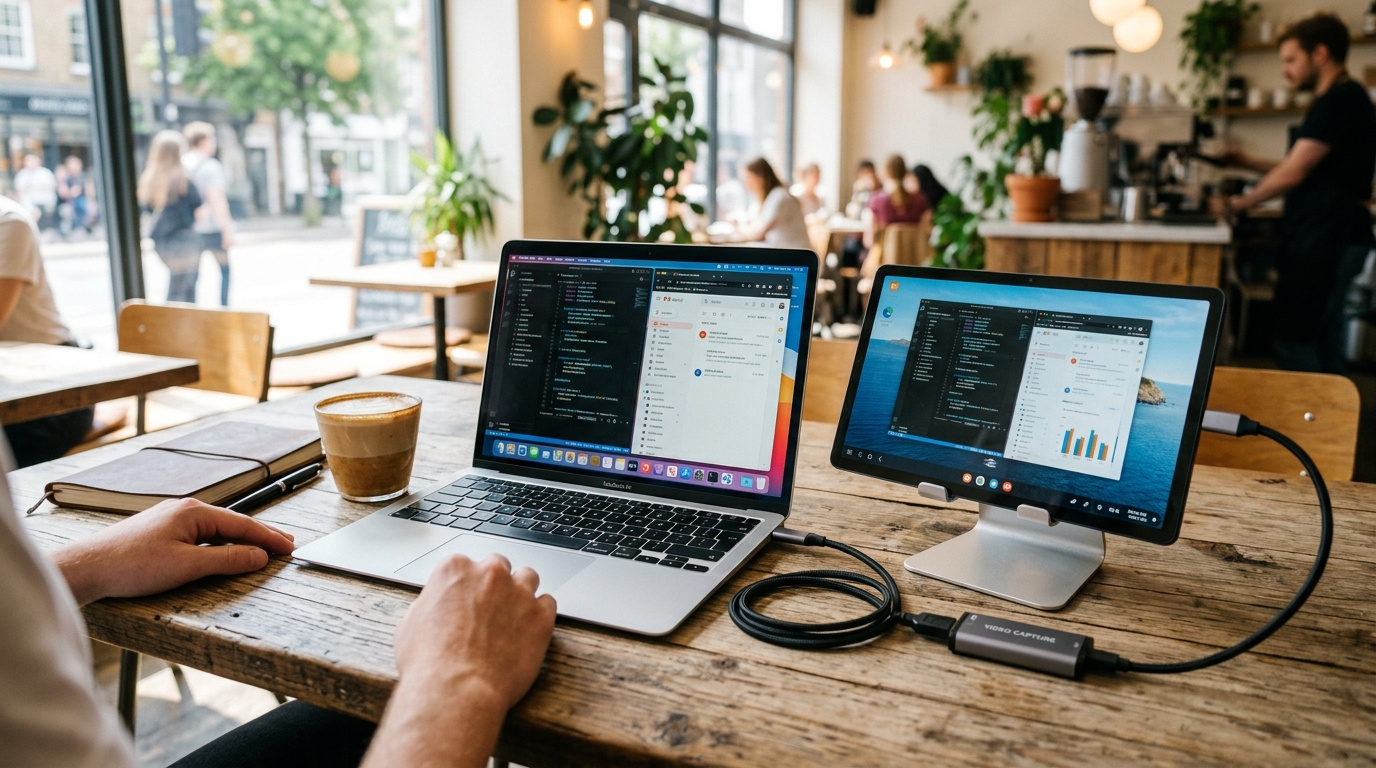
In the video above, you can see our real-world mobile workstation at a coffee shop: a laptop connected directly to an Android tablet acting as a crisp, low-latency second monitor powered by the HDMI Monitor app.
In this guide, we explore what makes the digital nomad lifestyle tick, why traditional travel monitor solutions fall short, and how you can turn any Android tablet into an ultra-portable, zero-lag second display wherever work takes you.
What Is a Digital Nomad?
A digital nomad is someone who leverages digital technology and internet connectivity to perform remote work while traveling and living a location-independent lifestyle. Rather than commuting to a fixed physical office, digital nomads work from:
- Local coffee shops and artisan cafes
- Coworking spaces and shared hubs
- Airport lounges and train cabins
- Hotels, Airbnbs, and temporary rentals
- Public libraries and park benches
Whether you are a software developer, copywriter, graphic designer, video editor, digital marketer, or consultant, location independence gives you the freedom to design your workday on your own terms.
The Ultimate Travel Dilemma: Screen Real Estate vs. Luggage Weight
Studies consistently demonstrate that adding a second monitor can boost knowledge worker productivity by 20% to 30%. Having Slack, reference documentation, or terminal windows open on one display while actively drafting code or copy on the primary screen prevents endless Alt+Tab window toggling.
However, traditional solutions present major compromises for travelers:
- Dedicated portable monitors are single-purpose dead weight: While USB-C portable monitors exist, they take up substantial backpack space, are fragile, lack internal batteries (draining your laptop rapidly), and serve zero purpose once you close your laptop.
- Wireless display apps fail on public Wi-Fi: Software-based screen mirroring apps (like Sidecar, spacedesk, or Moonlight) rely on local Wi-Fi networks. Coffee shops, airports, and hotels often enable Client Isolation on public Wi-Fi (blocking devices from talking to one another) or suffer from congested bandwidth, resulting in severe cursor lag, pixelation, and dropped frames.
The Better Fix: Android Tablet + Hardware UVC HDMI Monitor
Instead of buying a redundant portable monitor or fighting unreliable cafe Wi-Fi, there is a far smarter approach: use the Android tablet you already own as a direct wired HDMI monitor.
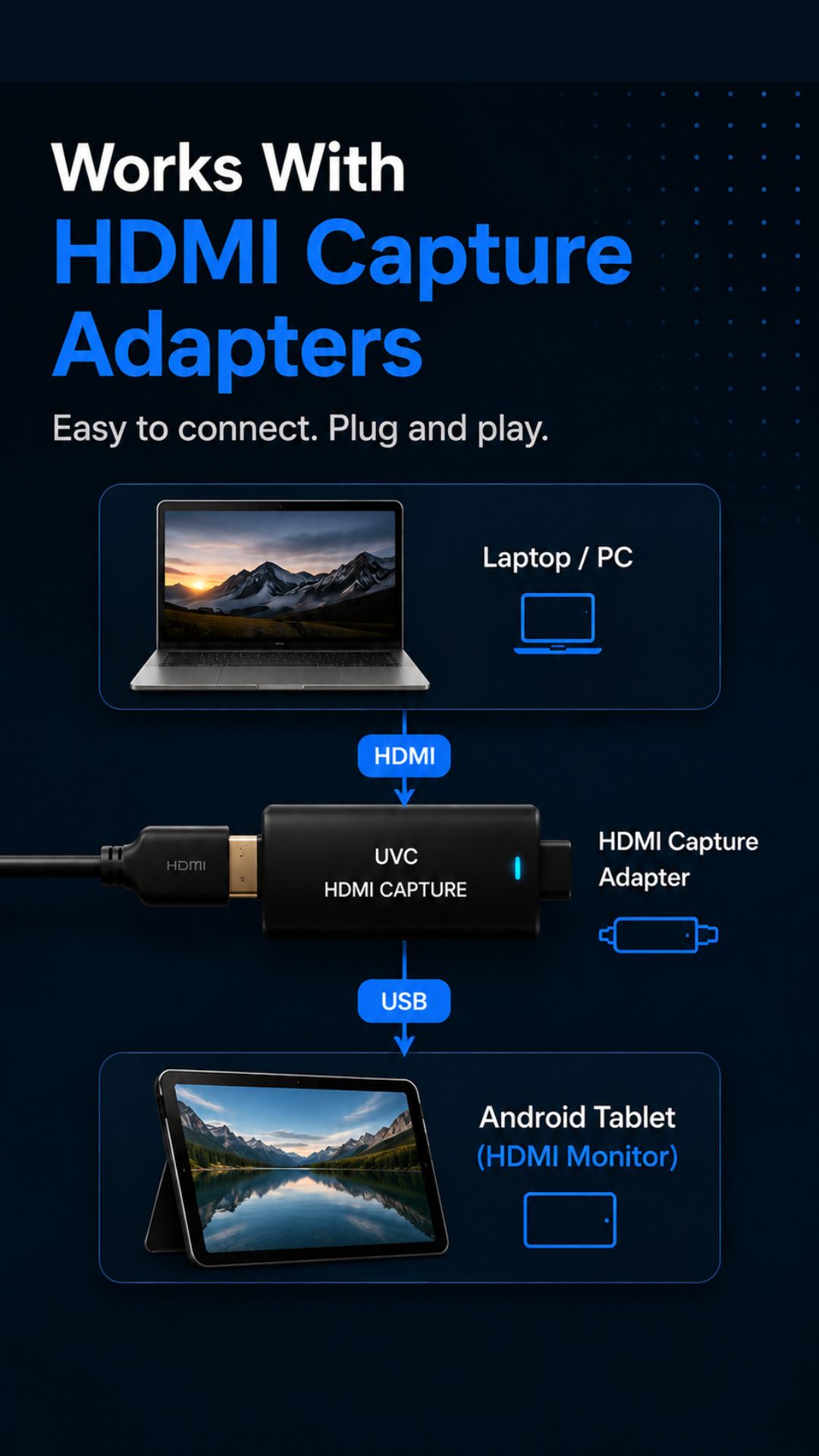
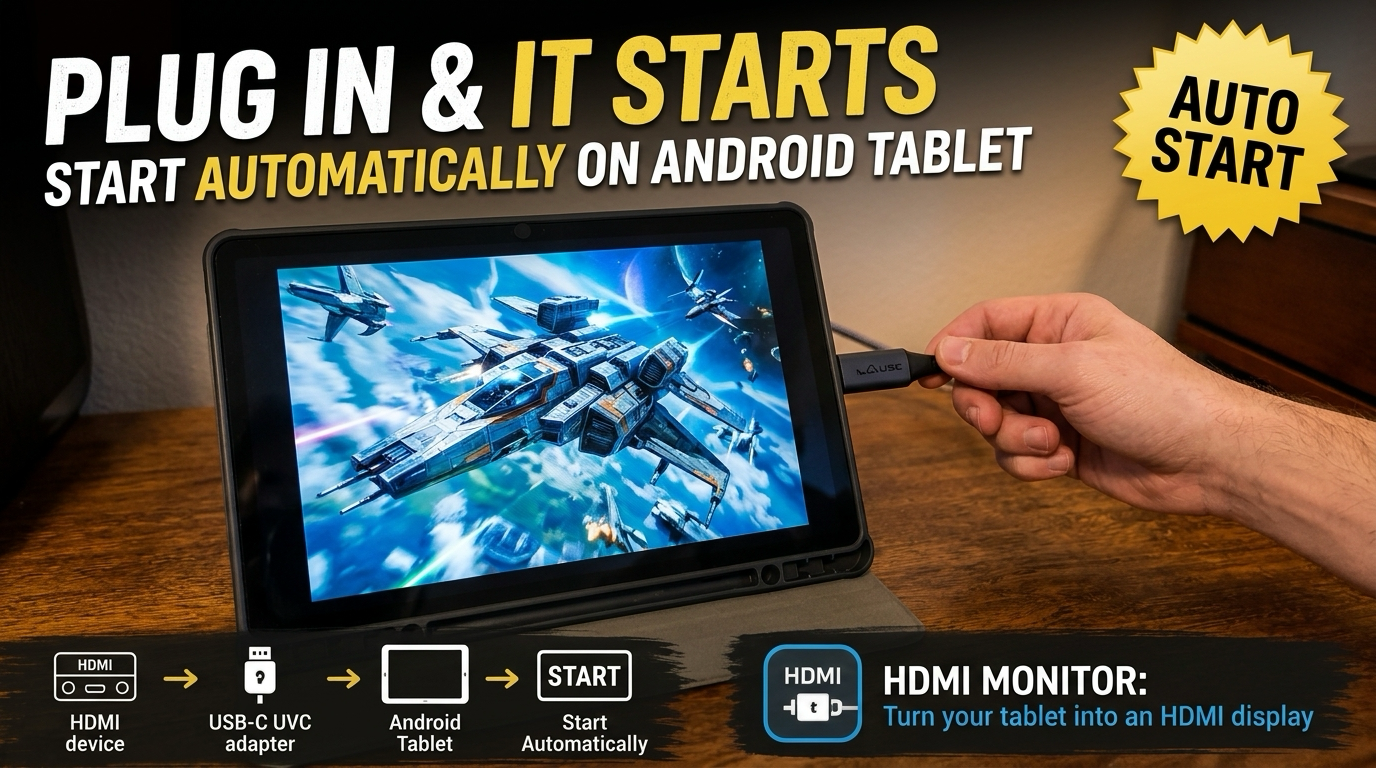
By connecting your laptop’s HDMI output to your tablet’s USB-C port through an inexpensive UVC (USB Video Class) video capture card, your tablet transforms into a hardware-driven monitor with:
- Zero network dependence: Works completely offline without Wi-Fi, Bluetooth, or local network configuration.
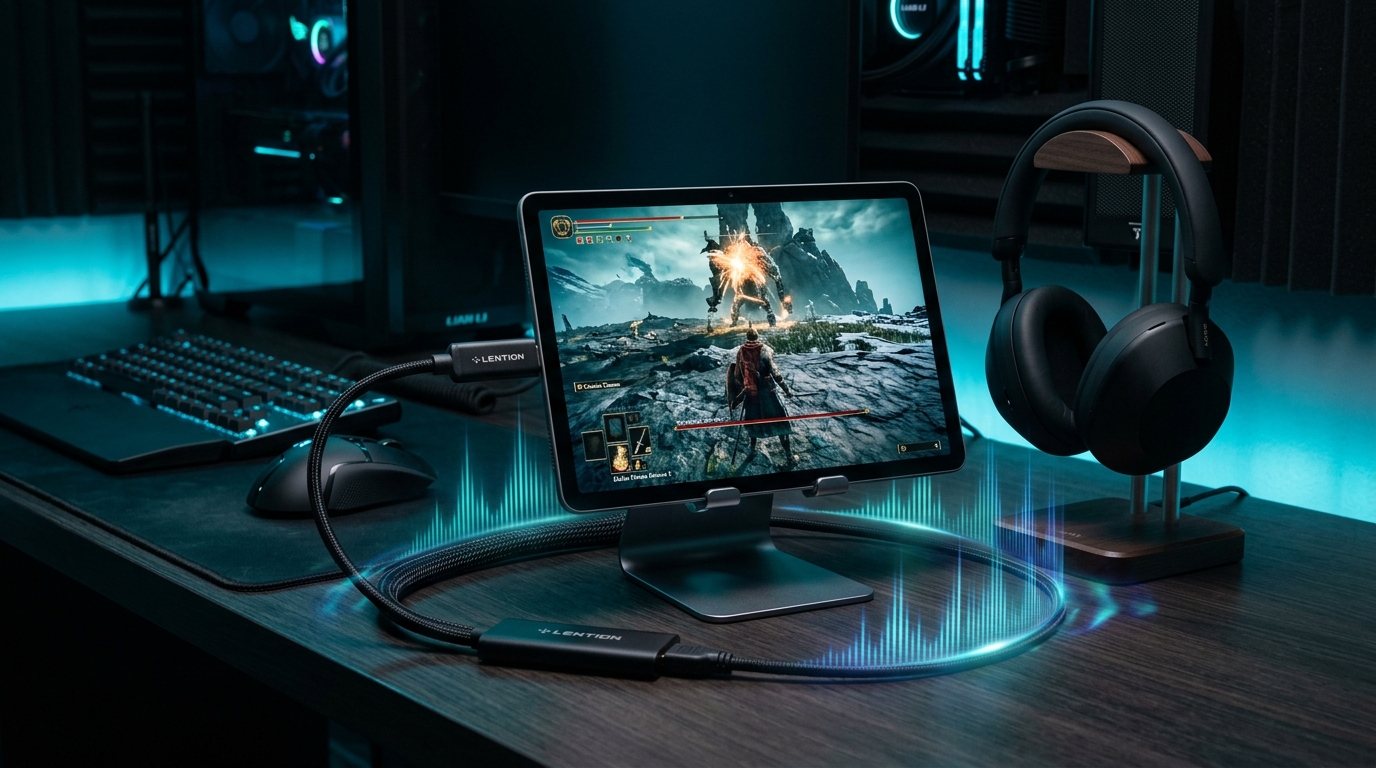
- Ultra-low latency: Near-instantaneous response times with smooth 60 FPS video previewing.
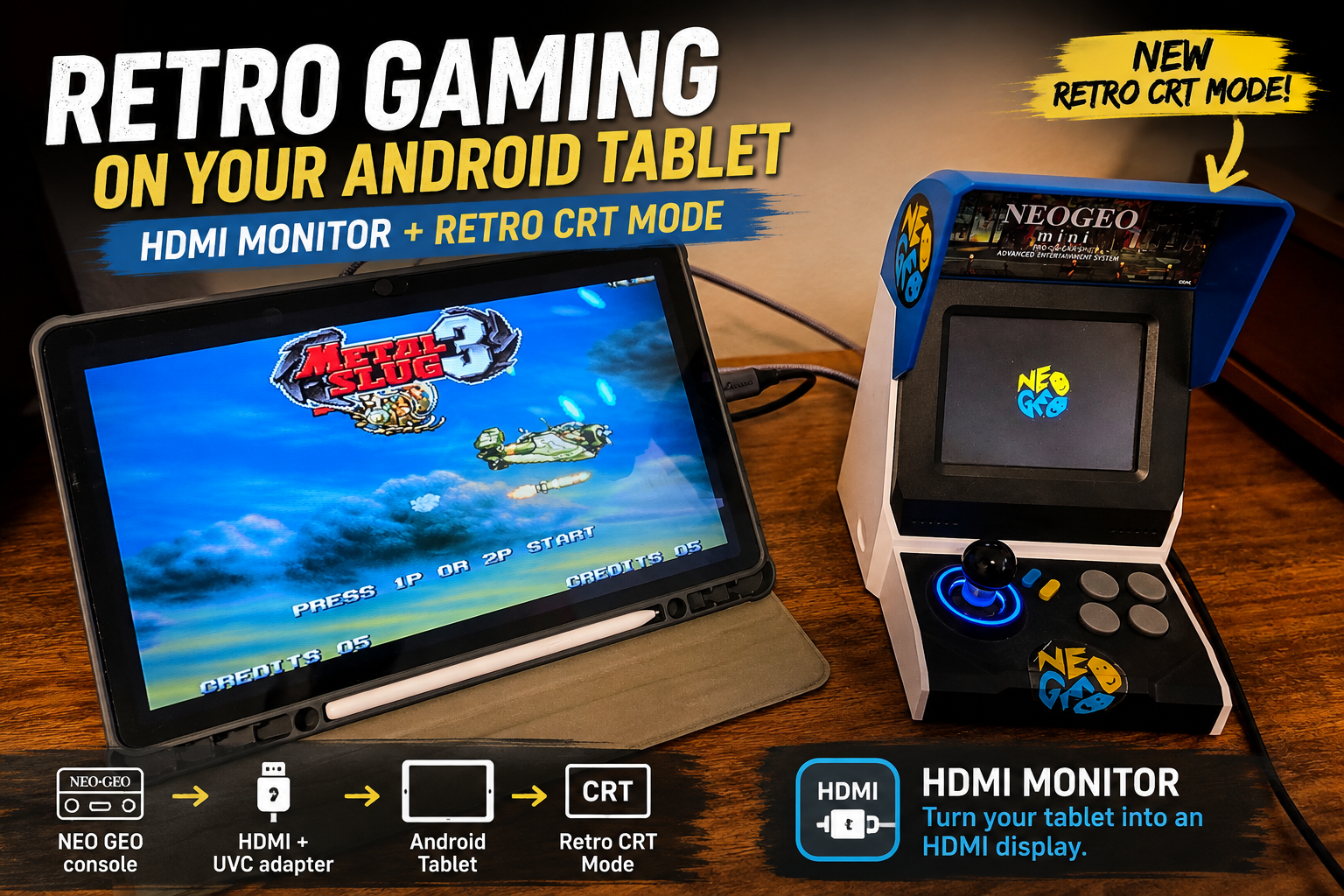
- Universal compatibility: Connects seamlessly to MacBook, Windows laptop, Linux PC, Chromebook, Raspberry Pi, camera, or mini PC.
- Dual-utility: When you finish working, disconnect the cable and you have your normal tablet ready for reading ebooks, watching movies, sketching, or gaming on the flight.
What Gear Do You Need? (Minimalist Nomad Packing List)
Building this dual-screen travel setup requires only a few compact items that easily fit into a small tech pouch:
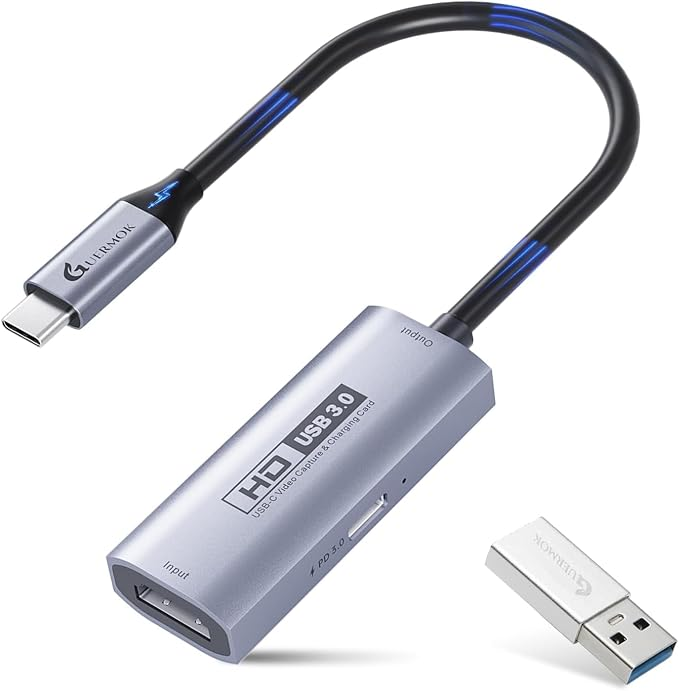
1. A UVC HDMI Capture Adapter
A pocket-sized USB Video Class (UVC) capture card serves as the physical hardware bridge between your laptop’s HDMI output and your tablet’s USB-C port.
For our full breakdown of tested capture cards (including models with 100W USB-C PD pass-through charging and ultra-compact aluminum adapters), read our dedicated guide:
👉 What UVC Video Capture Adapter Did We Use in Our YouTube Shorts for HDMI Monitor?
2. Any Compatible Android Tablet
You do not need an expensive top-of-the-line slate. Reusing an older Android tablet is often ideal:
- Spacious Budget Pick: Samsung Galaxy Tab A9+ 11-inch (Renewed)
- Everyday Value: Samsung Galaxy Tab A11
- Premium Creator Tier: Samsung Galaxy Tab S10 FE
3. A Slim HDMI Cable
A lightweight, flexible 3-foot (1m) HDMI or Mini-HDMI / Micro-HDMI cable (or USB-C to HDMI cable if your laptop lacks a dedicated full-sized HDMI port).
4. The HDMI Monitor App
Download HDMI Monitor directly from Google Play.
How It Compares: Tablet Setup vs. Alternatives
| Feature | Android Tablet + HDMI Monitor | Dedicated Portable Monitor | Wireless Mirroring (Wi-Fi) |
|---|---|---|---|
| Connection Stability | 100% Reliable (Wired) | 100% Reliable (Wired) | Unstable on Public Wi-Fi |
| Works on Cafe / Hotel Wi-Fi | Yes (No Wi-Fi needed) | Yes (No Wi-Fi needed) | Frequently blocked by Client Isolation |
| Input Latency | Ultra-Low (~30–50ms) | Low | High (Laggy cursor & stutter) |
| Standalone Value | High (Runs apps, books, video) | Zero (Screen only) | High |
| Built-in Battery | Yes (Runs on its own charge) | Rarely included in budget units | Yes |
| Pack Weight & Bulk | Minimal (Replaces separate gear) | Adds extra glass panel to pack | Minimal |
4 Steps to Set Up Your Coffee Shop Dual-Screen Workstation
Setting up in a cafe takes less than 60 seconds:
[Laptop HDMI Out] ──(HDMI Cable)──> [UVC Capture Adapter] ──(USB-C)──> [Android Tablet + HDMI Monitor]- Prop Up Your Tablet: Place your tablet on a compact folding stand or folio case beside your laptop.
- Connect the Cable: Plug the HDMI cable from your laptop into the capture card.
- Plug into Tablet: Connect the capture card’s USB-C connector into your tablet’s charging port.
- Launch HDMI Monitor: Open the app, confirm the USB device prompt, and your extended desktop immediately appears in crisp fullscreen.
[!TIP] Pro Travel Tip: In your laptop’s display settings (macOS Displays or Windows Display settings), arrange the second screen position to match exactly where your tablet sits on the table (left or right). You can also scale the resolution to ensure text remains sharp and easy to read.
Tips for Working Productively from Anywhere
- Leverage Pass-Through Charging: When working through long 4- to 6-hour sessions, using a UVC adapter with a USB-C PD charging port allows a single laptop charger or power bank to keep both devices fully energized.
- Keep Table Footprint Small: In crowded cafes, use a vertical folding stand to minimize table space and keep your setup polite and unobtrusive.
- Enable Do Not Disturb: Turn on Android’s Do Not Disturb mode so incoming tablet notifications won’t interrupt your primary screen preview.
- Use Safe Eject: When packing up to leave, use HDMI Monitor’s in-app eject control before unplugging your hardware.
Summary & Next Steps
The essence of the digital nomad journey is freedom and agility. You do not need to carry a heavy backpack full of specialized, single-purpose monitors to stay productive on the road.
With a simple $20 UVC video capture adapter and the HDMI Monitor app, the Android tablet you already pack for entertainment becomes your secret productivity superpower.
- Read our detailed hardware guide: What UVC Video Capture Adapter Did We Use in Our YouTube Shorts for HDMI Monitor?
- Learn more on the HDMI Monitor Project Page
- Download HDMI Monitor on Google Play
Frequently asked questions
What is a digital nomad?
A digital nomad is a remote worker, freelancer, or entrepreneur who uses technology and telecommunications to earn a living while living a location-independent lifestyle, working from cafes, coworking spaces, airports, and hotels worldwide.
Can I use an Android tablet as a second monitor without Wi-Fi lag?
Yes. By using a hardware USB-C UVC video capture adapter and a wired HDMI connection with the HDMI Monitor app, video streams directly over a physical cable without relying on local Wi-Fi networks, eliminating latency, stutter, and connection drops.
Why is an Android tablet better than a dedicated portable monitor for travel?
An Android tablet is a multi-purpose device with an integrated battery, touchscreen, and standalone OS. It functions as an e-reader, media player, and browser when unplugged, whereas a dedicated portable monitor is single-purpose and often requires external power.
What hardware do I need to set up a portable dual screen anywhere?
You only need an Android tablet (with USB OTG support), a slim HDMI cable from your laptop, a compact UVC HDMI capture adapter (such as a 100W PD pass-through model), and the HDMI Monitor app from Google Play.