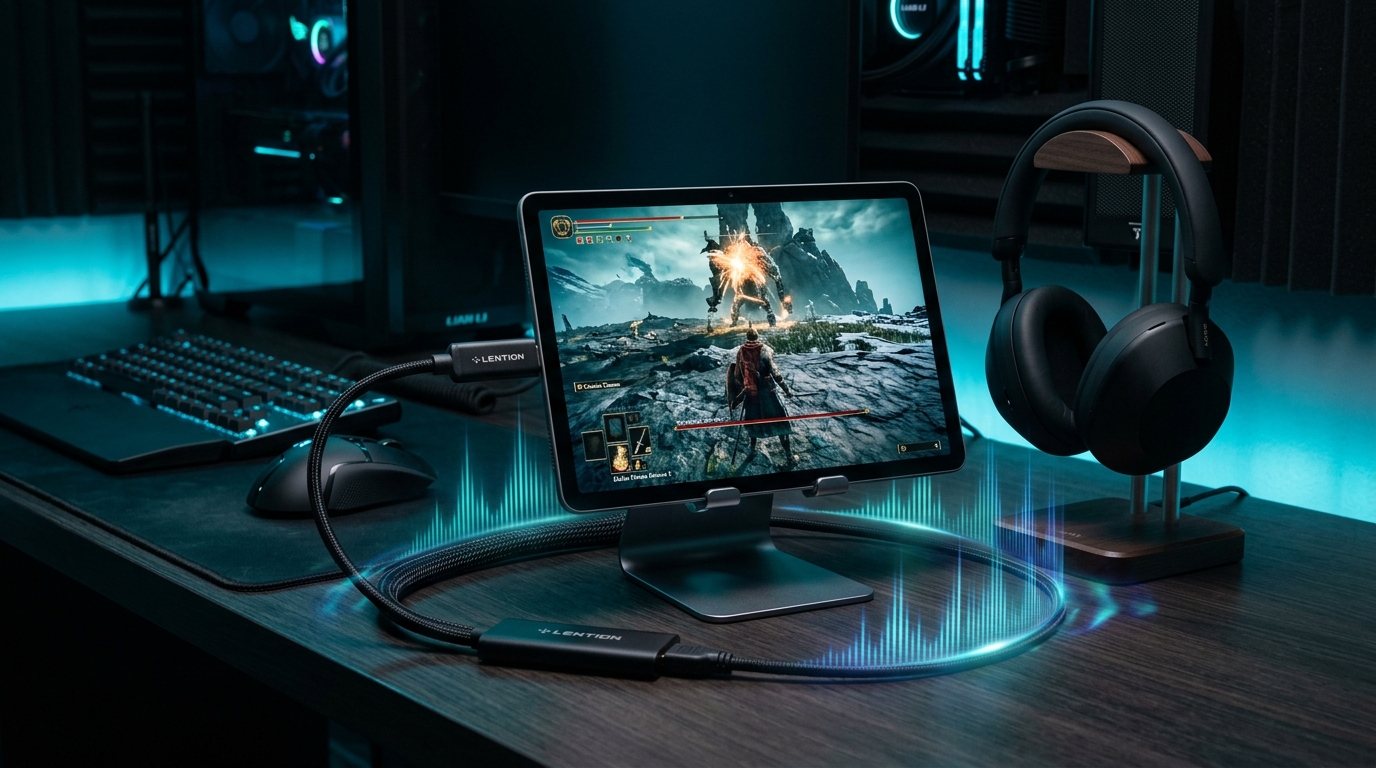
HDMI Monitor 1.4 Adds Real-Time Audio Support: Turn Your Tablet into a Complete Portable Display
Experience synchronized, ultra-low latency audio for gaming consoles, cameras, streaming devices, and portable workstations.
Keep CodeInFaith in your Google feed
Add us as a preferred source to see more of our latest articles in Google Search.
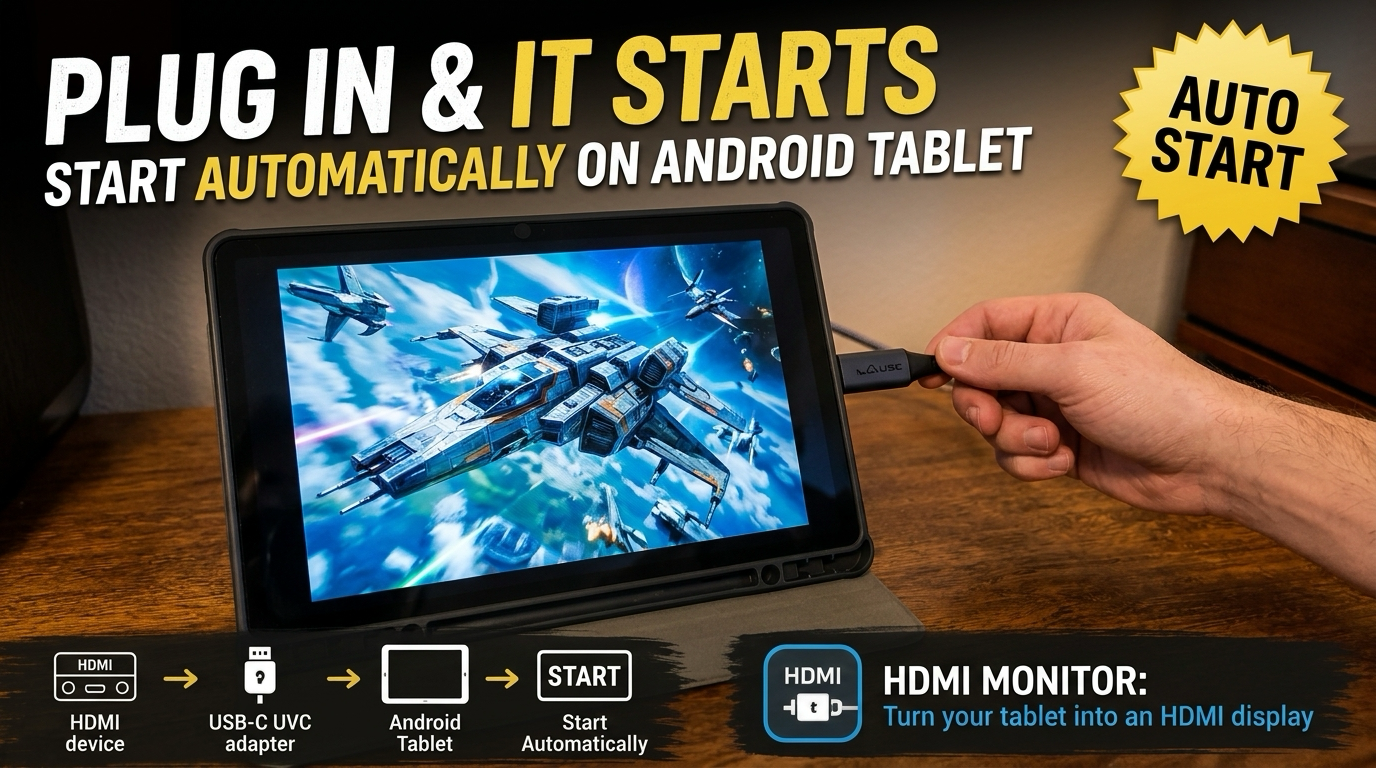
When we first introduced HDMI Monitor, the vision was simple: help you turn an Android tablet you already own into a clean, low-latency portable screen using a standard USB UVC capture adapter.
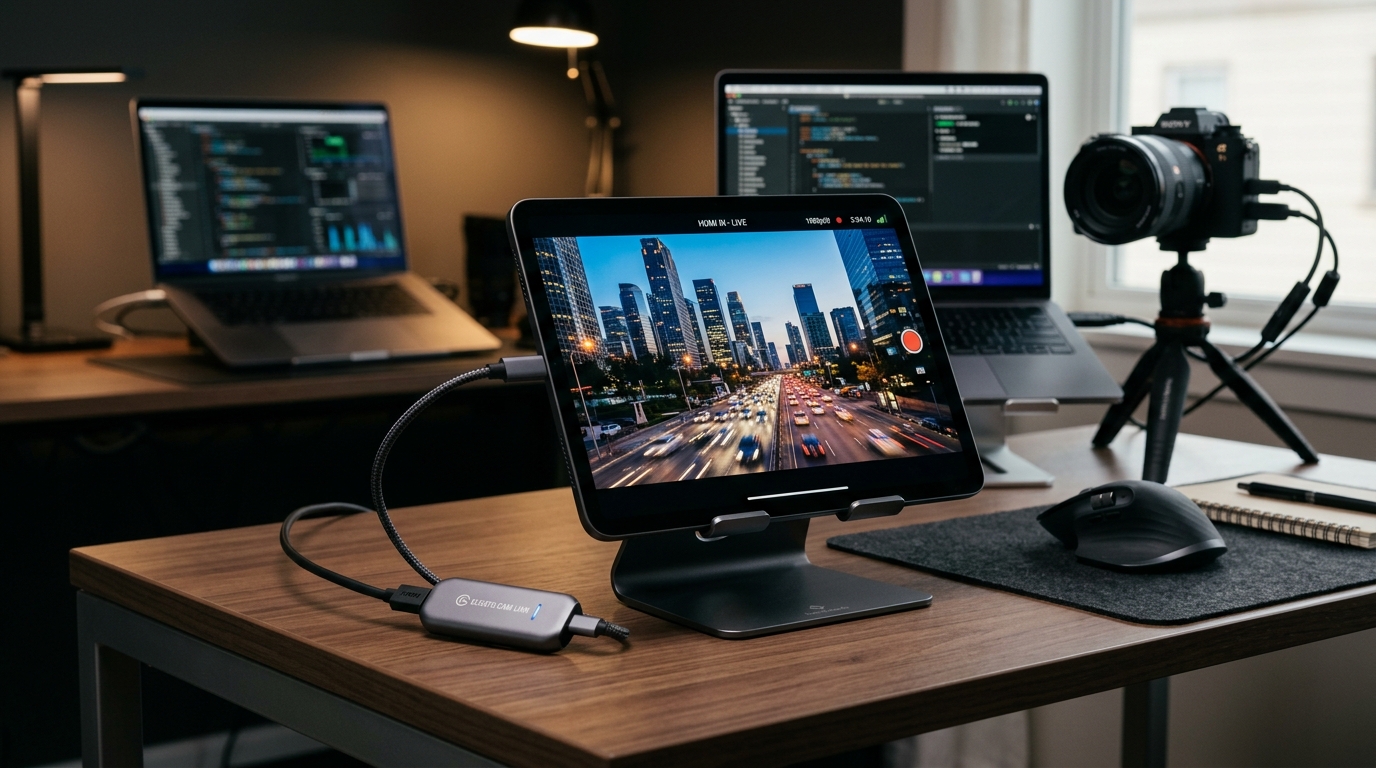
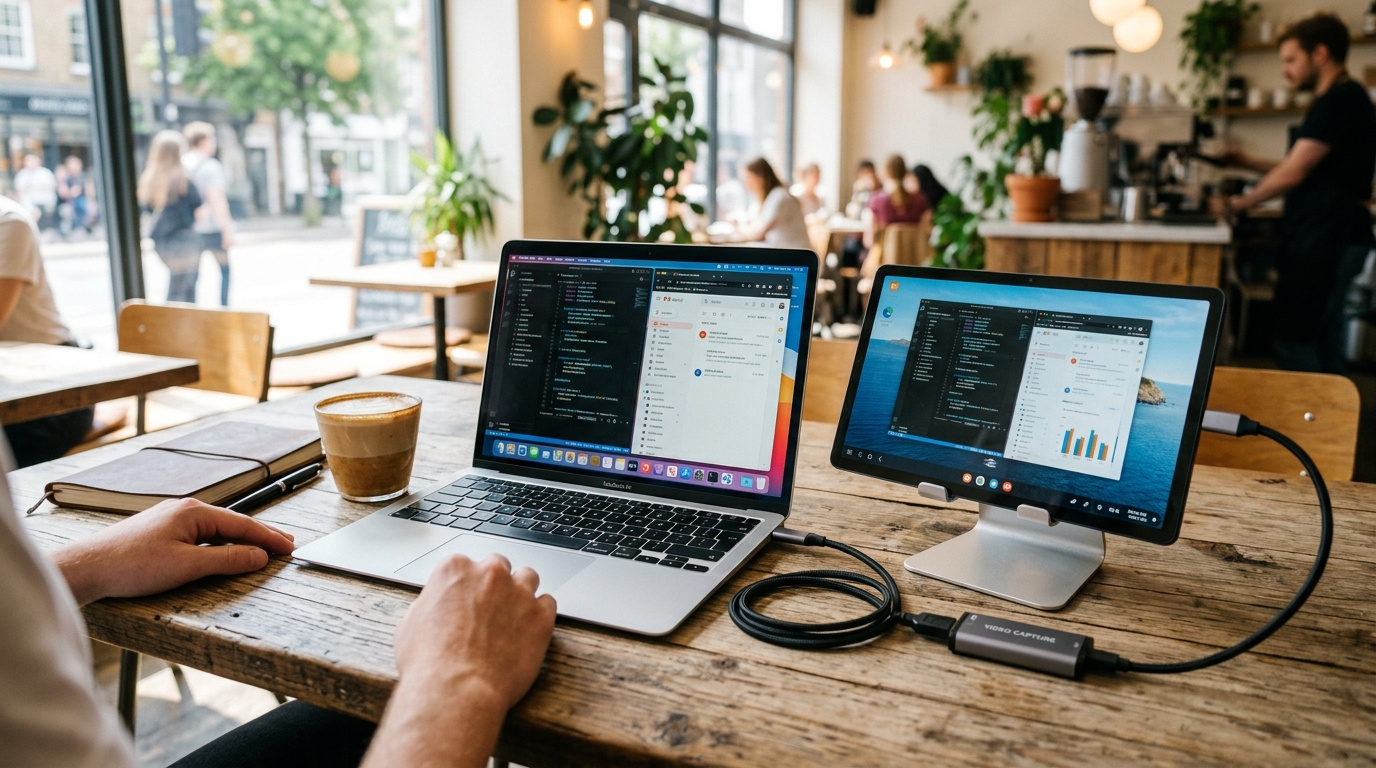
Whether you were expanding your laptop display in a cafe, reviewing camera framing on location, or testing a headless mini PC, having a reliable visual preview on your tablet made mobile setups drastically lighter and more versatile.
However, one major feature request echoed across our community from day one:
“Can I hear the audio coming from my HDMI source through my tablet?”
Today, we are thrilled to announce that real-time audio support has officially arrived starting in HDMI Monitor version 1.4.0.
Why Audio Support Changes Everything
Until now, using your tablet as an external display worked great for video, but getting audio required workarounds—like connecting separate headphones directly to the source device, using extra splitters, or going without sound entirely.
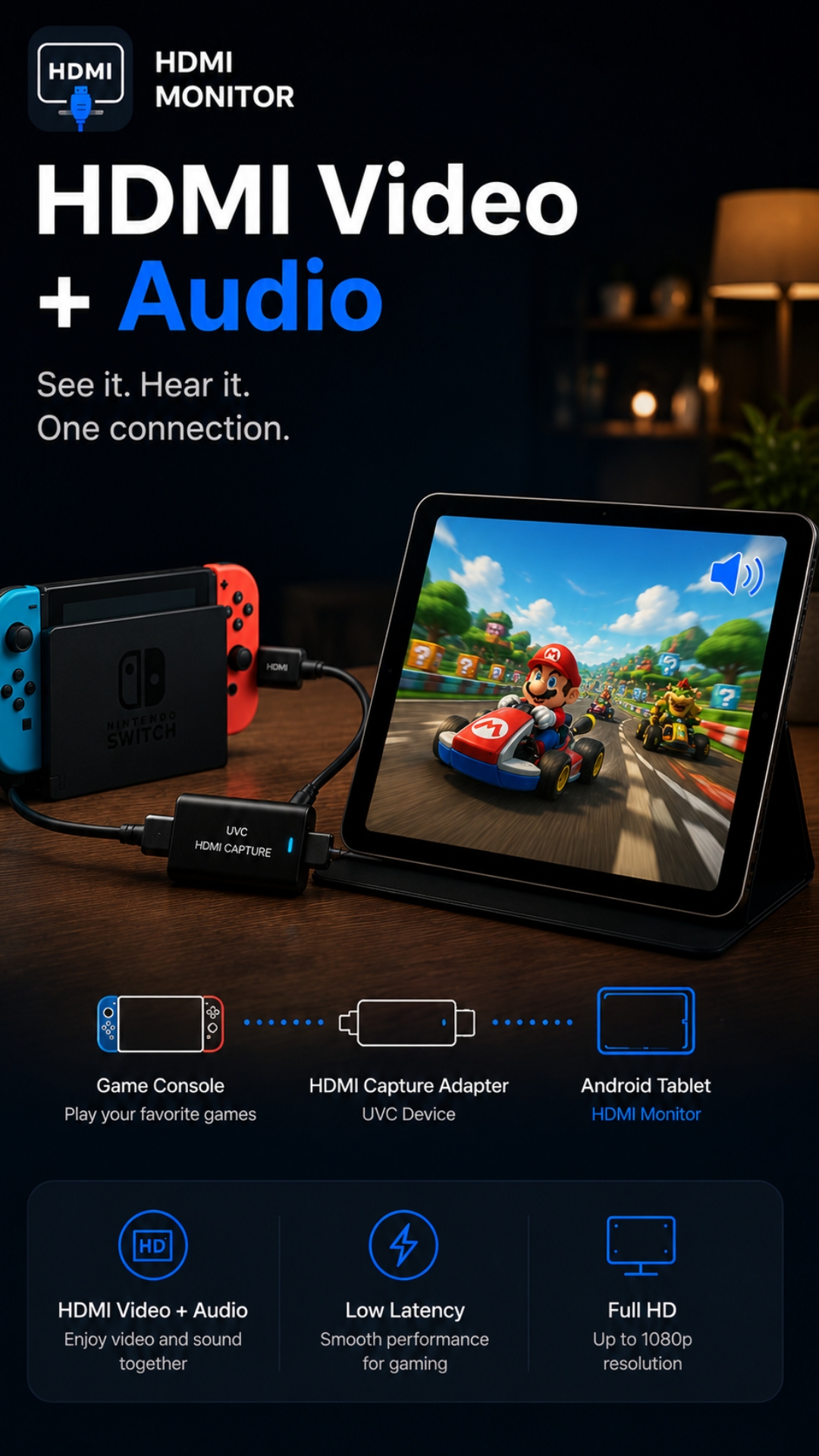
With full USB Audio Class (UAC) support built directly into HDMI Monitor 1.4, your Android tablet is no longer just a visual screen. It is now a complete portable audiovisual monitor.
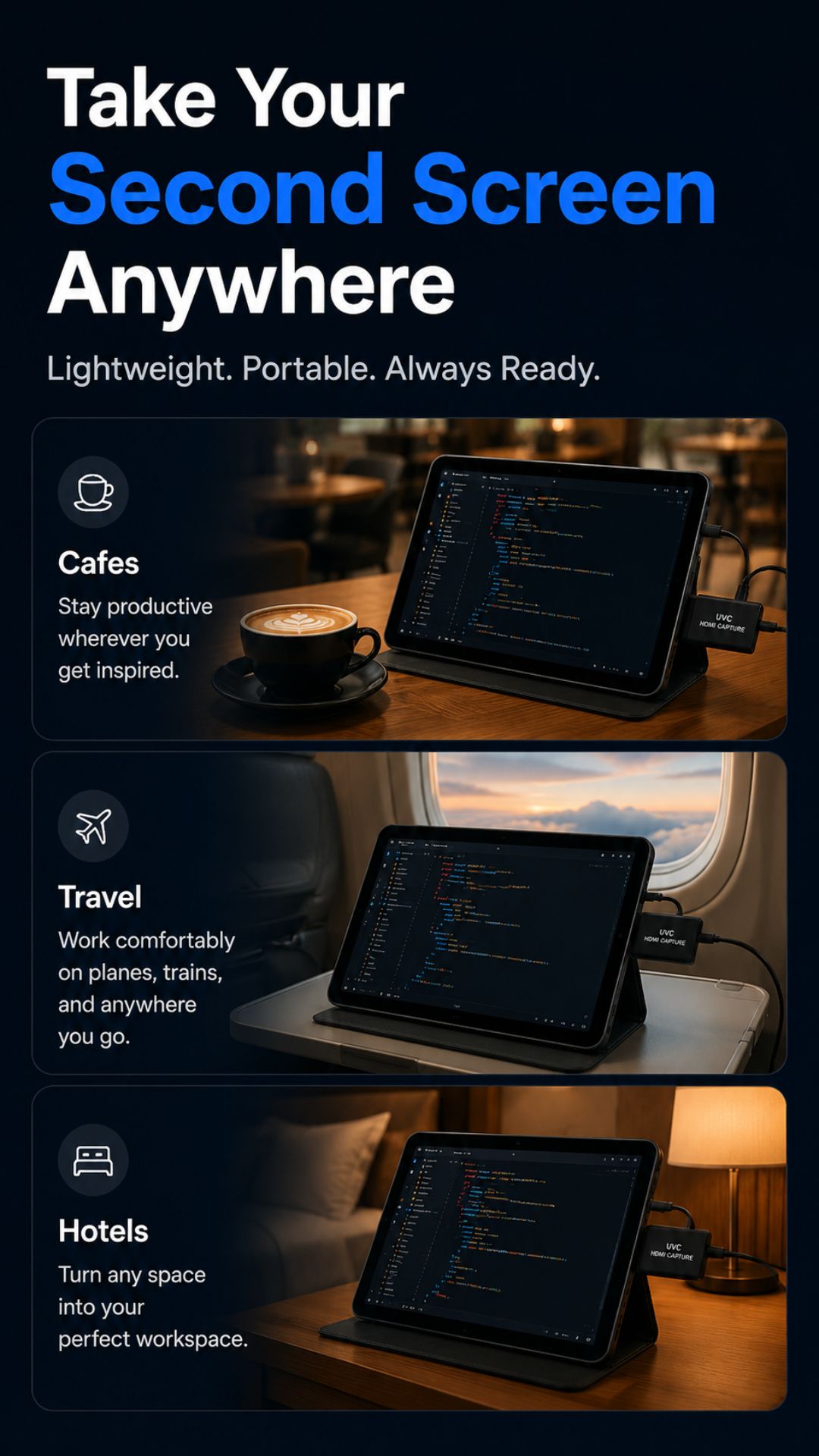
Here is what that unlocks across everyday use cases:
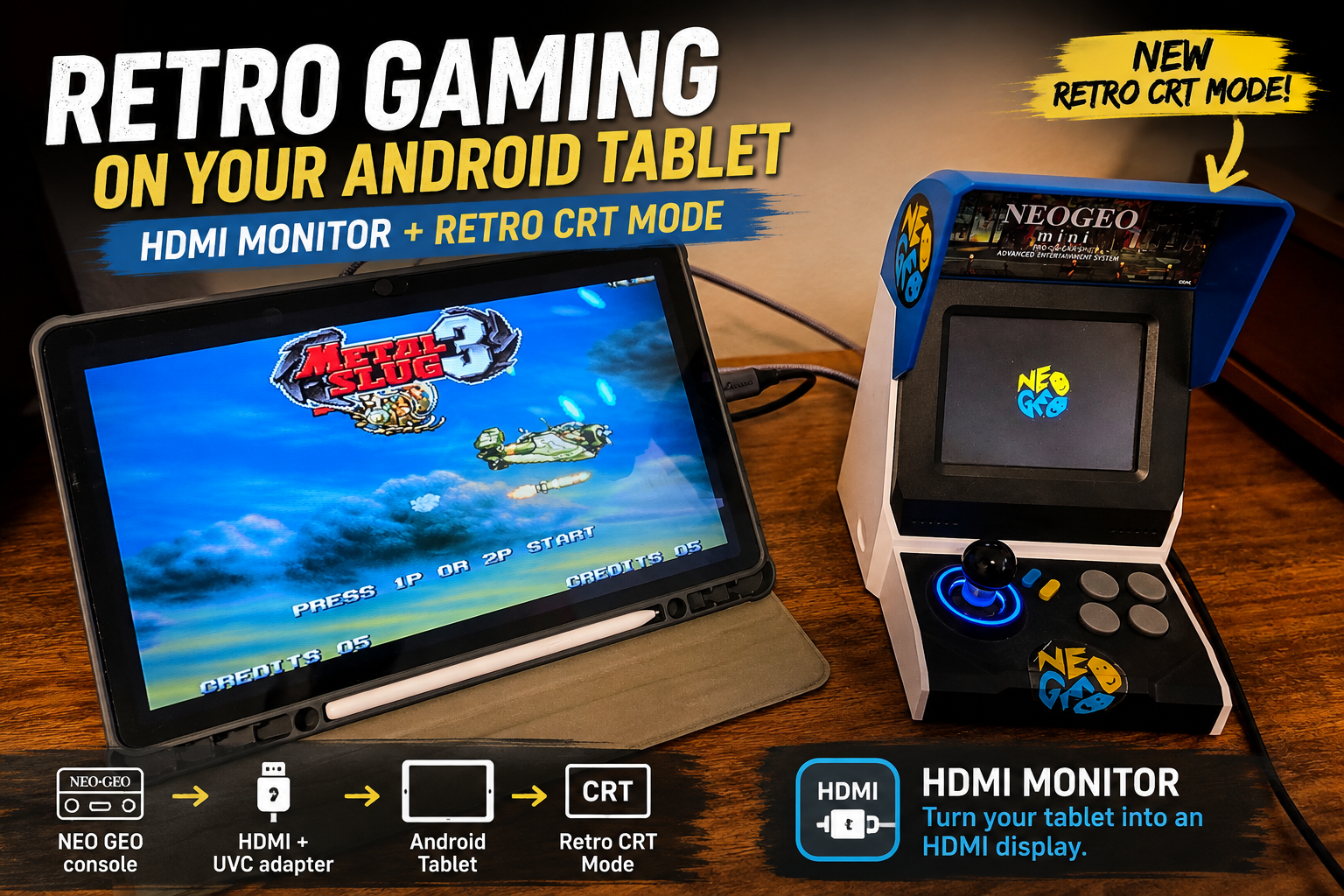
1. Portable Console Gaming (Nintendo Switch, Steam Deck, Xbox, PS5)
Want to play your Nintendo Switch or Steam Deck on a larger 11-inch or 12-inch tablet screen while traveling, sitting in bed, or lounging in a hotel room?
Now you get the full gaming experience. Action sounds, dialogue, and soundtracks stream in real-time directly through your tablet’s speakers or your favorite wireless Bluetooth earbuds.
2. Camera & Field Video Audio Monitoring
For videographers, content creators, and livestreamers, framing your shot is only half the job—monitoring audio levels and sound clarity is equally critical.
With audio support, you can connect your camera’s HDMI output and listen for wind noise, clipping, or mic dropouts live on set using your tablet as a dedicated director’s monitor.
3. Media Streaming & Entertainment Dongles
Plug in an Apple TV, Chromecast / Google TV streamer, Fire TV Stick, or media player and turn any spare tablet into a standalone personal TV with crystal-clear stereo sound.
4. Laptop Second Screen & Video Editing
When editing video or reviewing media on a second screen, you no longer have to worry about audio/video routing conflicts. Your tablet can handle playback sound seamlessly.
Built for Precision: Low-Latency Audio & Flexible Controls
Adding audio is not just about piping sound through a speaker—it has to be fast, reliable, and easy to manage.
[HDMI Source] ──(HDMI Video + Audio)──> [UVC/UAC Adapter] ──(USB-C)──> [Android Tablet + HDMI Monitor]
                                                                                │
                                                      ┌─────────────────────────┴─────────────────────────┐
                                                      ▼                                                   ▼
                                              [Built-in Speakers]                             [Bluetooth / Wired Headphones]
Real-Time AV Synchronization
Nothing ruins a game or video playback faster than audio desync. HDMI Monitor processes incoming UAC audio packets with ultra-low latency, ensuring your sound stays tightly matched to the on-screen action.
Seamless Audio Routing
Because HDMI Monitor leverages Android’s native audio pipeline:
- Tablet Speakers: Enjoy rich sound from your tablet’s built-in stereo or quad-speaker setup.
- Bluetooth Headphones: Pair your AirPods, Galaxy Buds, or over-ear headphones to your tablet for private listening.
- Wired 3.5mm / USB-C Audio: Connect studio monitoring headphones for latency-free production audio.
Quick Mute & Hardware Volume Controls
Need to silence the incoming feed instantly? Use the quick in-app audio toggle to mute or unmute with a single tap, or adjust levels naturally using your tablet’s physical volume rocker.
What Hardware Do You Need?
To take advantage of audio in HDMI Monitor, your setup requires three simple pieces:
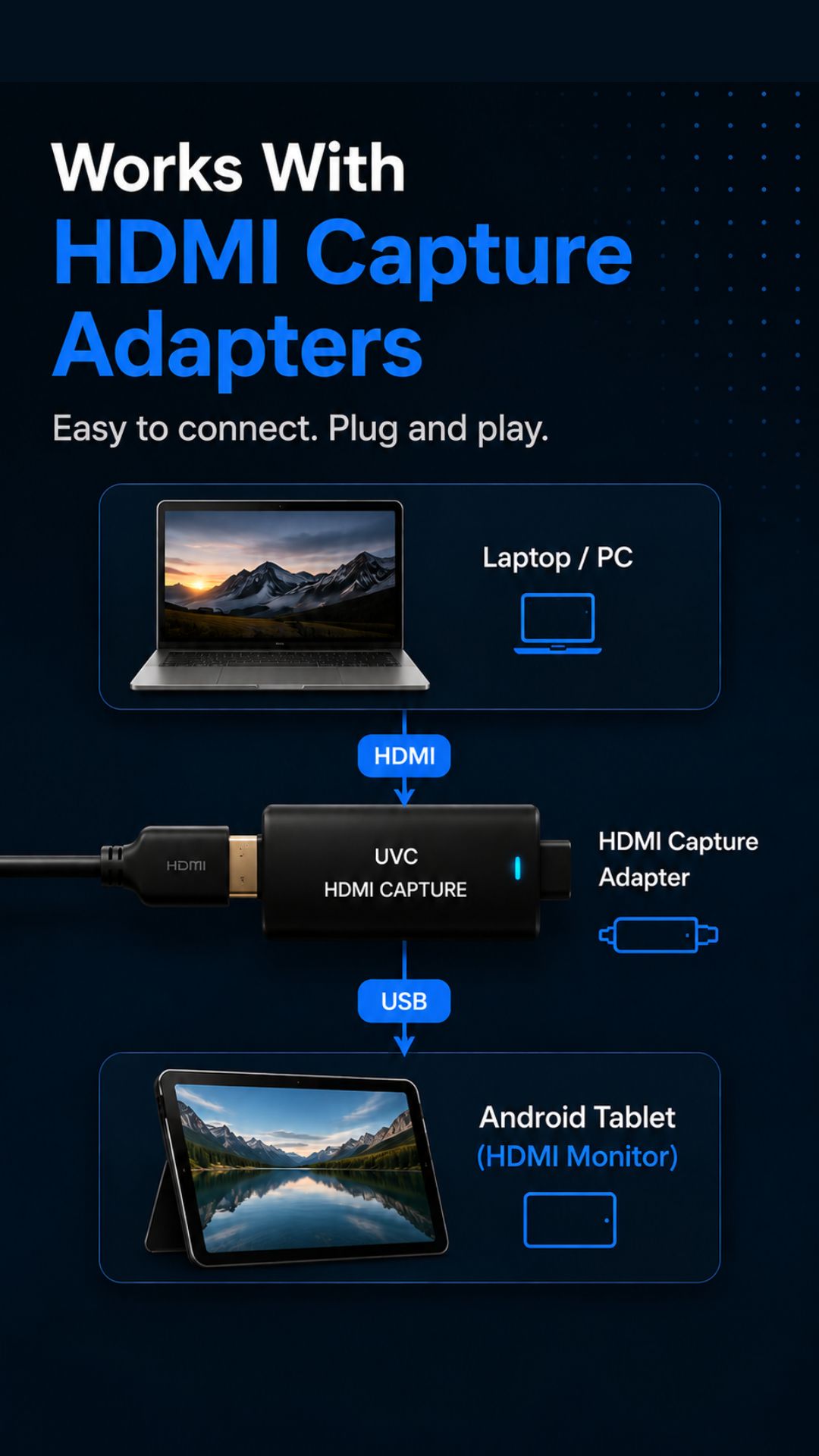
- A Compatible USB UVC/UAC HDMI Capture Adapter: Almost all modern USB-C video capture cards support both video (UVC) and audio (UAC) over the same USB connection. If you need a recommendation with pass-through charging, check our tested hardware guide: 👉 What UVC Video Capture Adapter Did We Use for HDMI Monitor?
- Any Supported Android Tablet: Any modern Android tablet with USB OTG support (such as Samsung Galaxy Tab series, Lenovo Tab series, etc.).
- HDMI Monitor (Version 1.4.0 or Newer): Available as a free download or update on Google Play.
How to Get Started in 4 Simple Steps
Getting started with audio monitoring takes less than 60 seconds:
- Update to Version 1.4+: Download or update HDMI Monitor from Google Play.
- Connect Hardware: Plug your HDMI source (Nintendo Switch, camera, laptop, mini PC) into your capture card via an HDMI cable, then plug the capture card’s USB-C connector into your tablet.
- Set Source Audio to HDMI: On your source device, verify that its sound output is set to HDMI.
- Launch & Tap Start: Open HDMI Monitor, tap Scan Device, and tap Start. When prompted, grant USB and microphone permissions (Android routes USB capture audio as microphone input).
Once started, audio begins streaming automatically in sync with your fullscreen video. When you finish your session, simply tap Safe Eject to release both video and audio hardware cleanly before unplugging.
Put Your Hardware to Work
Our goal with HDMI Monitor has always been to maximize the utility of the devices you already carry. By adding real-time audio support in version 1.4.0, your tablet becomes an even more capable companion for portable gaming, content creation, travel, and mobile productivity.
Update to version 1.4.0 on Google Play today and experience the difference for yourself.
- Explore HDMI Monitor Features & Screenshots
- Read Our UVC Capture Card Hardware Guide
- Download HDMI Monitor on Google Play
Frequently asked questions
Does HDMI Monitor audio support work with any UVC capture adapter?
Audio support works with standard USB Video Class (UVC) and USB Audio Class (UAC) capture adapters that support audio streaming. Most budget USB-C HDMI capture cards ($15–$25) support standard stereo audio input.
Why does the app ask for Microphone permission?
Android classifies audio coming from external USB capture adapters as microphone input. Granting microphone permission allows Android to receive the digital audio stream via AudioRecord and route it to your tablet speakers or headphones.
What audio settings do I need on my source device?
Ensure your source device (laptop, Nintendo Switch, camera, mini PC) has its sound output set to HDMI so the audio signal is sent through the HDMI cable.
Can I listen through Bluetooth headphones or tablet speakers?
Yes. HDMI Monitor routes audio through Android’s system audio output, allowing you to use built-in tablet speakers, 3.5mm wired headphones, USB-C headphones, or paired Bluetooth earbuds.
How do I control or mute the audio?
You can adjust volume directly using your tablet’s physical volume buttons or use the in-app fullscreen audio controls to quickly toggle mute or unmute.